Account Settings
Access and manage your account settings from the Settings section of the mobile app.
Accessing Settings
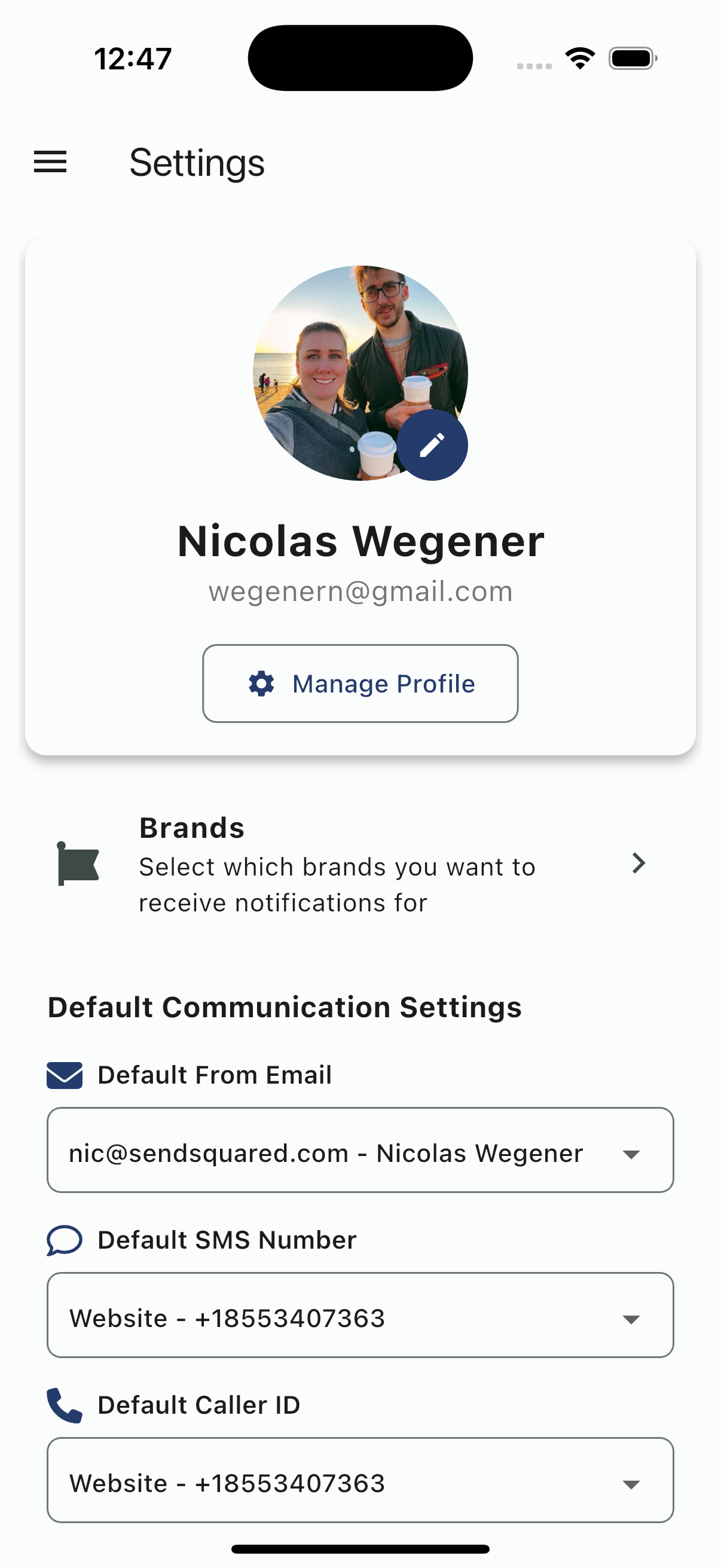
Tap Settings in the navigation drawer to access your account and app settings.
Profile Management
Your profile card displays at the top of settings:
- Profile photo (tap the camera icon to change)
- Name and email
- Manage Profile button to edit details
Edit Profile Information
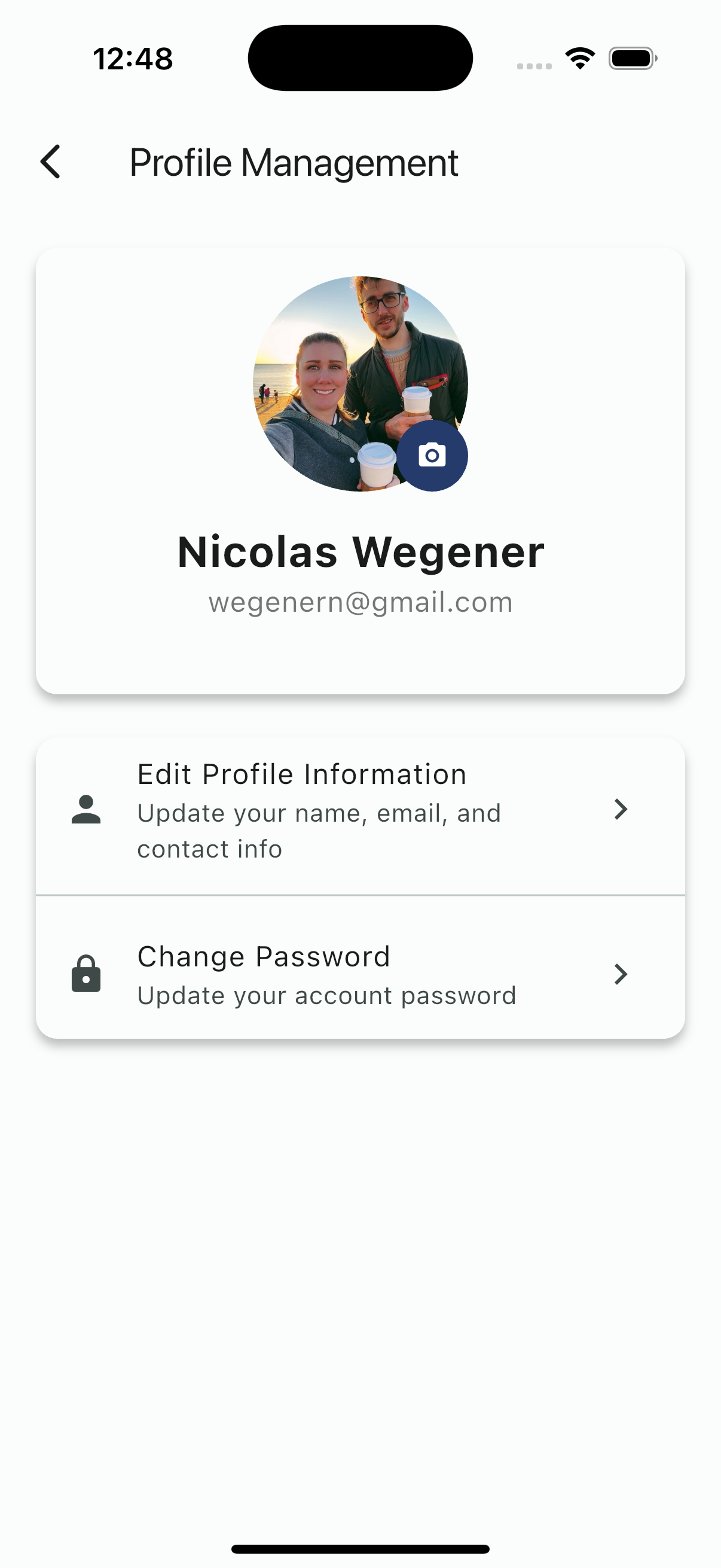
Tap Edit Profile Information to update:
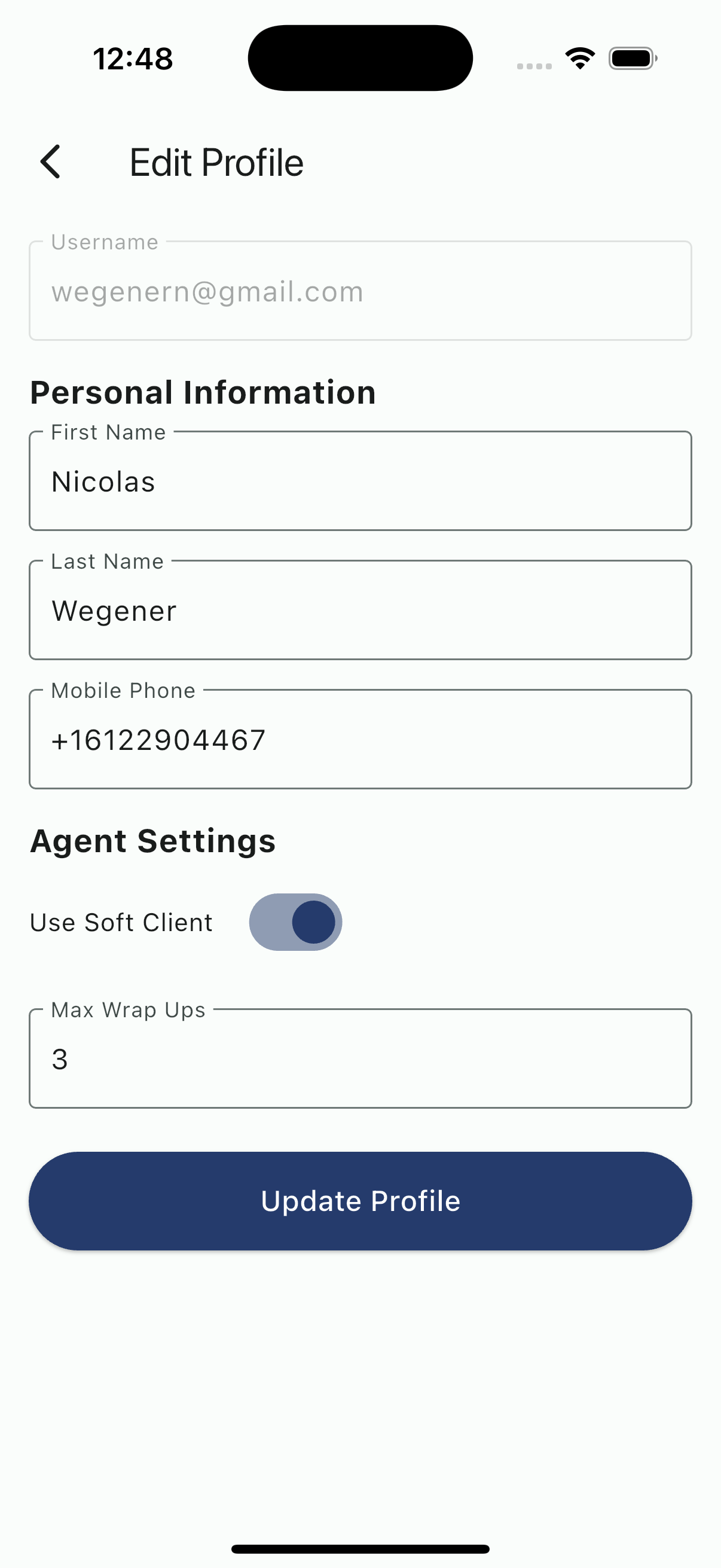
- Username (read-only)
- First Name
- Last Name
- Mobile Phone
- Agent Settings (if you're an agent)
- Use Soft Client toggle
- Max Wrap Ups setting
Tap Update Profile to save changes.
Change Password
To update your password:
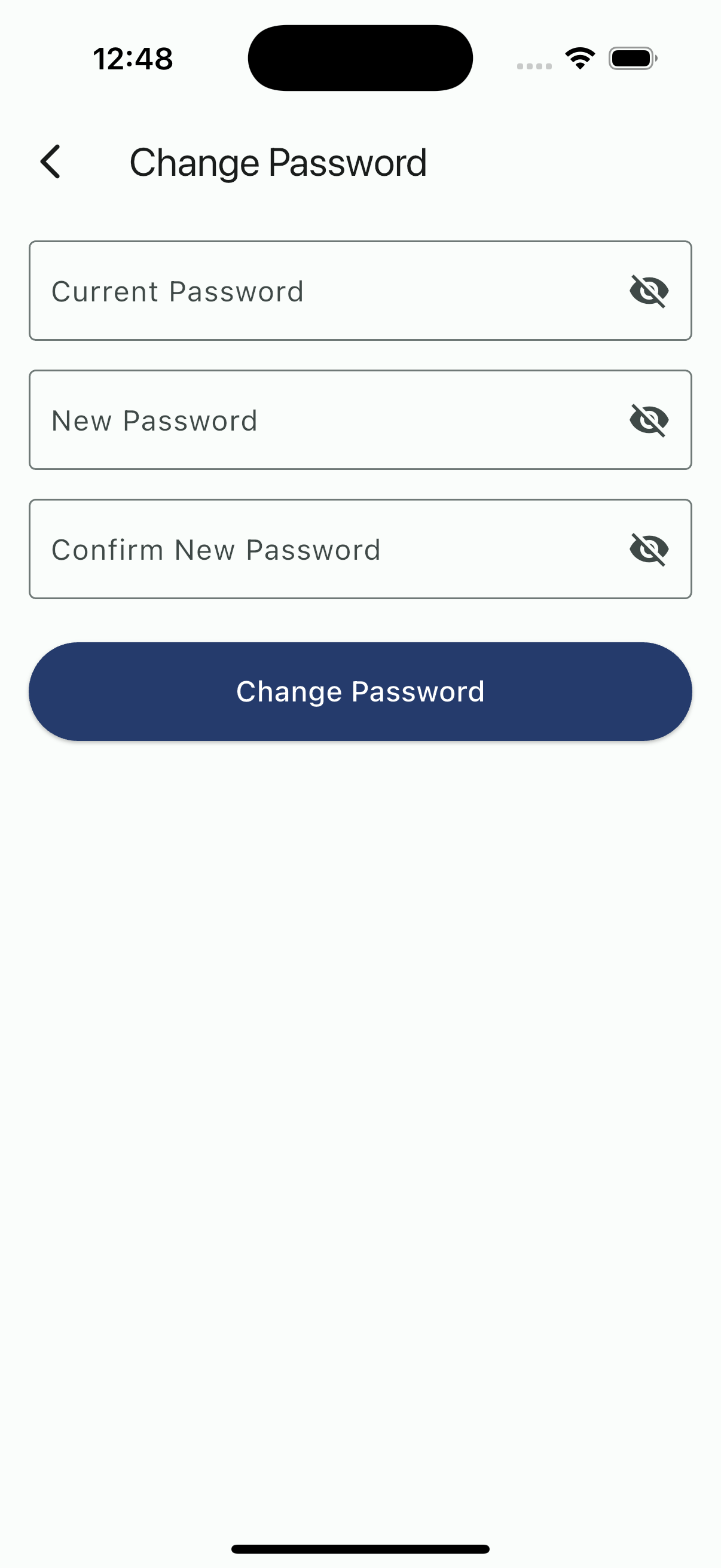
- Tap Change Password
- Enter your Current Password
- Enter your New Password
- Confirm New Password
- Tap Change Password
Brands
If your organization uses multiple brands, configure which brands you receive notifications for:
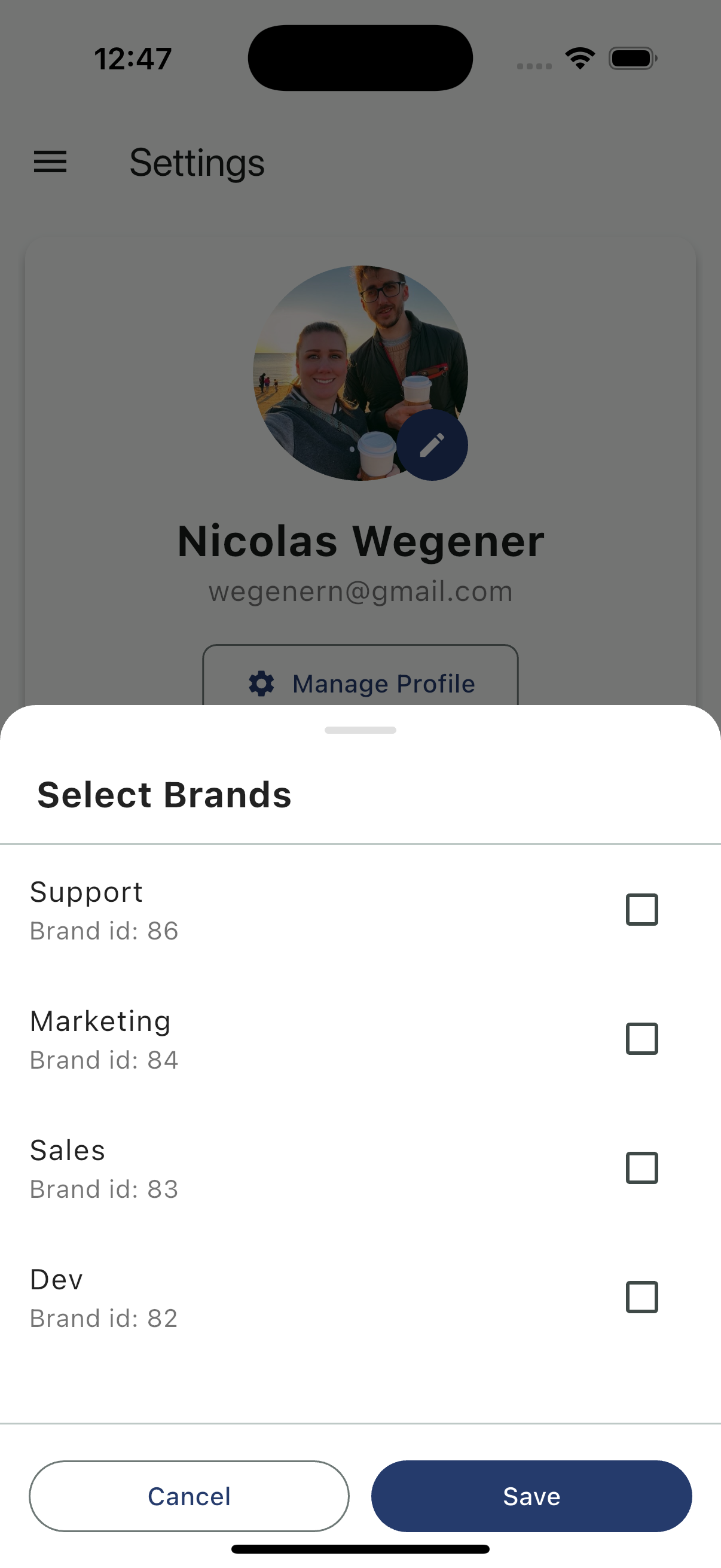
- Tap Brands
- Select the brands you want to receive notifications for
- Tap Save
Default Communication Settings
Configure your default sending identities:
- Default From Email - Select which email address to send from
- Default SMS Number - Select which phone number to send texts from
- Default Caller ID - Select which number displays when making calls
Call Settings
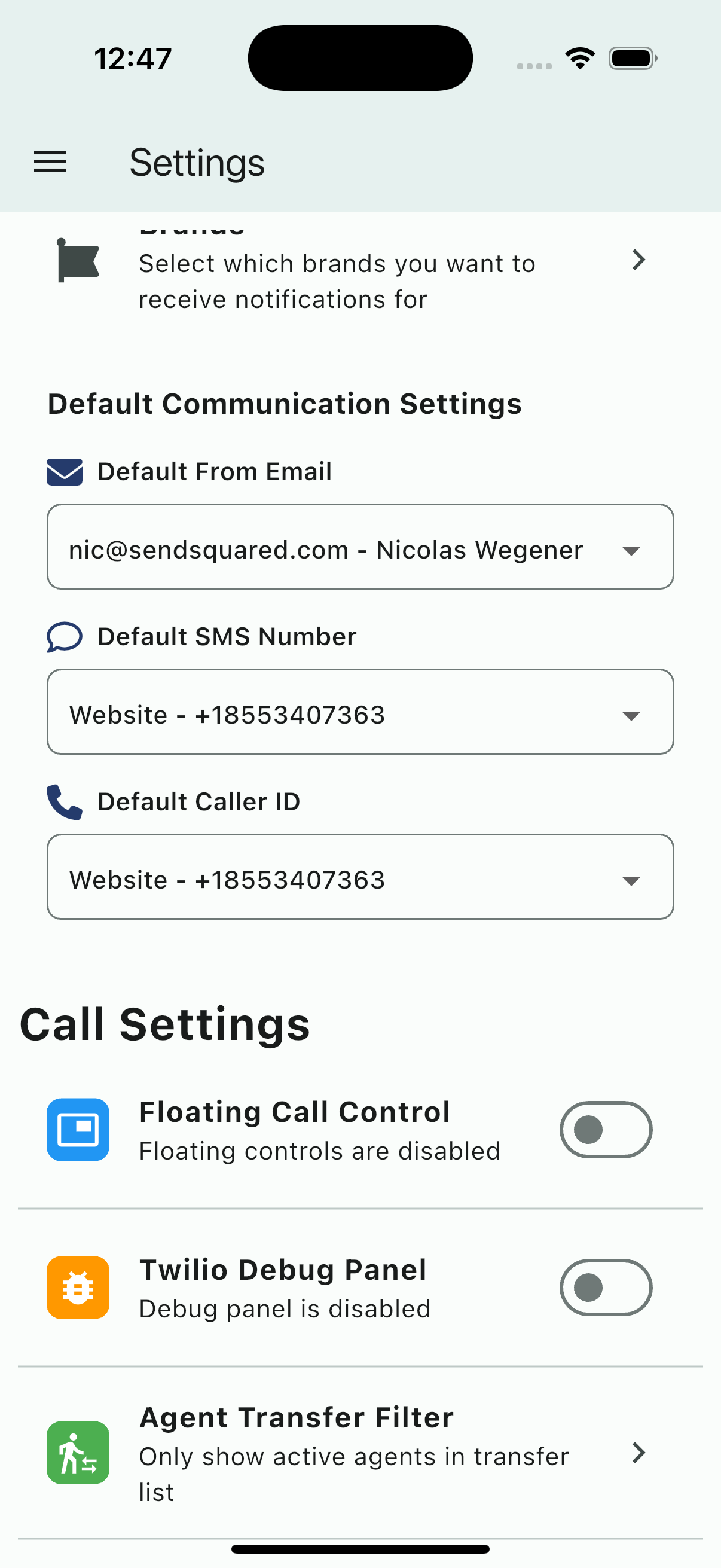
Configure call-related preferences:
- Floating Call Control - Enable floating call controls during active calls
- Twilio Debug Panel - Enable for troubleshooting call issues
- Agent Transfer Filter - Only show active agents in transfer list
Conversations Settings
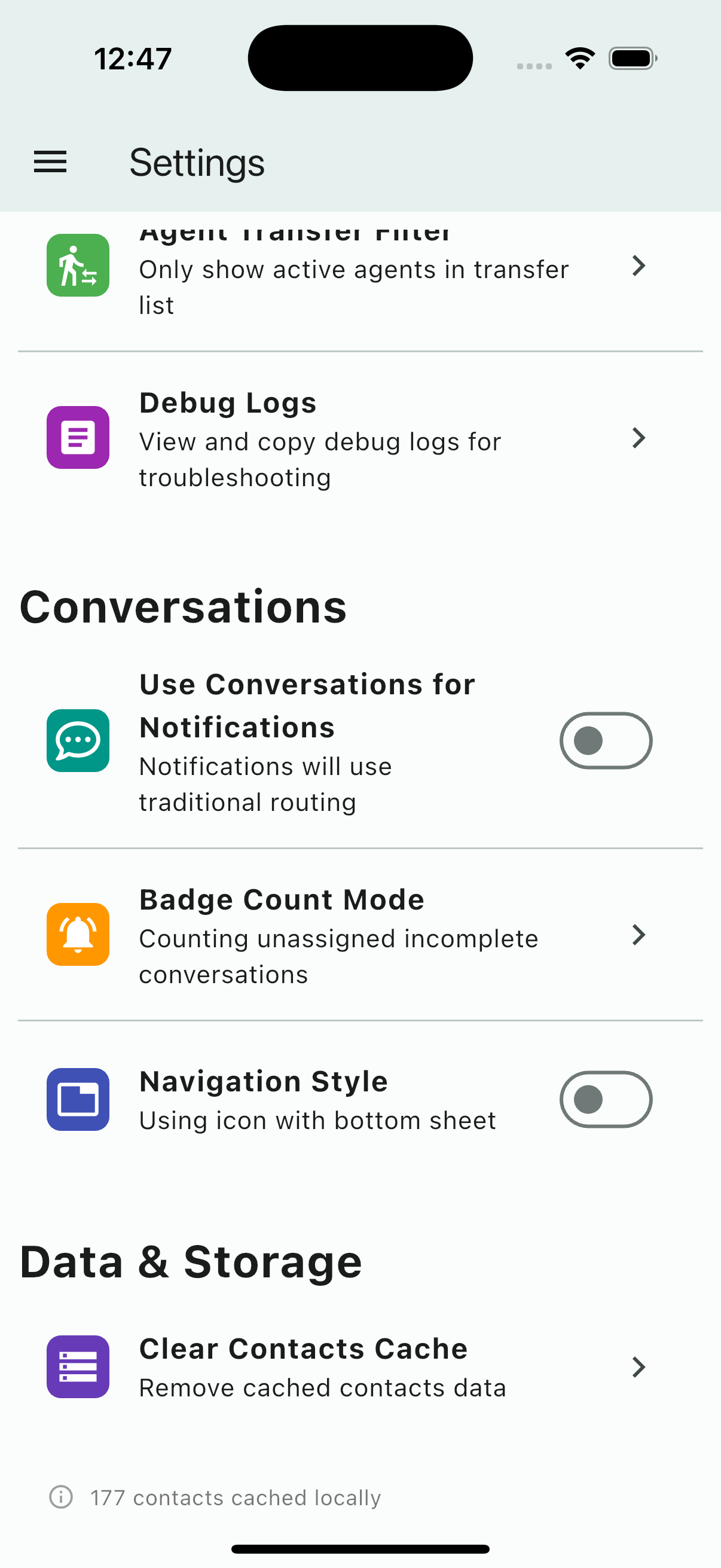
- Use Conversations for Notifications - Toggle between conversations-based or traditional notification routing
- Badge Count Mode - Configure how badge counts are calculated (unassigned incomplete conversations)
- Navigation Style - Choose between icon with bottom sheet or other navigation styles
Data & Storage
Manage local data:
- Clear Contacts Cache - Remove cached contacts data to free up storage
- View how many contacts are cached locally
Debug Logs
Access debug logs for troubleshooting:
- Tap Debug Logs
- View and copy logs for support tickets
Signing Out
To log out of the mobile app:
- Open the navigation drawer
- Tap Logout at the bottom
- Confirm when prompted
You'll need to enter your credentials to sign back in.