Mobile Inbox
The mobile inbox gives you access to all guest communications across SMS, email, and WhatsApp channels. Respond to messages, assign conversations, and stay on top of guest inquiries from anywhere.
Accessing the Inbox
Tap the Messages icon in the bottom navigation bar to view your inbox.
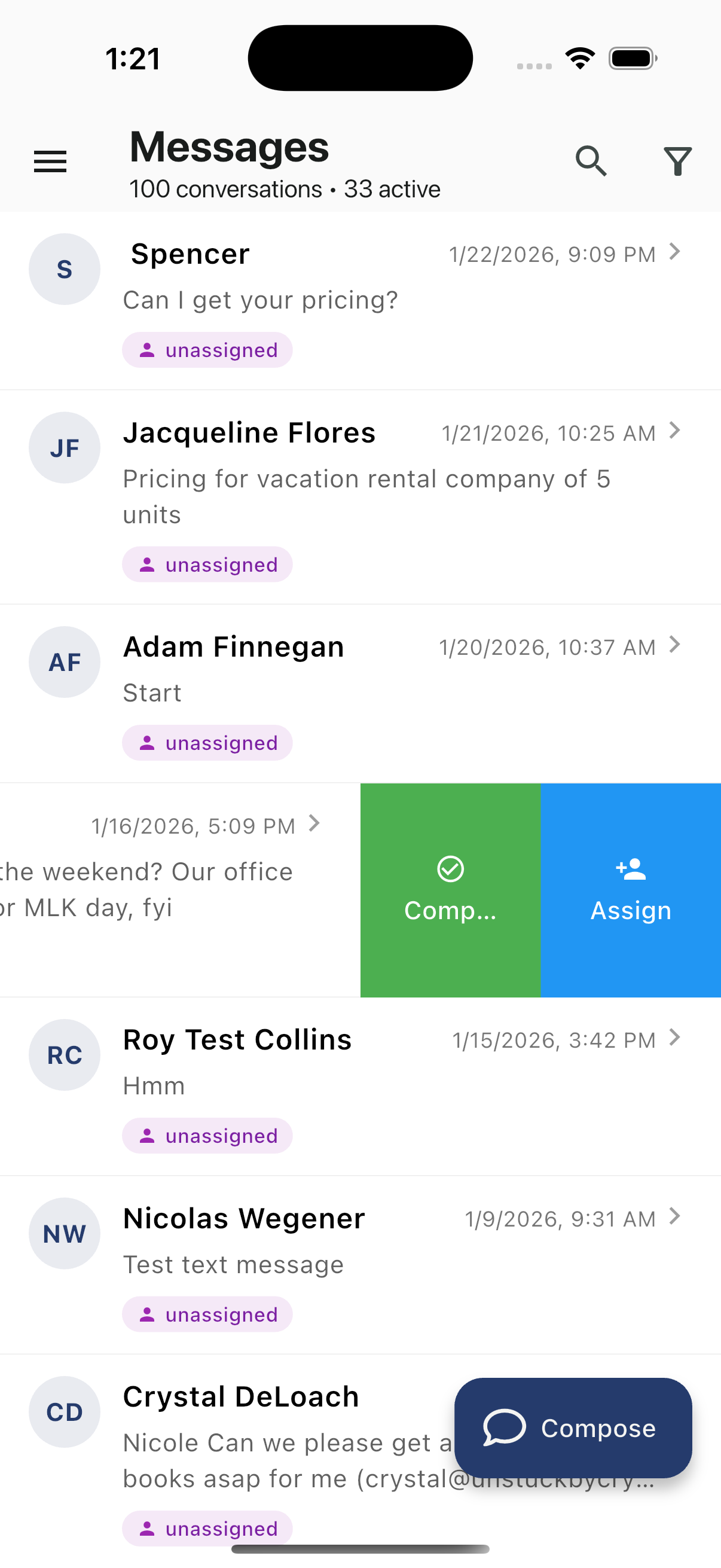
Messages List
The inbox header shows the total conversation count and active count (e.g., "100 conversations · 33 active").
Each conversation in the list displays:
| Element | Description |
|---|---|
| Avatar | Contact initials with colored background |
| Contact name | Name of the guest or contact |
| Message preview | First line of the latest message |
| Timestamp | Date and time of the last message |
| Assignment badge | Assigned agent or unassigned tag |
Swipe Actions
Swipe left on any conversation to reveal quick actions:
- Complete (green) - Mark the conversation as resolved
- Assign (blue) - Assign to yourself or a team member
Compose Button
Tap the Compose button in the bottom-right corner to create a new message.
Channel Tabs
The inbox is organized by communication channel:
- SMS - Text message conversations
- Email - Email threads
- WhatsApp - WhatsApp Business messages
Tap a channel tab to filter conversations by that type.
Viewing a Conversation
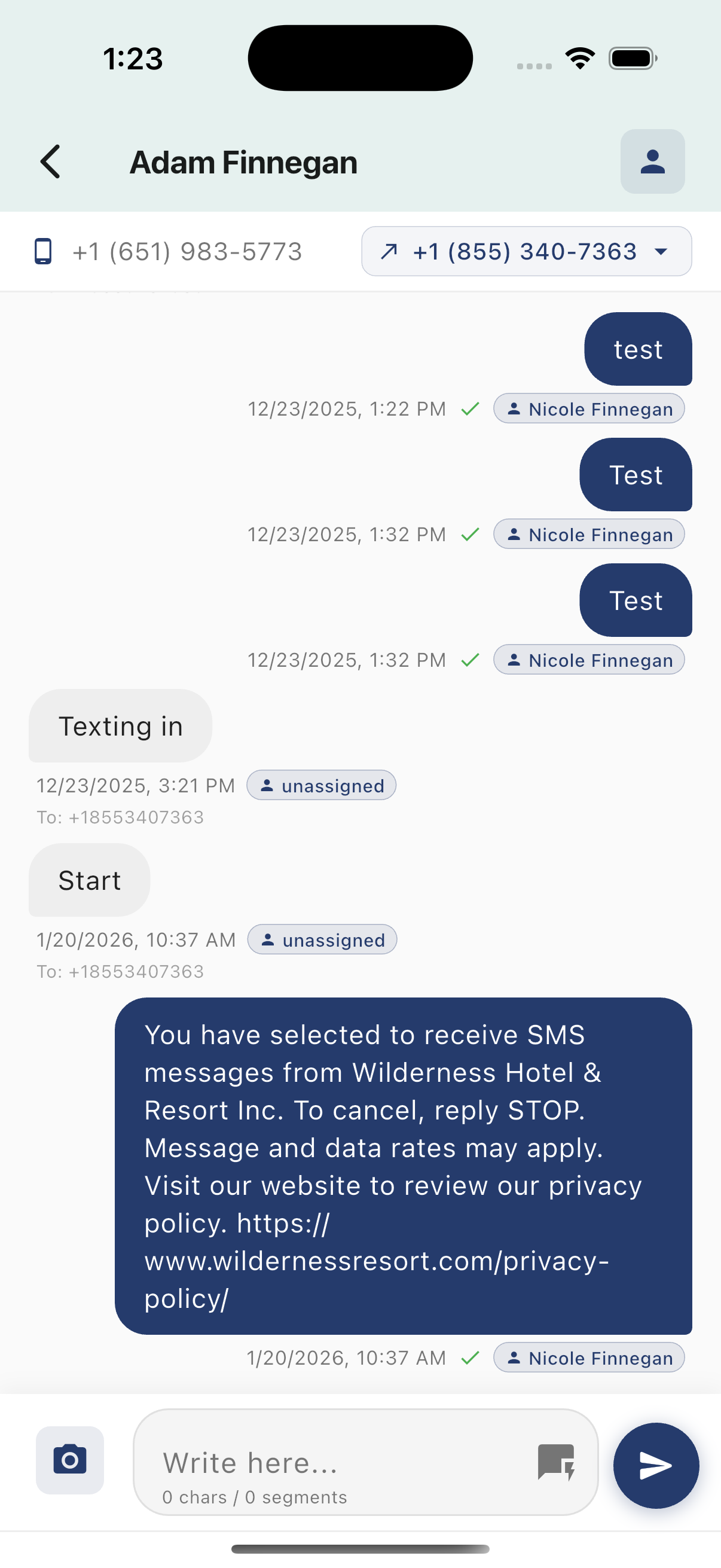
Tap a conversation to open the full message thread. The conversation view shows:
| Element | Description |
|---|---|
| Contact name | Displayed in the header with a back button |
| Contact phone | The contact's phone number |
| From number | The sending number (selectable via dropdown) |
| Inbound messages | Left-aligned with light background |
| Outbound messages | Right-aligned with dark background |
| Timestamps | Date and time for each message |
| Agent attribution | Which team member sent each message |
| Delivery checkmarks | Green checkmarks confirm delivery |
| Contact icon | Tap to open the contact profile |
Message Input
At the bottom of the conversation:
- Camera icon - Attach a photo or media
- Text field - Type your message ("Write here...")
- Quick reply icon - Insert a pre-written response
- Send button - Send the message
- Character counter - Shows chars and segment count (e.g., "0 chars / 0 segments")
Composing a New Message
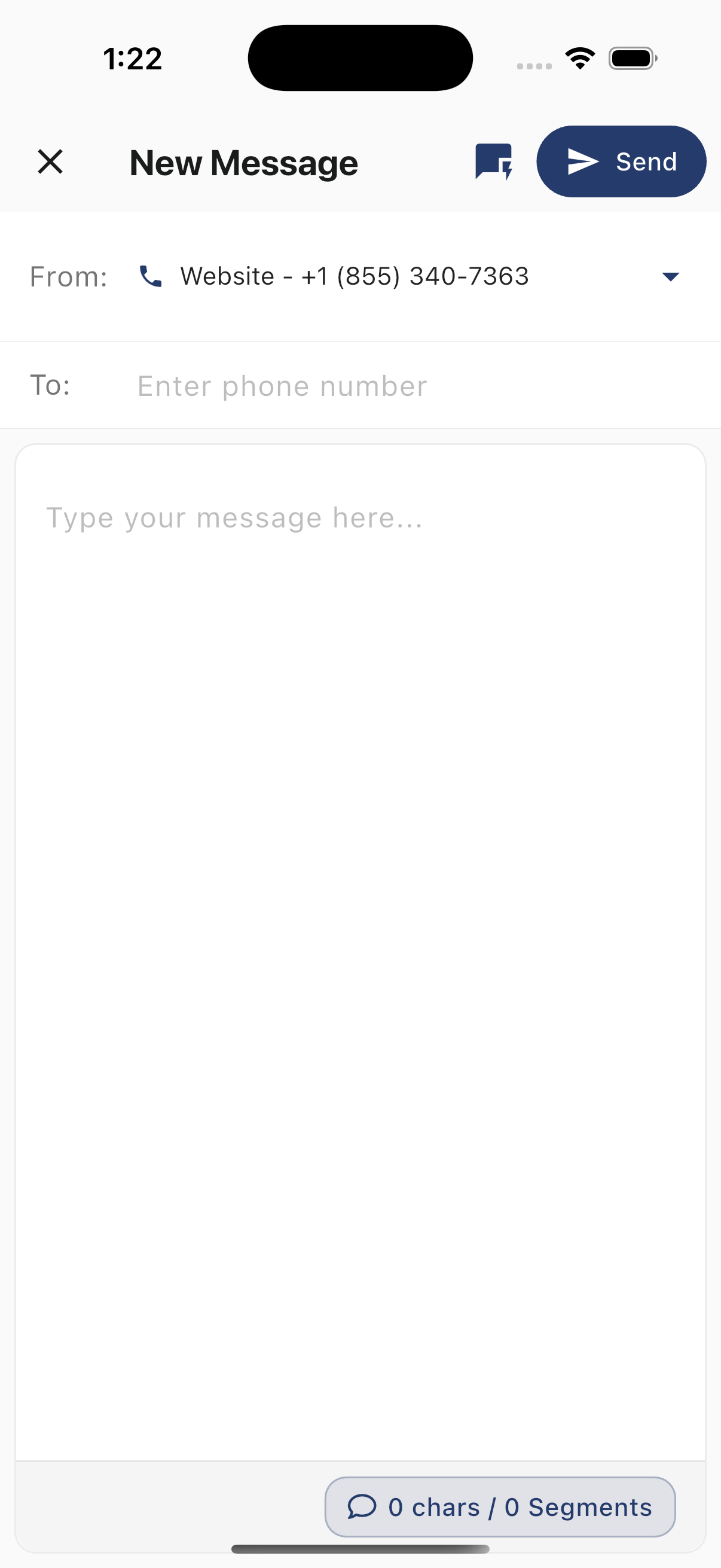
Tap Compose to open the New Message screen:
- From - Select the sending number from the dropdown (e.g., "Website - +1 (855) 340-7363")
- To - Enter the recipient's phone number
- Message body - Type your message in the text area
- Character/Segment counter - Displays at the bottom (e.g., "0 chars / 0 Segments")
Header Actions
- X - Close without sending
- Quick reply icon - Open Quick Replies
- Send - Send the message
Using Quick Replies
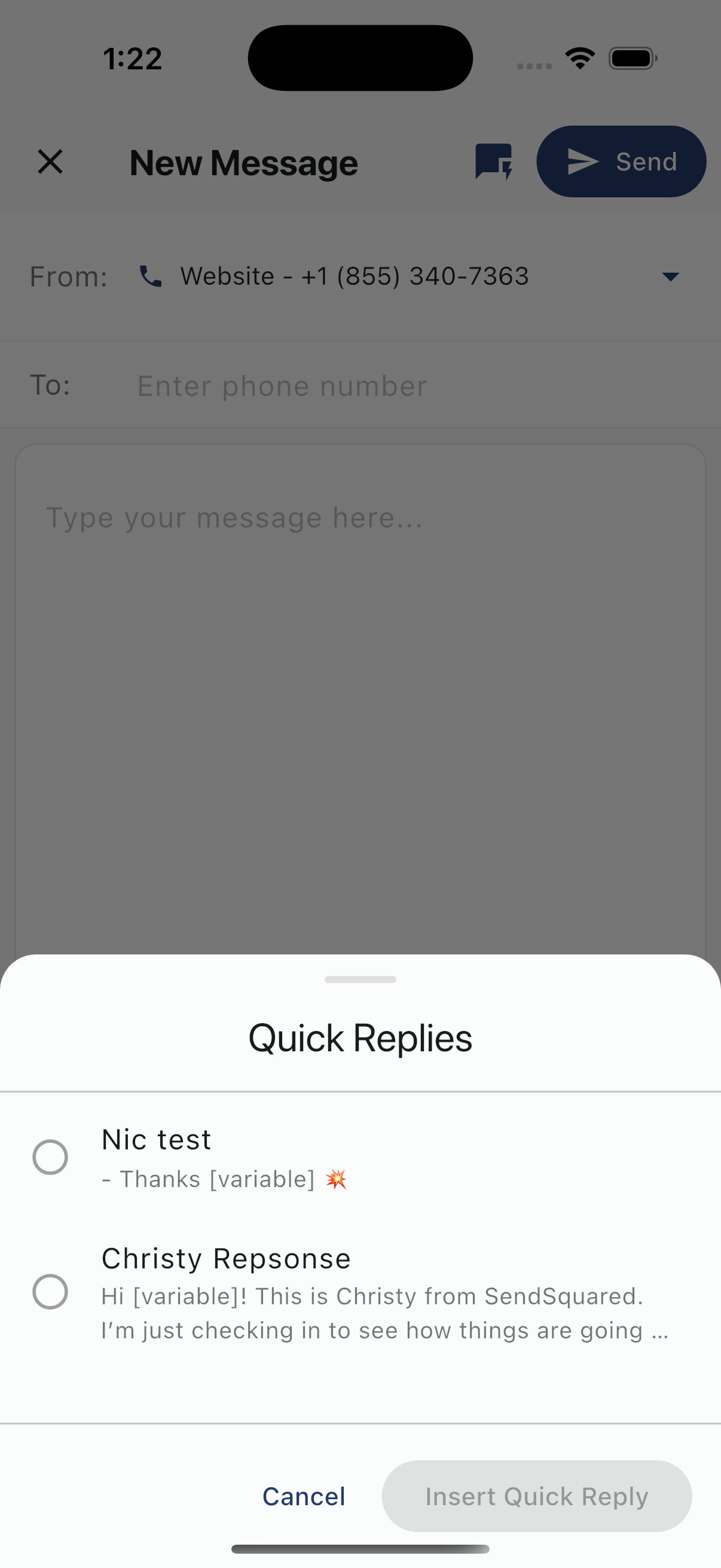
Tap the quick reply icon to open the Quick Replies sheet:
- Browse available templates
- Each template shows its name and a preview of the message text
- Templates can include
[variable]placeholders that get filled in automatically - Select a template and tap Insert Quick Reply
- Tap Cancel to close without inserting
See Content Blocks for more on managing quick reply templates.
Assigning Conversations
To assign a conversation to yourself or a team member:
- Swipe left on a conversation and tap Assign, or
- Open the conversation and tap the assignment icon
- Select a team member from the list
Marking Complete
When a conversation is resolved:
- Swipe left on a conversation and tap Complete, or
- Open the conversation and tap Mark Complete
- The conversation moves to the completed view
Filters
Use filters to find specific conversations:
- All - All conversations
- Unread - Conversations with unread messages
- Assigned to me - Your assigned conversations
- Unassigned - Conversations without an owner
- Completed - Resolved conversations
Related Resources
- Content Blocks - Setting up quick replies
- Notifications - Configure message alerts