Pipeline
The Pipeline provides a kanban-style board view of your leads, organized by status columns. Swipe horizontally between stages, search leads, filter by agent, and switch between pipeline types — all from the mobile app.
Accessing the Pipeline
Tap the hamburger menu in the top-left corner and select Sales Pipeline from the navigation drawer.
Board View
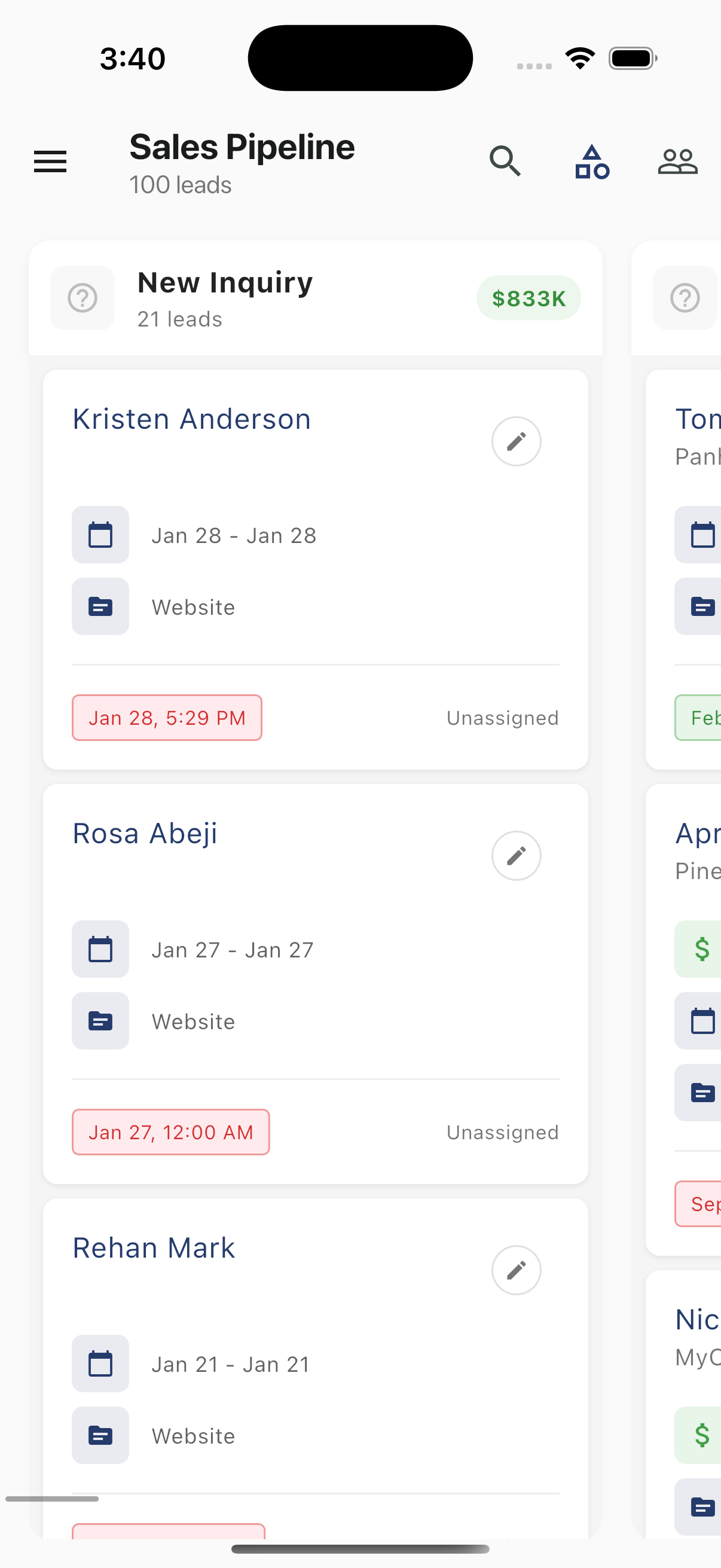
The pipeline header displays the pipeline name (e.g., "Sales Pipeline") and total lead count (e.g., "100 leads").
Leads are organized into columns by status. Each column header shows:
| Element | Description |
|---|---|
| Status icon | Visual indicator for the pipeline stage |
| Status name | The stage label (e.g., "New Inquiry") |
| Lead count | Number of leads in that column |
| Total value | Combined estimated value of leads in the column (e.g., "$833K") |
Swipe horizontally to move between status columns.
Lead Cards
Each lead card within a column displays:
| Element | Description |
|---|---|
| Contact name | The lead's contact name |
| Edit icon | Pencil icon to quickly edit the lead |
| Interest dates | Check-in and check-out date range |
| Source | Where the lead originated (e.g., "Website") |
| Follow-up date | Highlighted in red if a follow-up is due or overdue |
| Assignment | Assigned agent name, or "Unassigned" |
Card Actions
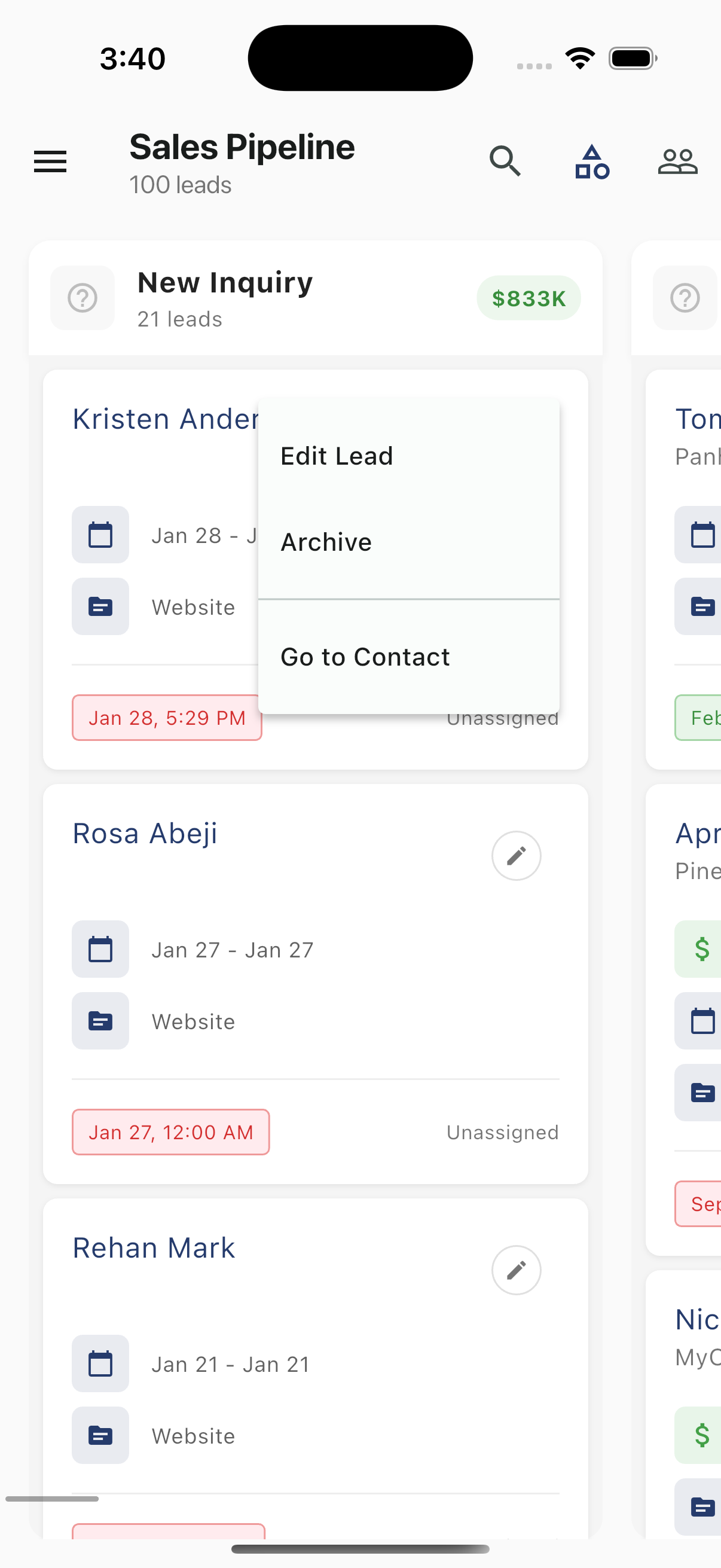
Long-press a lead card to open the context menu:
| Action | Description |
|---|---|
| Edit Lead | Open the lead edit form |
| Archive | Archive the lead |
| Go to Contact | Navigate to the contact's full profile |
Header Actions
The pipeline header provides three tools:
| Icon | Action |
|---|---|
| Search (magnifying glass) | Open the search bar |
| Pipeline type (funnel icon) | Switch between pipeline types |
| Agents (people icon) | Filter leads by assigned agent |
Searching the Pipeline
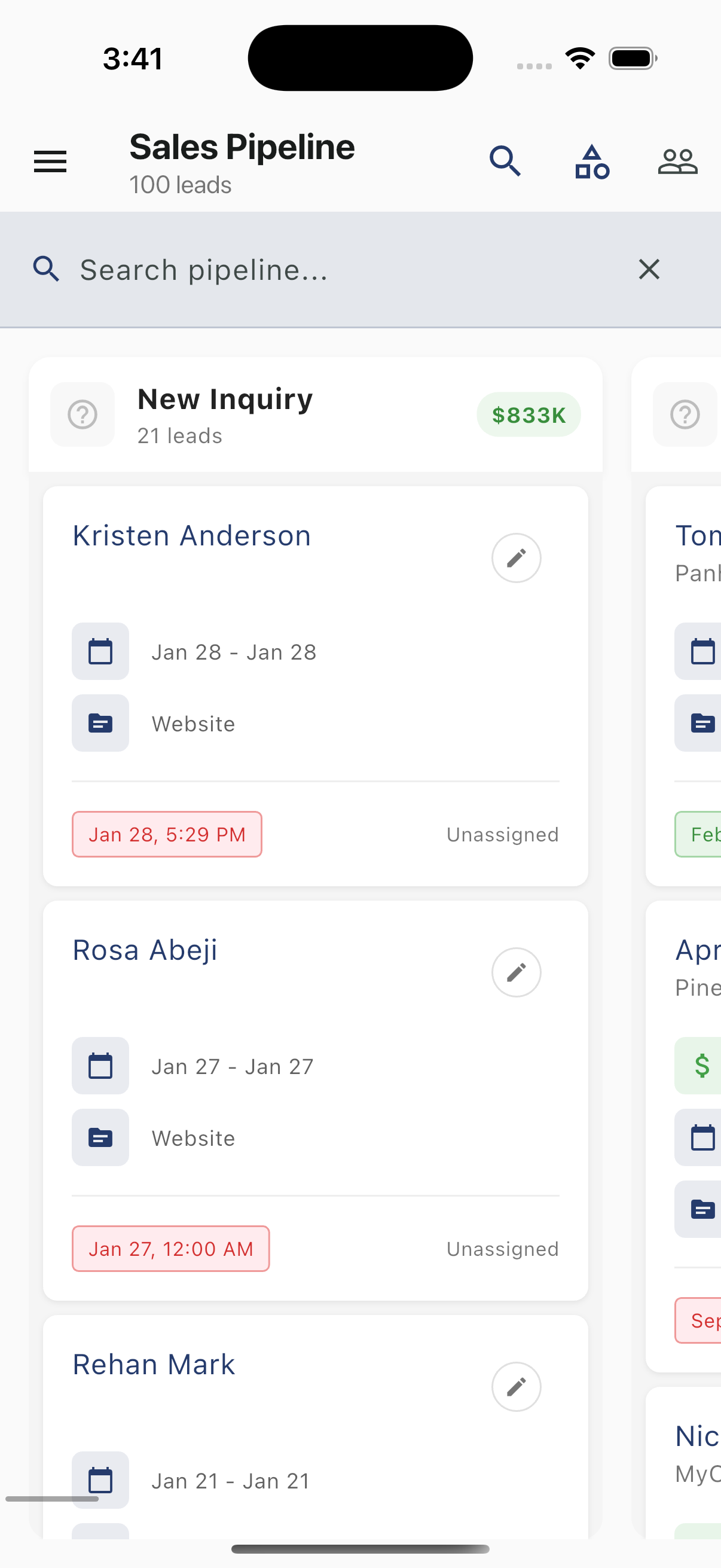
Tap the search icon to open an inline search bar at the top of the board. Type to filter leads across all columns. Tap the X to close the search bar.
Switching Pipeline Types
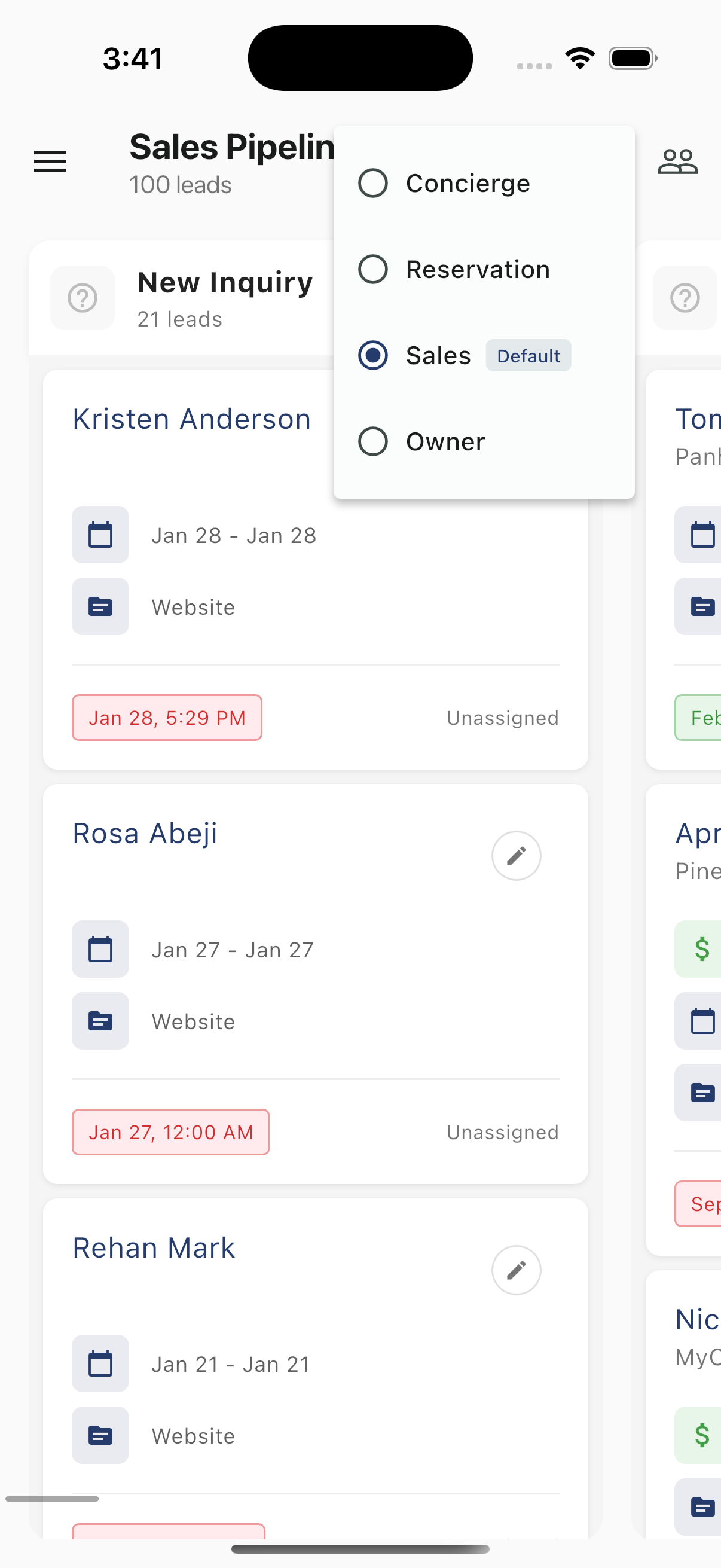
Tap the pipeline type icon to switch between different pipeline types. Available types depend on your organization's configuration:
- Concierge
- Reservation
- Sales (Default)
- Owner
The currently selected pipeline is indicated with a filled radio button. Select a different type to reload the board with that pipeline's leads and statuses.
Filtering by Agent
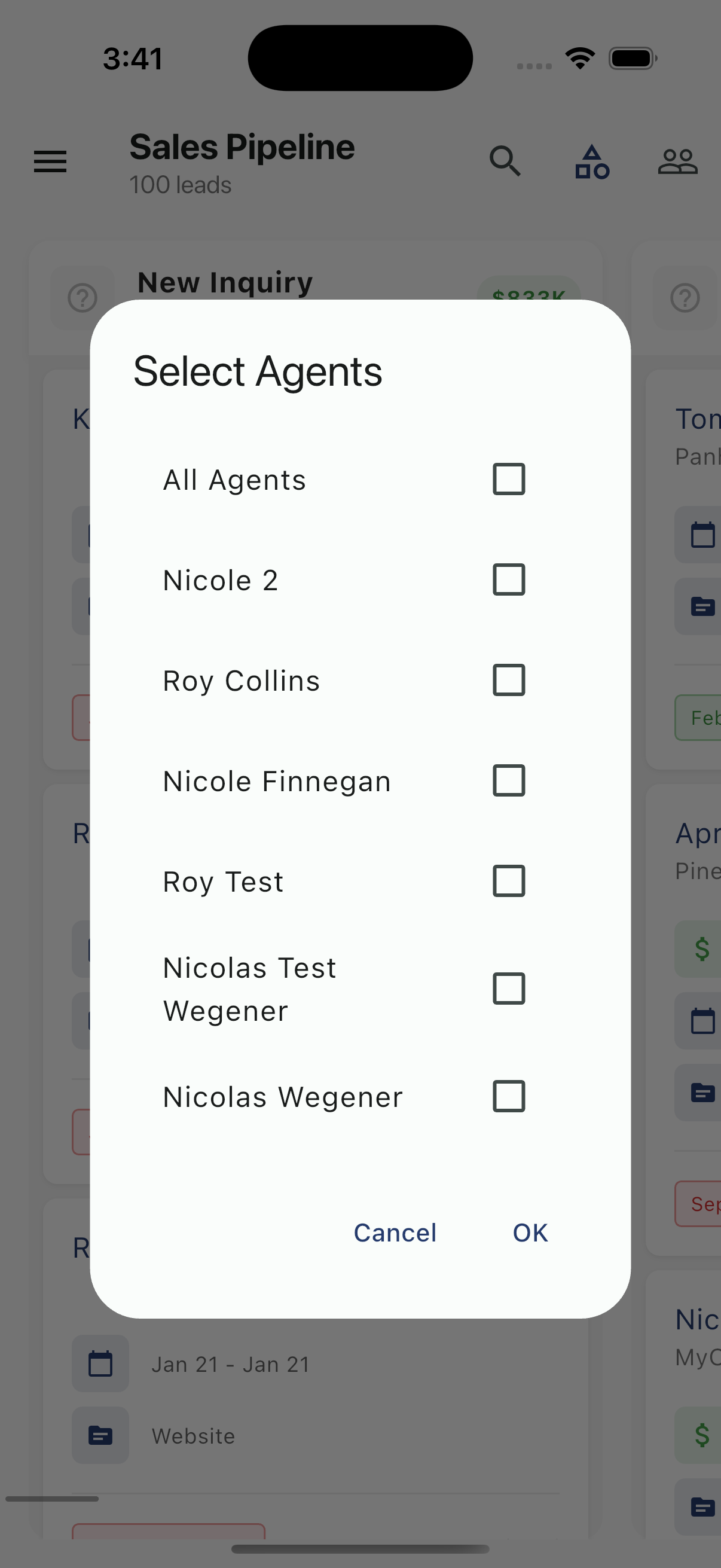
Tap the agents icon to open the Select Agents dialog. Check one or more agents to filter the board to only their assigned leads. Select All Agents to show everything. Tap OK to apply or Cancel to dismiss.
Related Resources
- Leads Overview — List view of all leads
- Lead Statuses — Understanding pipeline stages