Leads
Access your full lead pipeline from the SendSquared mobile app. View lead details, update statuses, assign agents, add notes, and track interest periods on the go.
Accessing Leads
Tap the hamburger menu in the top-left corner and select Leads from the navigation drawer.
Lead List
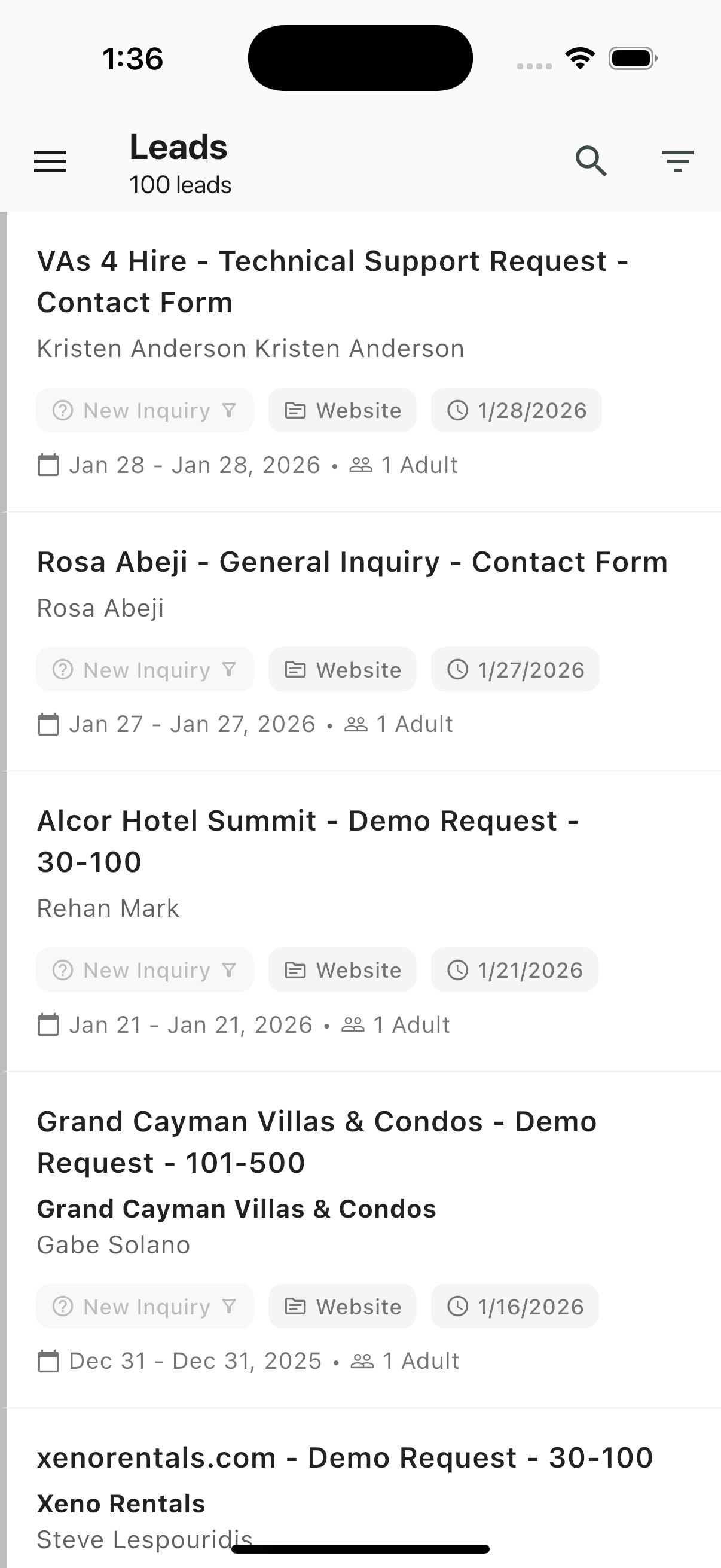
The header displays the total lead count (e.g., "100 leads") along with Search and Filter icons.
Each lead card shows:
| Element | Description |
|---|---|
| Title | Lead subject line (e.g., "VAs 4 Hire - Technical Support Request - Contact Form") |
| Contact name | The contact associated with the lead |
| Status badge | Current pipeline stage (e.g., "New Inquiry") with a funnel icon |
| Source badge | Where the lead originated (e.g., "Website") |
| Date badge | When the lead was created |
| Interest period | Check-in and check-out date range |
| Guest count | Number of adults, children, or pets |
Search & Filter
- Search (magnifying glass icon) — Find leads by name, subject, or source
- Filter (funnel icon) — Narrow leads by status, assigned agent, source, or date range
Swipe Actions
Leads support swipe gestures for quick actions.
Swipe left to reveal:
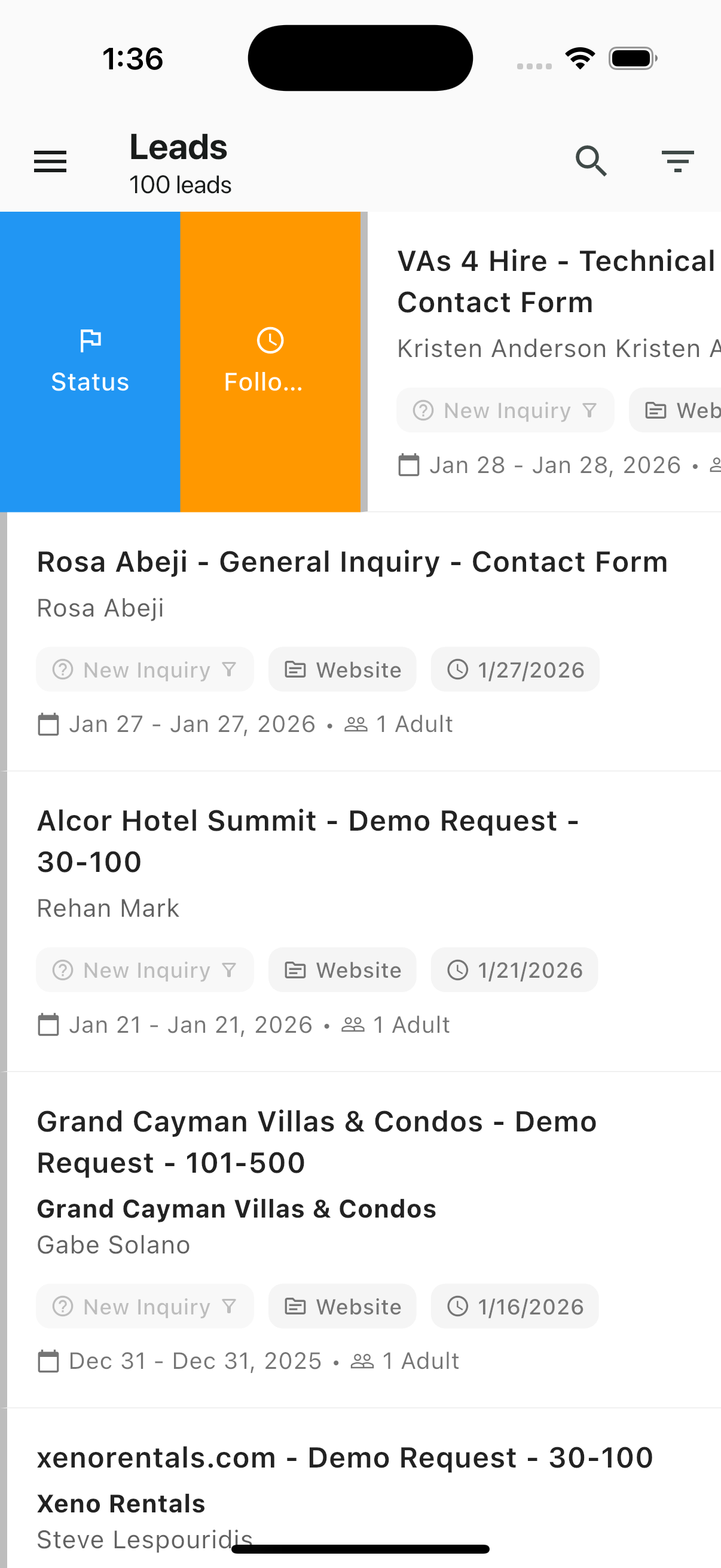
- Status (red) — Change the lead's pipeline status
- Follow-up (orange) — Set or update the follow-up date
Swipe right to reveal:
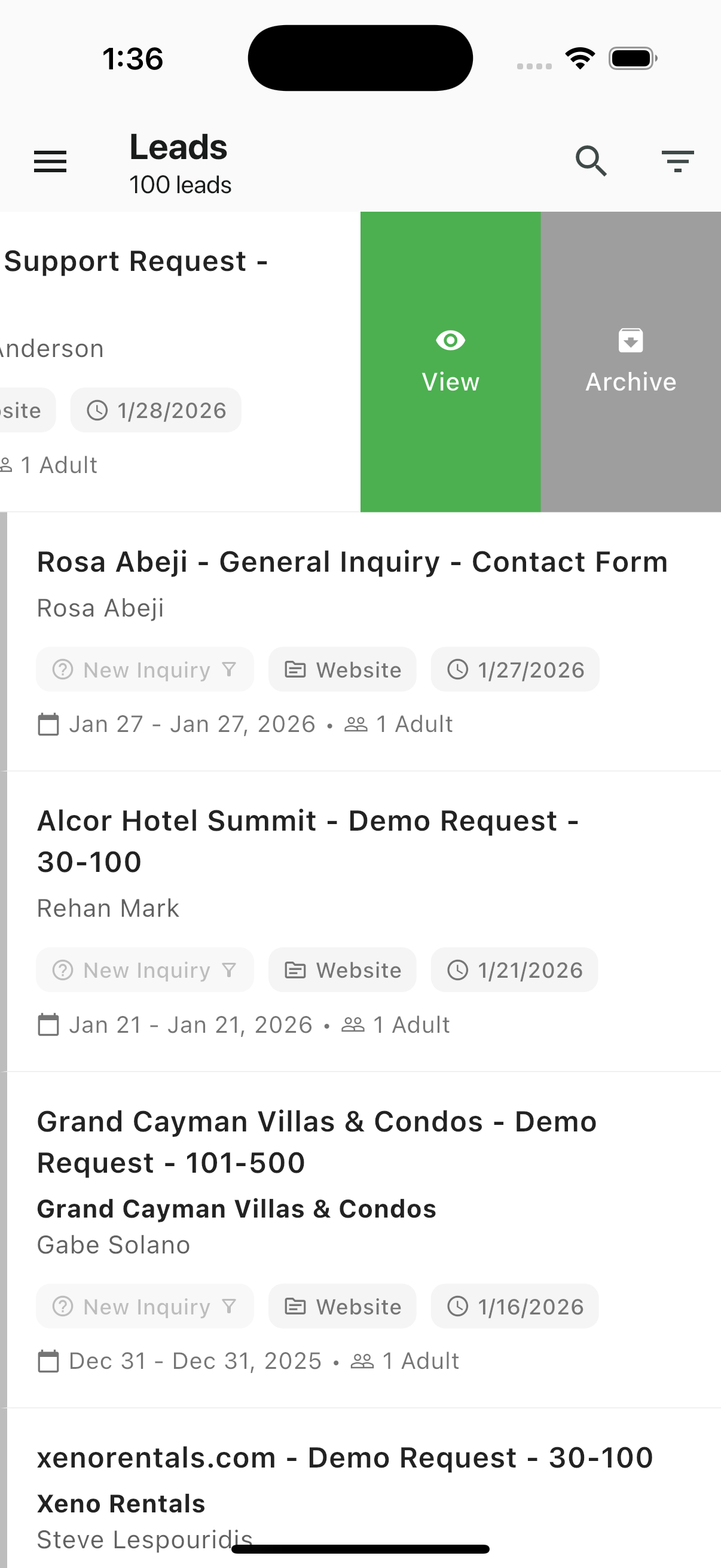
- View (green) — Open the lead detail view
- Archive (gray) — Archive the lead
| Swipe Direction | Action | Color |
|---|---|---|
| Left | Status | Red |
| Left | Follow-up | Orange |
| Right | View | Green |
| Right | Archive | Gray |
Lead Detail View
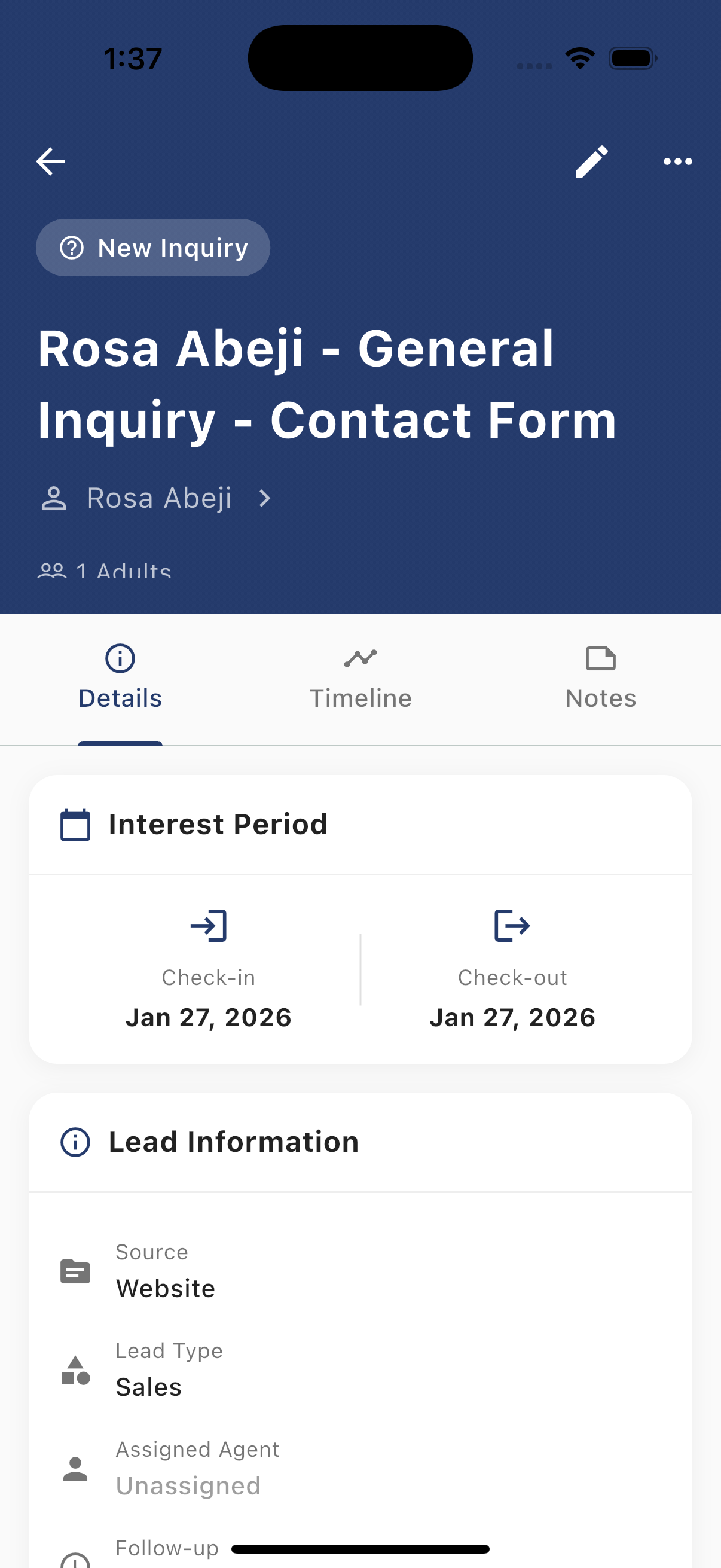
Tap a lead to open its full detail view. The header displays:
- Status badge — Current pipeline stage (e.g., "New Inquiry")
- Lead title — Full subject line
- Contact name — Tappable link to the contact profile
- Guest count — Number of adults
Header Actions
| Icon | Action |
|---|---|
| Edit (pencil icon) | Open the Edit Lead form |
| More (three dots) | Additional actions menu |
Tabs
The lead detail view has three tabs:
Details
The Details tab shows structured lead information:
- Interest Period — Check-in and check-out dates
- Lead Information — Source, lead type, assigned agent, and follow-up date
Timeline
The Timeline tab displays a chronological activity log of all events and status changes associated with the lead.
Notes
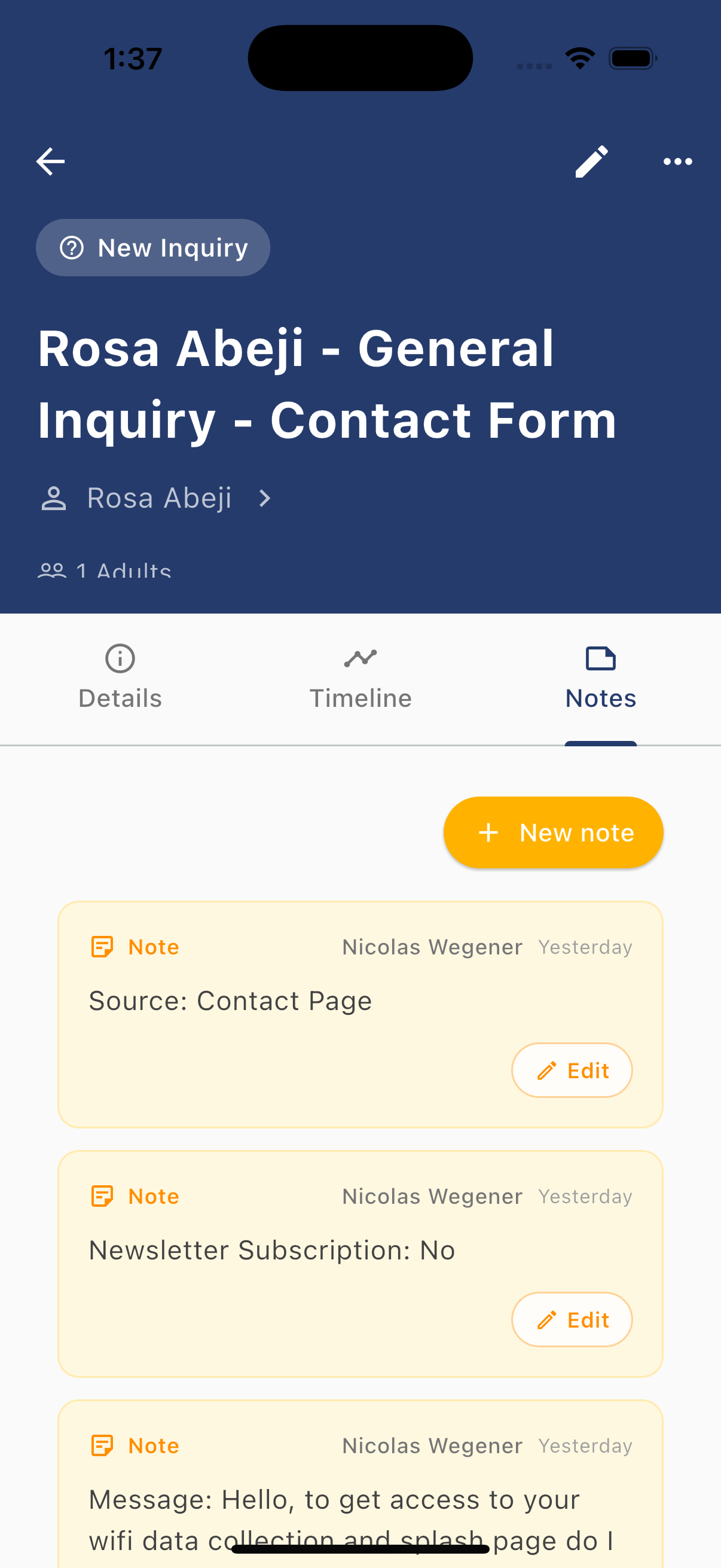
The Notes tab lists all notes attached to the lead. Each note shows:
- Note label — Type indicator
- Author — Who created the note
- Date — When the note was added
- Content — The note text
- Edit button — Tap to edit an existing note
Adding Notes
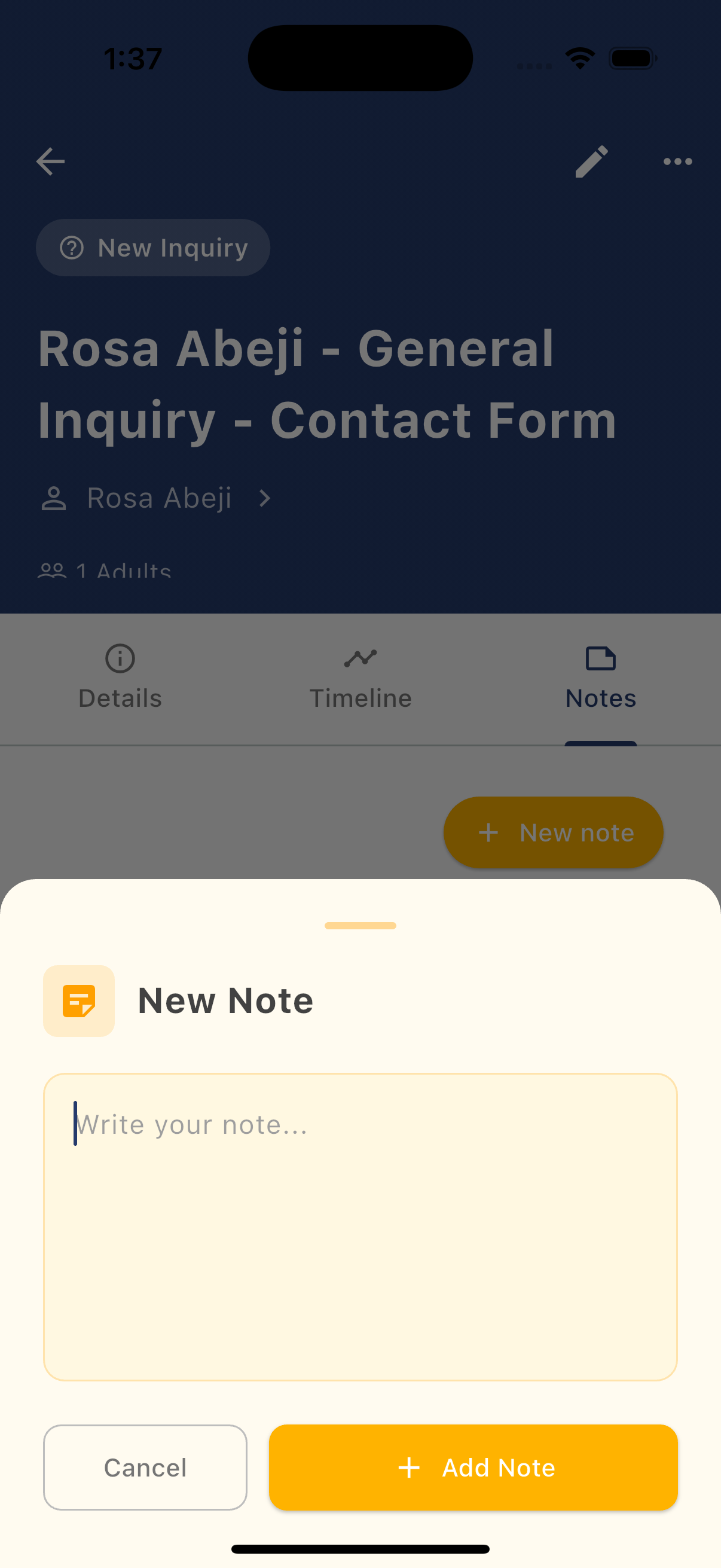
- Open a lead and tap the Notes tab
- Tap + New note
- Enter your note in the text field
- Tap + Add Note to save, or Cancel to discard
Notes are timestamped and attributed to the agent who created them.
Editing a Lead
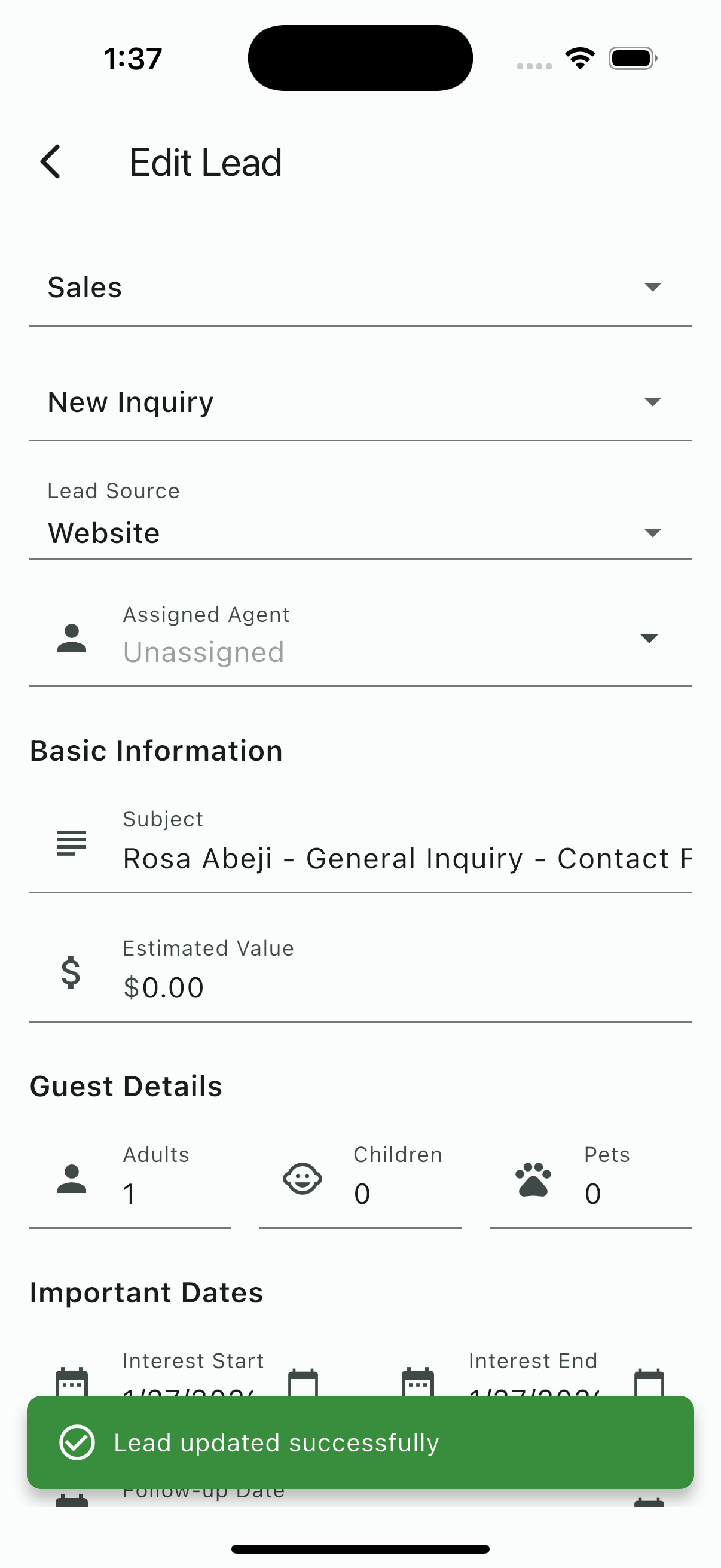
Tap the pencil icon in the lead detail header to open the Edit Lead form. Editable fields include:
| Section | Fields |
|---|---|
| Pipeline | Lead type (e.g., Sales), status (e.g., New Inquiry) |
| Source | Lead source (e.g., Website) |
| Assignment | Assigned agent (dropdown) |
| Basic Information | Subject line, estimated value |
| Guest Details | Adults, children, pets |
| Important Dates | Interest start, interest end, follow-up date |
Changes save automatically. A green confirmation toast ("Lead updated successfully") appears when the update is saved.
Related Resources
- Lead Statuses — Understanding pipeline stages
- Tasks — Creating follow-up tasks for leads
- Contacts — Viewing full contact profiles