Tasks
Keep track of follow-ups and to-dos with the mobile task manager. View your assigned tasks, mark them complete, and create new tasks on the go.
Accessing Tasks
Tap the hamburger menu in the top-left corner and select Task List from the navigation drawer.
Task List
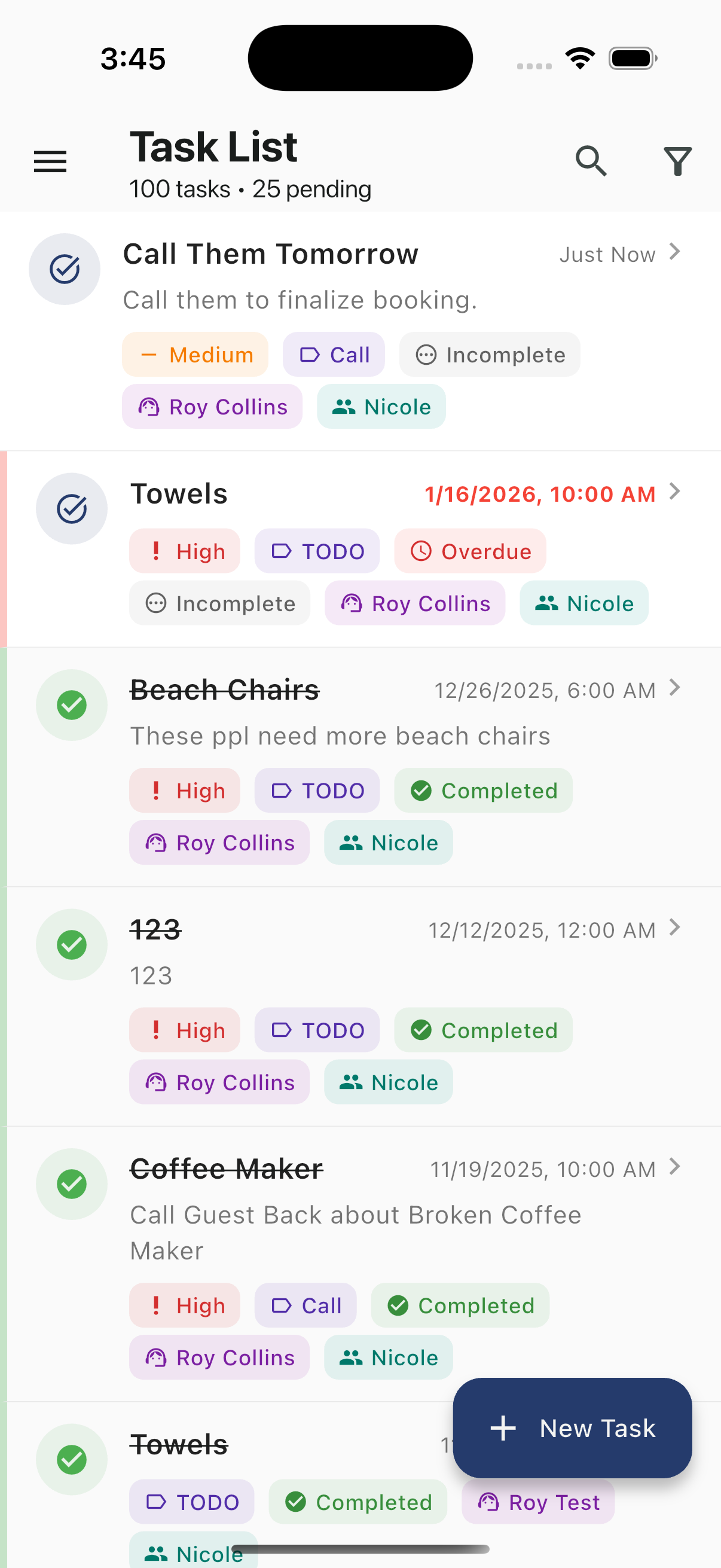
The header displays the total task count and pending count (e.g., "100 tasks · 25 pending") along with Search and Filter icons.
Each task card shows:
| Element | Description |
|---|---|
| Status icon | Checkmark icon — outlined for incomplete, filled green for completed |
| Title | The task name (strikethrough if completed) |
| Due date | Date and time, shown with a chevron to navigate to the task |
| Description | Optional task description text |
| Priority badge | Priority level — High (red), Medium (orange), or Low |
| Type badge | Task type — TODO, Call, Email, etc. |
| Status badge | Overdue (orange), Incomplete (gray), or Completed (green) |
| Created by | The agent who created the task |
| Assigned to | The agent or team the task is assigned to |
Color Indicators
Task cards use a left-edge color bar to indicate status at a glance:
| Color | Meaning |
|---|---|
| Red/Pink | Overdue or incomplete with high priority |
| Green | Completed |
New Task Button
Tap + New Task in the bottom-right corner to create a new task.
Task Detail Card
Tap any task to open the full detail view:
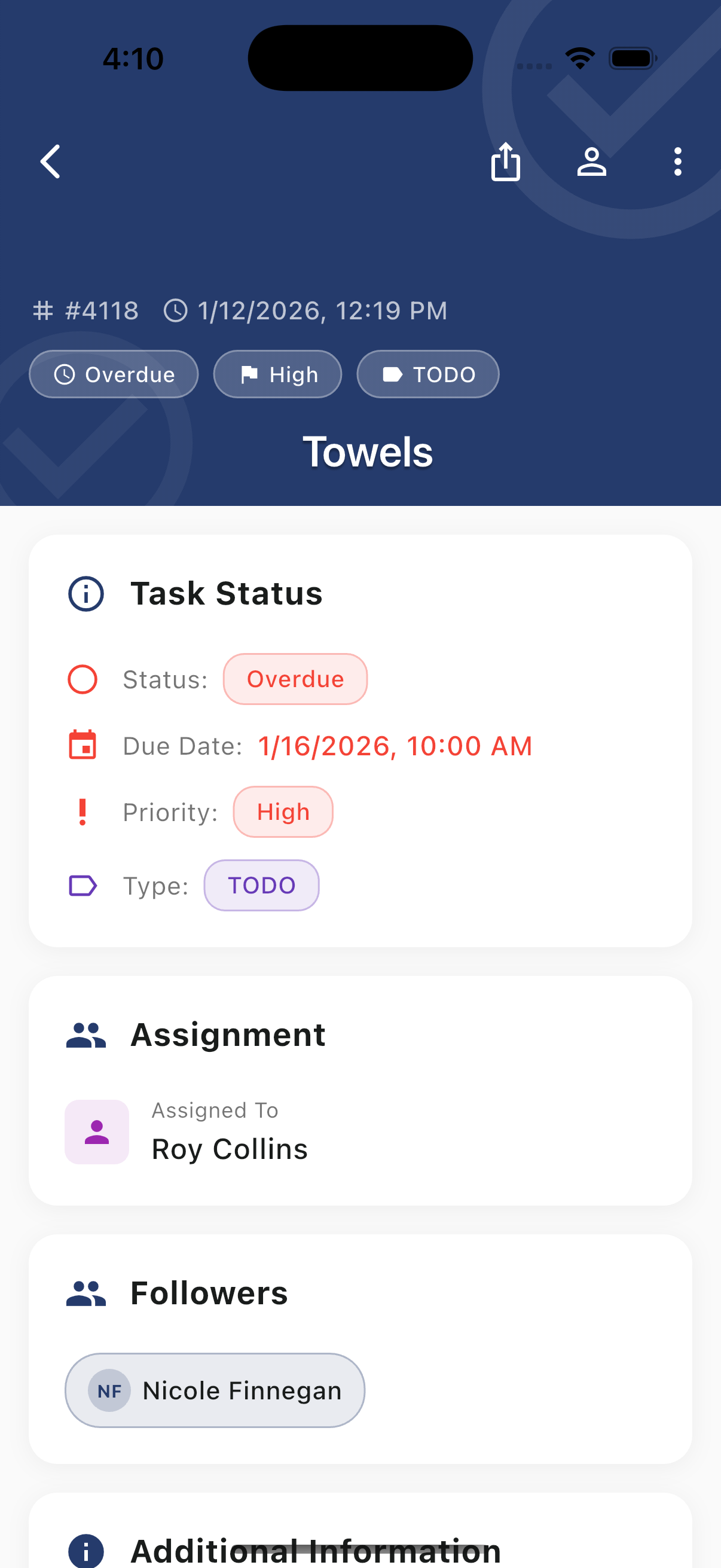
Header
The header displays:
- Task ID — Unique identifier (e.g., #4118)
- Created date — When the task was created
- Status tags — Overdue, High priority, Type (TODO, Call, etc.)
- Task title — The main task name
Task Status Section
| Field | Description |
|---|---|
| Status | Current state (Overdue, Incomplete, Completed) |
| Due Date | When the task is due (red if overdue) |
| Priority | High, Medium, or Low |
| Type | TODO, Call, Email, etc. |
Assignment Section
Shows who is responsible for the task:
- Assigned To — The team member who owns the task
Followers Section
Lists team members following this task who will receive updates:
- Followers get notified of changes
- Add followers to keep stakeholders informed
Additional Information
May include:
- Linked contact or lead
- Task description/notes
- Creation details
Completing Tasks
To mark a task as done:
- Swipe the task to reveal the complete action, or
- Open the task and tap Mark Complete
Completed tasks show a green checkmark and the title appears with strikethrough text.
Editing Tasks
To modify an existing task:
- Tap the task to open it
- Tap Edit
- Make your changes
- Tap Save
Filtering Tasks
Use the filter icon to narrow your task view:
- All — All tasks assigned to you
- Today — Tasks due today
- Upcoming — Tasks due in the future
- Overdue — Past-due tasks
- Completed — Finished tasks
Task Notifications
Receive reminders for upcoming and overdue tasks:
- Configure notification timing in Settings
- Get push notifications for due tasks
- See overdue counts on the Tasks icon
Related Resources
- Creating Tasks — How to create new tasks
- Push Notifications — Configure task reminders
- Leads — Creating tasks linked to leads