Create tasks to track follow-ups, reminders, and to-dos. Tasks can be standalone or linked to specific contacts and leads.
Tap + New Task from the task list to open the Create New Task screen.
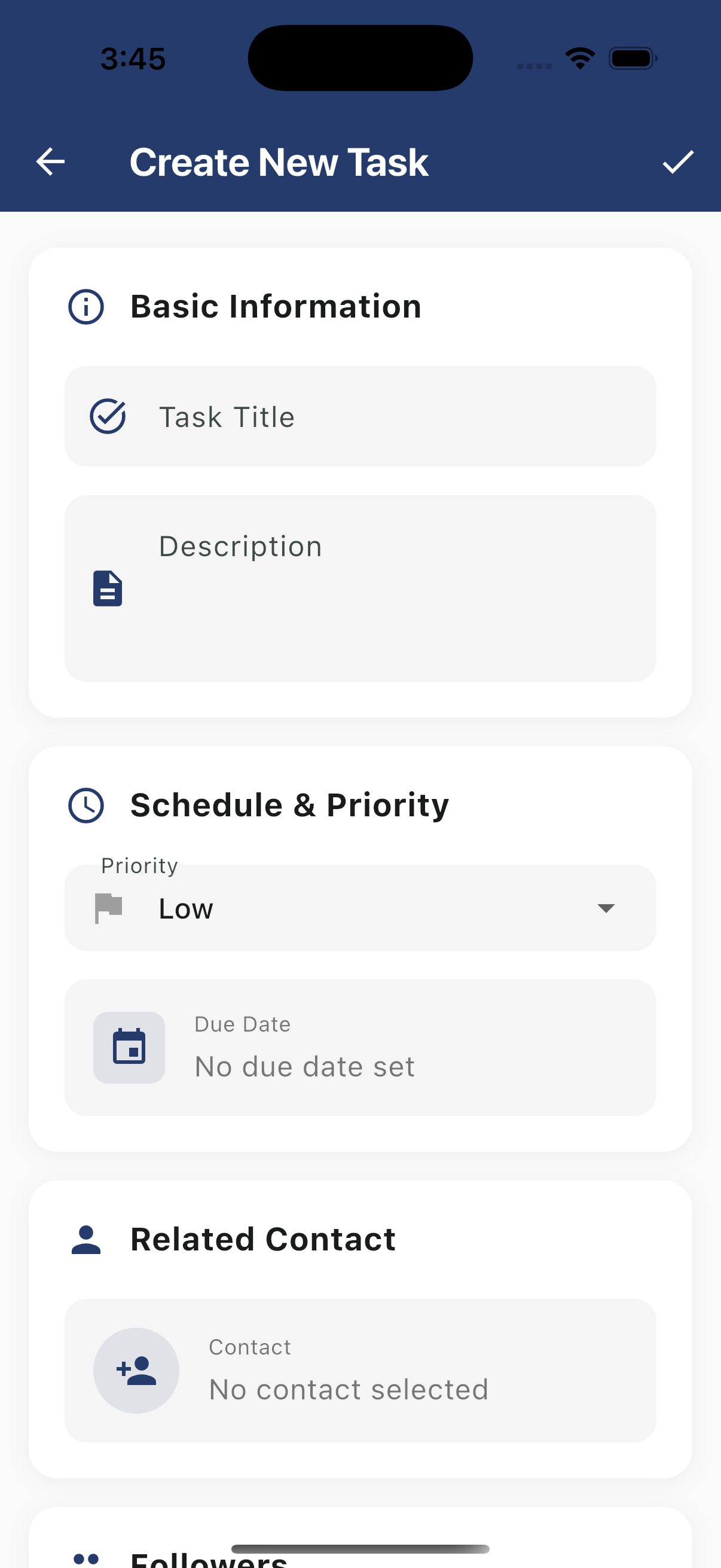
The form is organized into sections:
| Field | Description |
|---|
| Task Title | The name of the task |
| Description | Optional details or instructions for the task |
Schedule & Priority
| Field | Description |
|---|
| Priority | Dropdown to set Low, Medium, or High priority |
| Due Date | Tap to set a due date and time, or leave as "No due date set" |
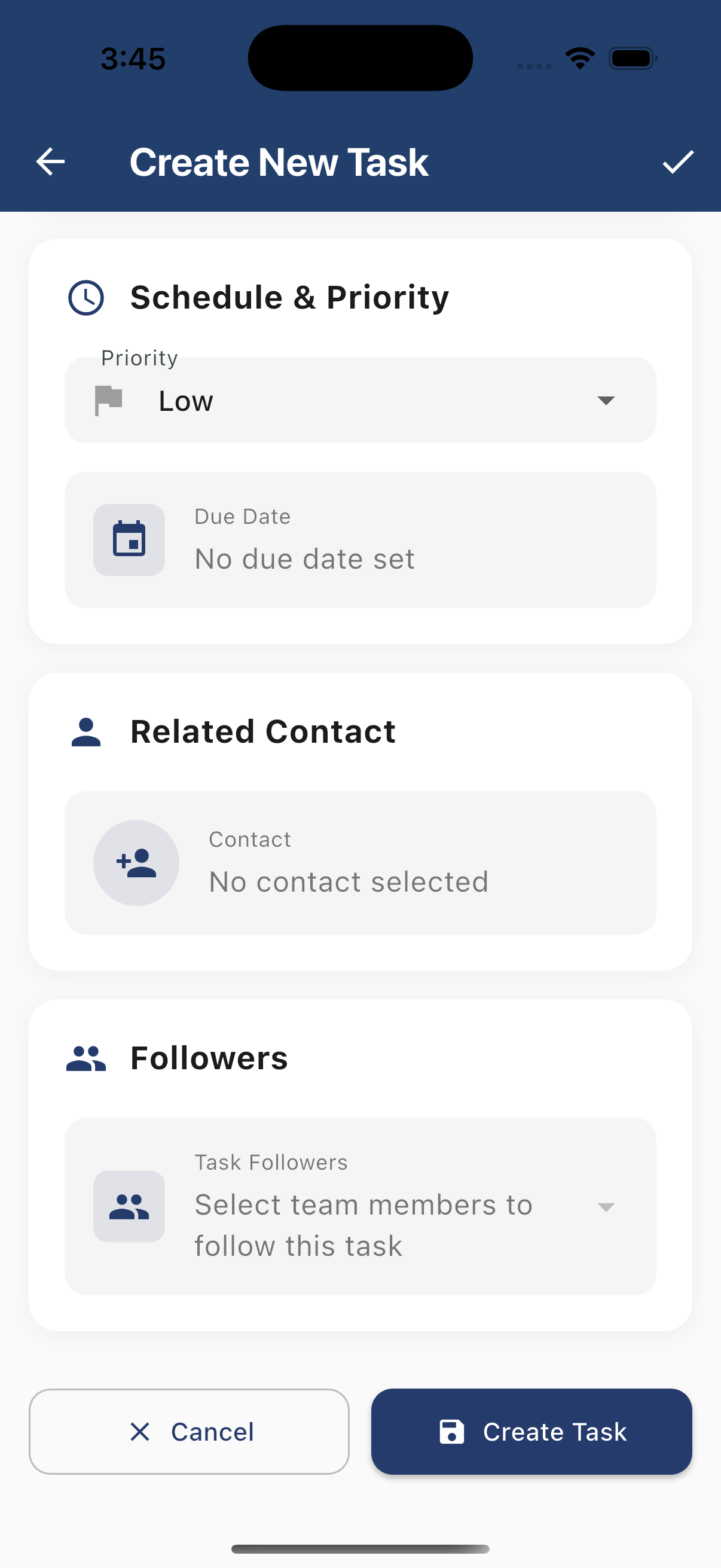
| Field | Description |
|---|
| Contact | Tap to search and link a contact to the task |
Followers
| Field | Description |
|---|
| Task Followers | Select team members to follow this task and receive updates |
Saving
- Tap the checkmark in the top-right corner, or tap Create Task at the bottom to save
- Tap Cancel or the back arrow to discard
Creating Tasks from Other Screens
From a Lead Profile
- Open a lead and tap the related tasks area
- The task is automatically linked to that lead
- Fill in task details and save
From a Conversation
- Tap the more options menu in a conversation
- Select Create Task
- The task links to the associated contact
- Add details and save