Survey Editor
The Survey Editor allows you to create surveys, configure delivery methods, customize branding and colors, add questions of various types, and set up team member notifications for feedback routing.
Creating a New Survey
- Navigate to Global Settings > Surveys
- Click Add New Survey
- Configure your survey settings, add questions, and click Save Survey
Survey Settings
The settings panel controls how your survey is delivered and branded.
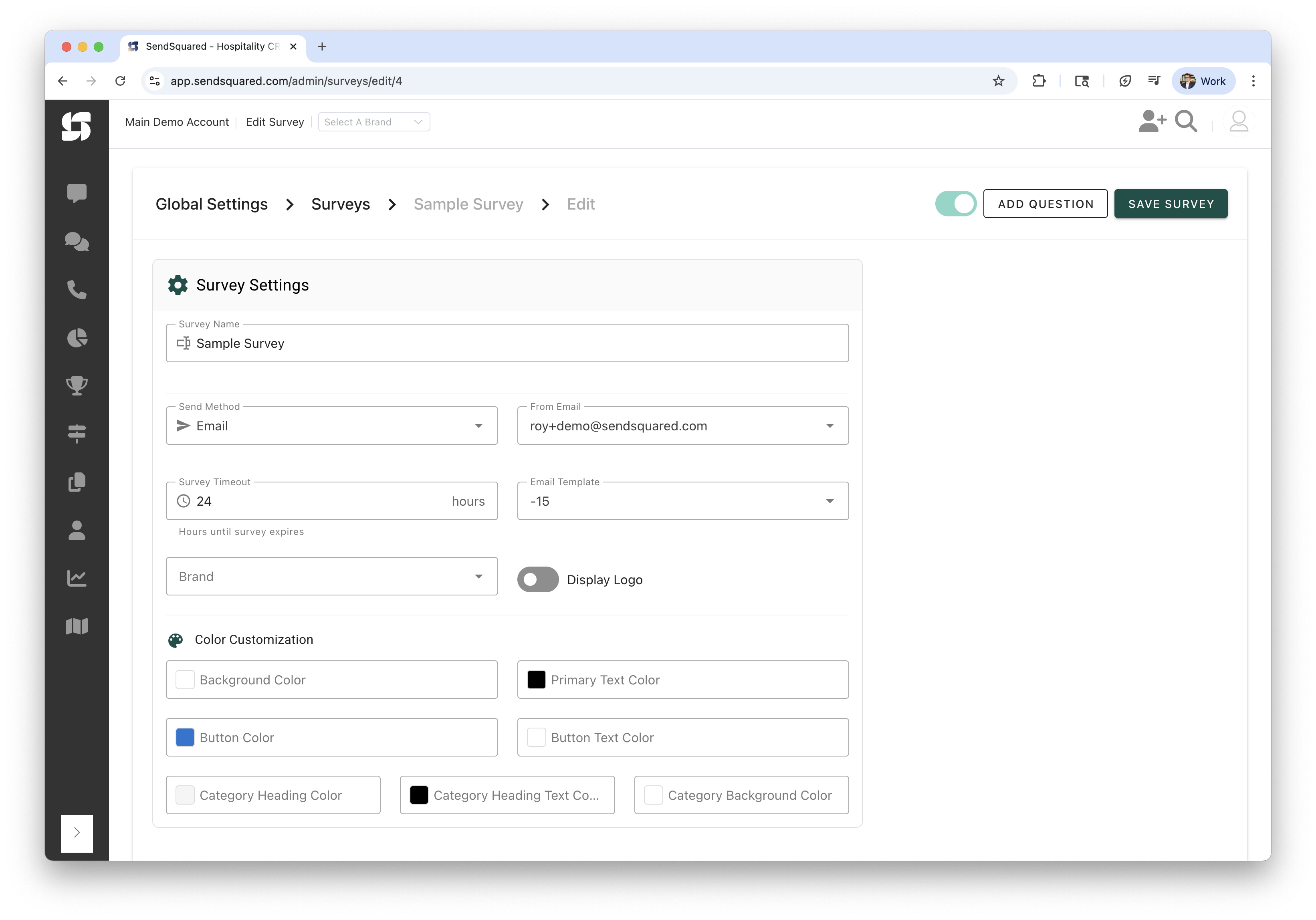
Survey Name
An internal name for the survey (up to 255 characters). This name is only visible to your team, not to respondents. Use descriptive names like "Post-Stay NPS Survey" or "Q1 Owner Check-In".
Active Toggle
The active toggle in the top header bar enables or disables the survey. Inactive surveys won't be sent even if assigned to contacts. This is useful for seasonal surveys or temporary pauses.
Send Method
The send method determines how the survey is delivered to contacts. Three options are available:
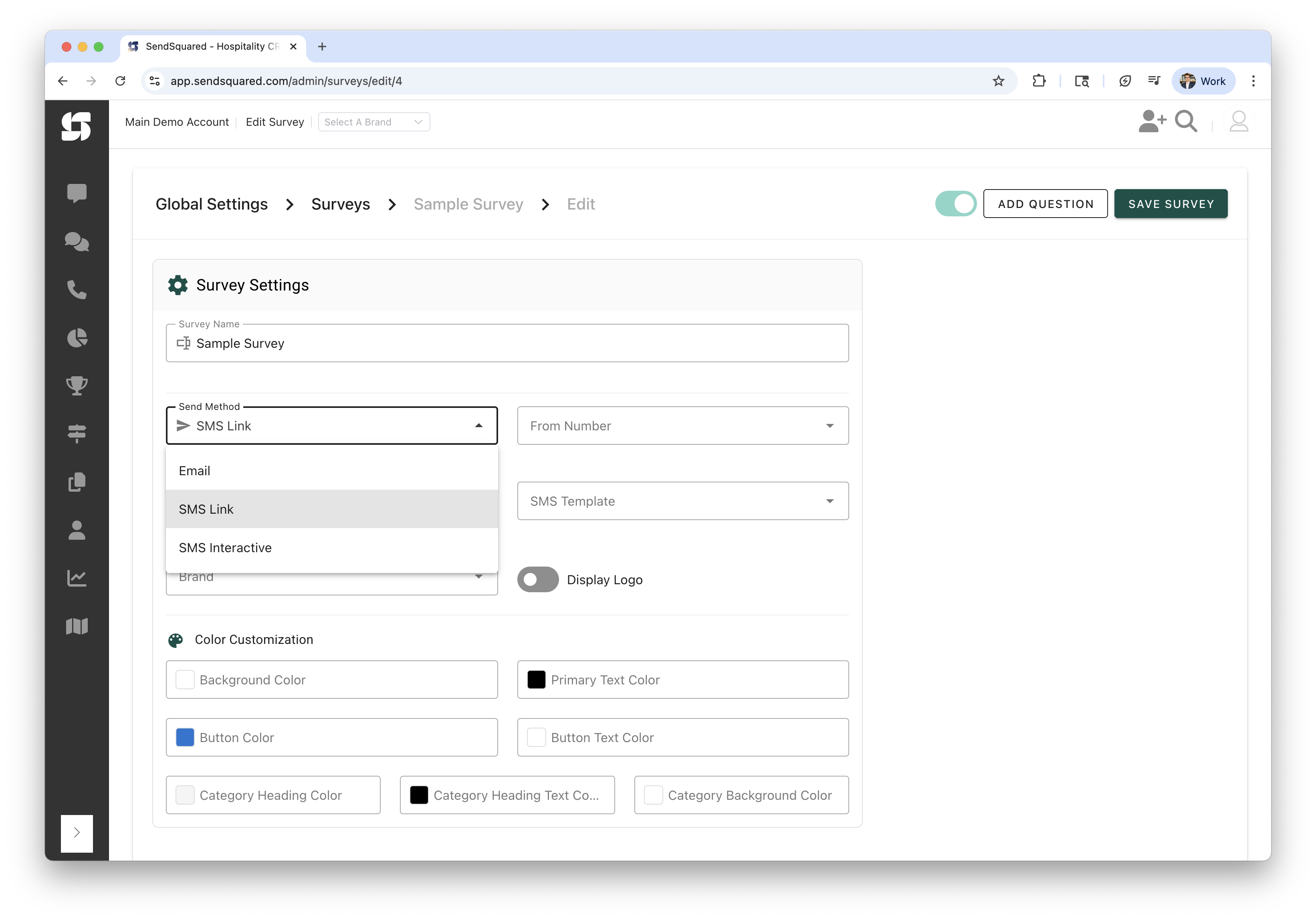
- Email - Full survey delivered via email with rich text formatting. Respondents complete and submit from a web page linked in the email. Requires selecting a From Email and an Email Template.
- SMS Link - A text message is sent containing a link to a mobile-optimized web survey. All questions appear on one scrollable page. Requires selecting a From Number and an SMS Template.
- SMS Interactive - Questions are sent one at a time via text message. Respondents reply directly to each SMS. The system sends the next question after each response. Requires selecting a From Number and an SMS Template. See Interactive SMS Surveys for details on this conversational format.
From Number / From Email
Depending on the send method, select the sender:
- Email: Choose from your configured email senders
- SMS Link / SMS Interactive: Choose from your configured phone numbers
Survey Timeout
Set how many hours the survey remains active before expiring. Default is 24 hours. After expiration, the survey link will no longer accept responses.
Template Selection
- Email Template: Select an email template that contains the
{{survey}}merge tag. The template controls the overall design and layout around your survey content. - SMS Template: Select an SMS template for the text message that will be sent to the contact.
Brand
Optionally associate the survey with a specific brand. When a brand is selected, the survey can use the brand's logo and styling.
Display Logo
Toggle to show or hide your brand logo at the top of the survey page. Requires a brand to be selected.
Color Customization
Fully customize the appearance of the web-based survey page with these color options:
- Background Color - The page background
- Primary Text Color - Main text and question text
- Button Color - Submit and navigation buttons
- Button Text Color - Text on buttons
- Category Heading Color - Background color of section headings
- Category Heading Text Color - Text color of section headings
- Category Background Color - Background color of category sections
Each color field includes a color picker that opens when you click the color swatch.
SMS Interactive Preview
When the send method is set to SMS Interactive, a live preview panel appears on the right side of the settings showing how the conversation will look on a phone:
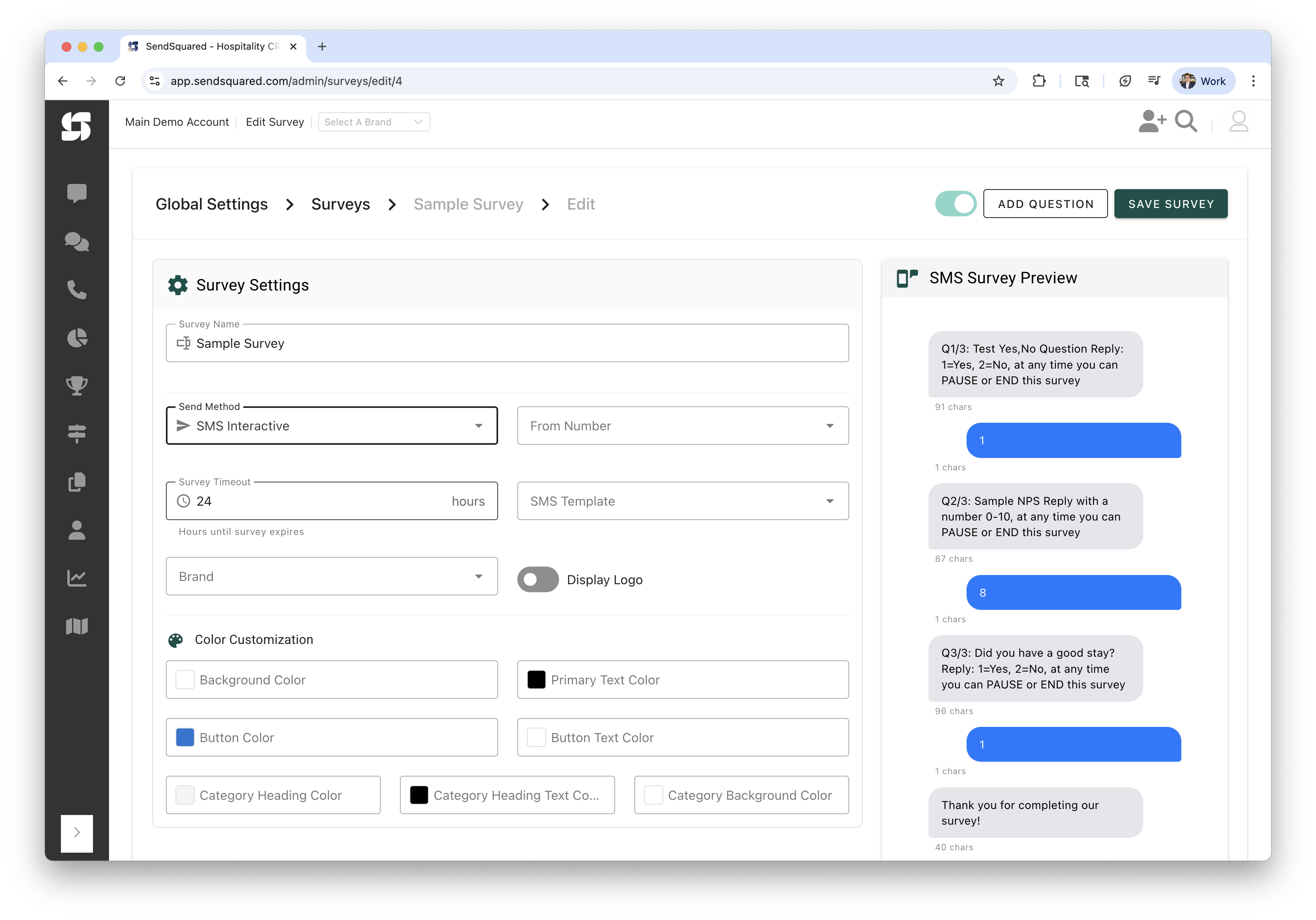
The preview displays:
- Each question formatted as it will appear in SMS (incoming bubbles)
- Example responses (outgoing bubbles)
- Character counts for each message
- A completion message at the end
The preview updates in real-time as you add or modify questions, helping you ensure questions fit within SMS character limits.
Survey Questions
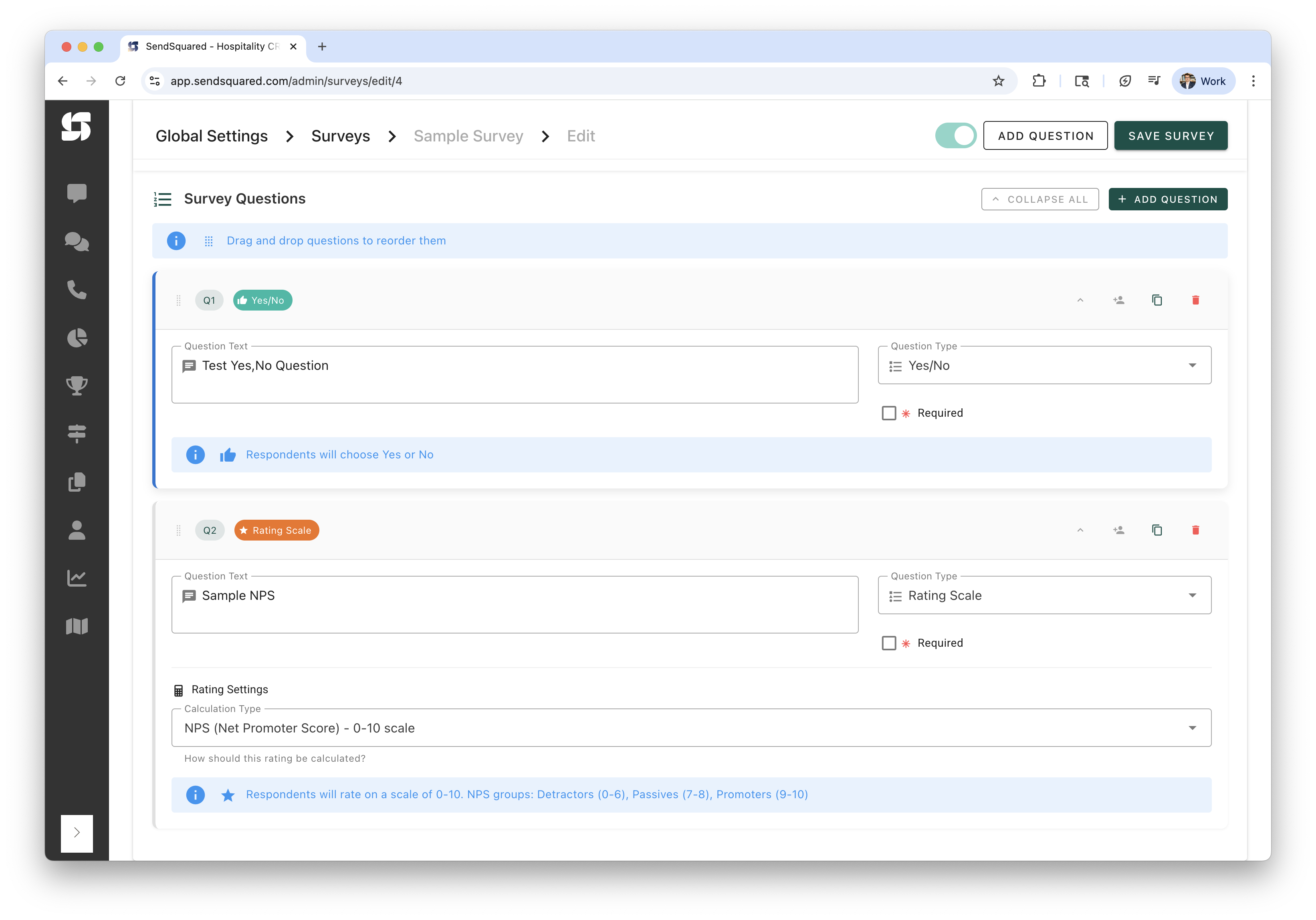
Below the settings panel, the questions section lets you build and manage the survey questions.
Adding Questions
Click Add Question (in the header or the questions section) to add a new question. Each question includes:
- Question Text - The question your respondents will see
- Question Type - Select from five available types (see below)
- Required - Check to make the question mandatory
Question Management
Each question card provides these controls in its header bar:
- Drag Handle - Grab and drag questions to reorder them (drag and drop)
- Collapse/Expand - Toggle to show or hide the question details. Use Collapse All / Expand All to manage all questions at once.
- Assign to User - Click the person icon to assign a team member for notifications
- Duplicate - Copy the question and its settings
- Delete - Remove the question (with confirmation)
Reordering Questions
Questions can be reordered by dragging and dropping. Grab the drag handle on the left side of any question card and move it to the desired position. The display order updates automatically.
Question Types
The system supports five question types. Select the type from the dropdown on each question card:
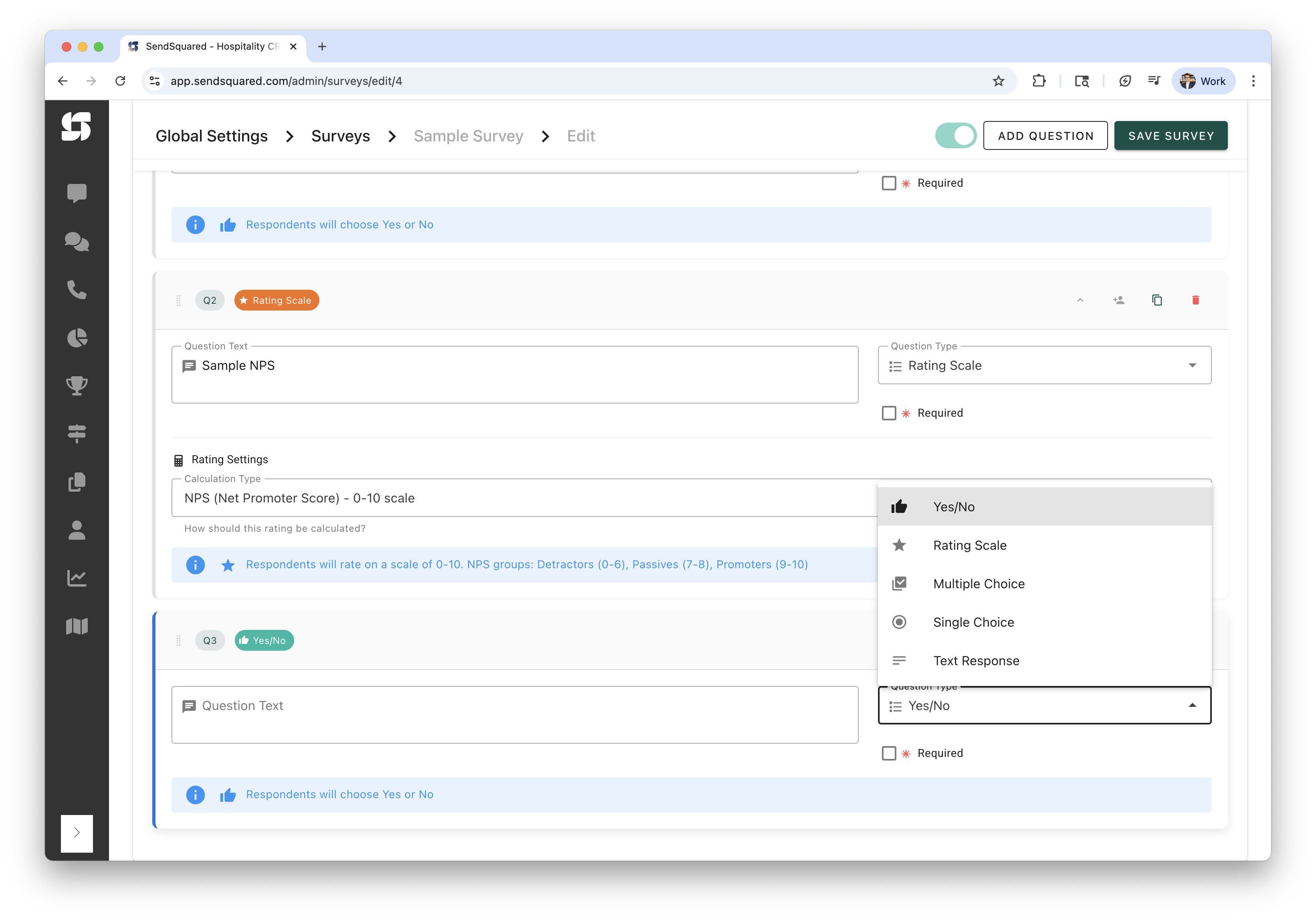
Yes/No
Simple binary choice questions for quick, clear answers.
Best for: Confirmation questions, simple satisfaction checks, feature usage questions.
How it works:
- Respondents see two buttons: "Yes" and "No"
- For SMS Interactive, respondents reply
1for Yes or2for No (also accepts natural language like "yes", "yeah", "nope", etc.)
Reporting: Shows count and percentage for each option in side-by-side cards.
Rating Scale
Numeric scale questions with two analysis calculation types.
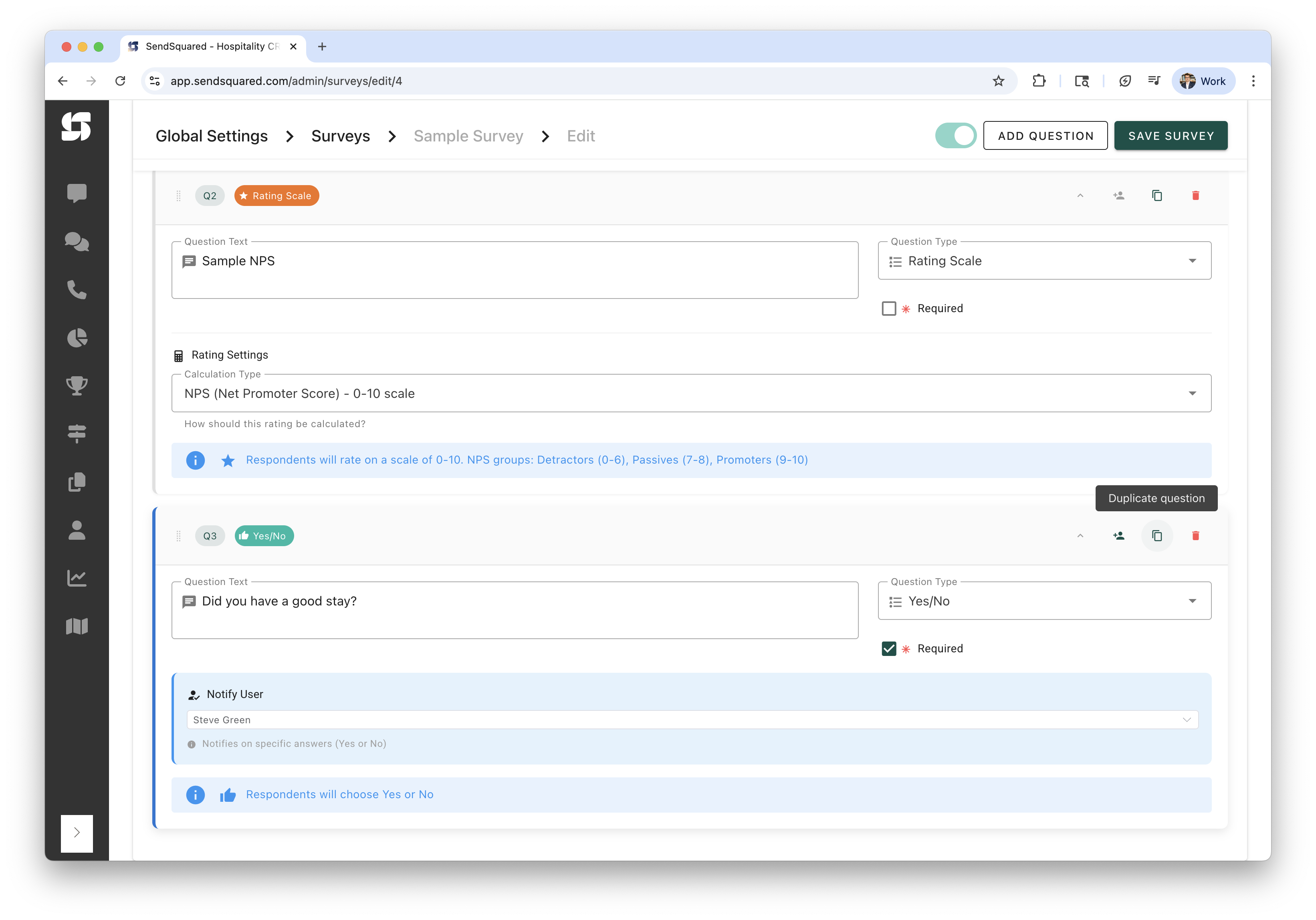
Best for: Satisfaction scores, quality metrics, NPS loyalty measurement.
When you select Rating Scale, a Rating Settings section appears with a Calculation Type dropdown:
NPS (Net Promoter Score) - 0-10 scale
Respondents rate on a scale of 0-10. Responses are grouped into three categories:
- Promoters (9-10) - Loyal fans who will recommend you
- Passives (7-8) - Satisfied but not enthusiastic
- Detractors (0-6) - Unhappy customers who might leave negative reviews
The NPS score is calculated as: (% Promoters) - (% Detractors)
Use this for the standard loyalty question: "How likely are you to recommend us to a friend?"
Z-Score (Statistical Distribution) - 1-10 scale
Respondents rate on a scale of 1-10. Reports show the statistical distribution of responses including:
- Population mean (average rating)
- Standard deviation
- Sigma deviation values for each rating point
- Response distribution chart
Use this for specific operational metrics like cleanliness, check-in process, amenities, etc.
See Survey Types for detailed guidance on when to use each calculation type.
Multiple Choice
Select any number of options from a list of choices (checkboxes).
Best for: Non-exclusive selections like "Which amenities did you use?" or "What issues did you encounter?"
Configuration:
- Add answer options using the answer options editor
- Respondents can select zero, one, or many options
- For SMS Interactive, respondents reply with comma-separated numbers (e.g., "1,3,5")
Reporting: Shows count for each option. Totals may exceed 100% since multiple selections are allowed.
Single Choice
Select one option from multiple choices (radio buttons).
Best for: Mutually exclusive options like "What type of stay was this?" or "How did you hear about us?"
Configuration:
- Add answer options using the answer options editor
- Only one selection allowed
- For SMS Interactive, respondents reply with the number of their choice
Reporting: Shows count and percentage for each option.
Text Response
Open-ended text input for detailed feedback.
Best for: Follow-up questions ("What's the primary reason for your score?"), detailed feedback, suggestions, testimonials.
Configuration:
- No answer options needed
- Large text input field provided to respondents
- For SMS Interactive, respondents reply with any text message
Reporting: Individual responses listed in full. Click the response count to view all text responses.
Notify User (Team Assignment)
Any question type can optionally be assigned to a team member for notifications. Click the person icon in the question header to reveal the Notify User section.
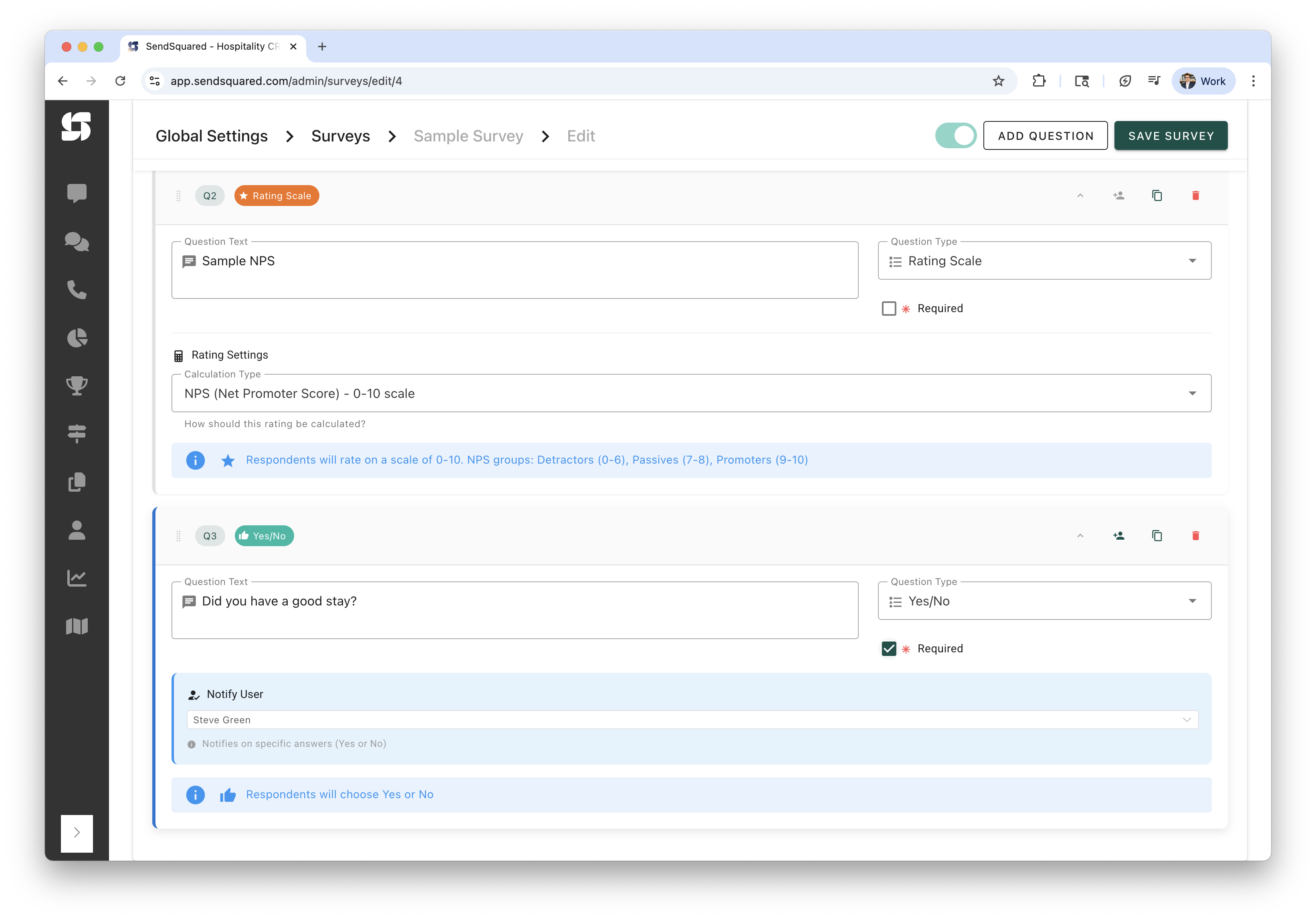
When a user is assigned:
- The selected team member receives a notification when this question gets answered
- Useful for routing specific feedback to the right person
- For Yes/No questions, notifies on specific answers (Yes or No)
- For Rating questions, notifies based on rating thresholds
Common routing examples:
- "Rate the cleanliness" → Housekeeping Manager
- "Rate the maintenance" → Maintenance Supervisor
- "Rate the check-in process" → Guest Services Manager
- "Did everything work properly?" → On-Call Manager
Survey List View
After creating surveys, you'll see them in the survey list at Global Settings > Surveys:
Columns Displayed:
- Name - Survey title
- Active - Current status (enabled/disabled)
- Total Assigned - Number of contacts assigned this survey
- Completed - Number of completed responses
- Errored - Failed deliveries
Available Actions:
- Edit - Modify survey settings and questions
- Report - View detailed results (see Survey Reporting)
Limits & Constraints
Survey Level:
- Survey name: Up to 255 characters
- Questions per survey: Maximum 500
- SMS Interactive questions: Maximum 450 characters per formatted question
Question Level:
- Question text: Up to 10,000 characters
- Answer options per question: Maximum 100
- Answer text: Up to 50,000 characters
Practical Recommendations:
- Keep surveys to 5-10 questions for best completion rates
- Use 3-7 answer options for choice questions
- Limit free text questions to 1-2 per survey
- For SMS Interactive, keep to 2-4 questions maximum
Best Practices
Keep It Short:
- 5-10 questions maximum for best completion rates
- Each additional question reduces completion rate by 3-5%
- Mobile users especially prefer shorter surveys
Use Question Types Strategically:
- Start with easy questions (Yes/No or Single Choice)
- Put rating questions in the middle
- End with free text for detailed feedback
- Mix question types to maintain engagement
Write Clear Questions:
- One concept per question (avoid compound questions)
- Use simple, everyday language
- Be specific: "Rate the cleanliness of the kitchen" vs. "Rate the property"
Make Strategic Questions Required:
- Require your most important questions (NPS, key satisfaction metrics)
- Leave demographic and optional questions as not required
- Don't make more than 50% of questions required
Next Steps
- Survey Types - Learn about NPS vs. Standard analysis
- Survey Distribution - Set up automated sending
- Survey Reporting - Analyze your results
- Interactive SMS Surveys - SMS-specific features and best practices