Emails
The Emails section provides a dedicated inbox for all email communications. View incoming emails with full HTML rendering, assign them to team members, reply or forward, and manage your email workflow on the go.
Accessing Emails
Tap the hamburger menu in the top-left corner and select Emails from the navigation drawer.
Email List
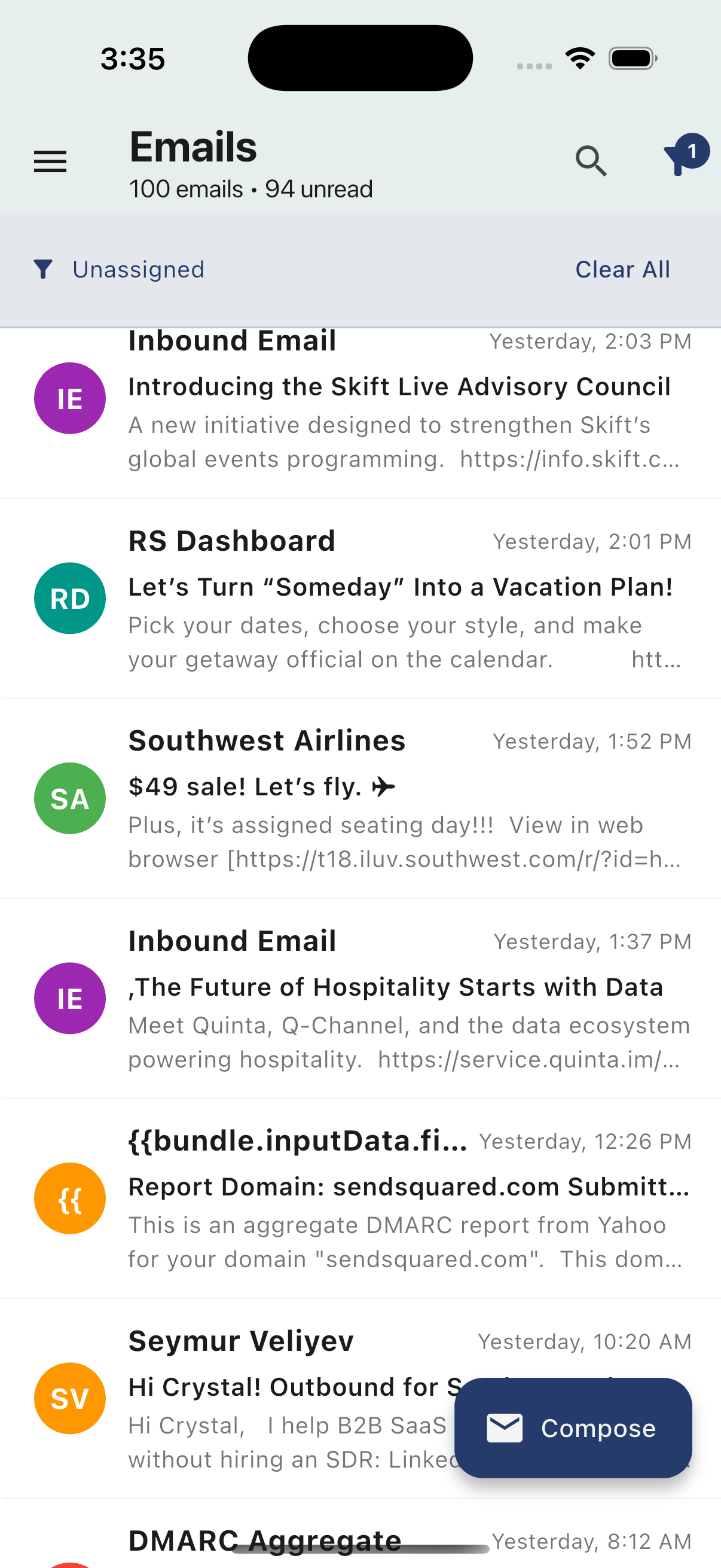
The email list header displays the total email count and unread count (e.g., "100 emails · 94 unread").
Each email in the list shows:
| Element | Description |
|---|---|
| Avatar | Sender initials with colored background |
| Sender name | Who the email is from |
| Subject line | The email subject, truncated if long |
| Preview text | First line of the email body |
| Timestamp | When the email was received |
Search & Filter
The header provides two tools for finding emails:
- Search (magnifying glass icon) — Search emails by sender, subject, or content
- Filter (funnel icon) — Filter emails by status, date, or other criteria
Pull to Refresh
Drag down from the top of the email list to refresh and load new emails. A first-time tutorial walks through this gesture when you open the Emails section.
Compose
Tap the Compose button in the bottom-right corner to create a new email.
Reading an Email
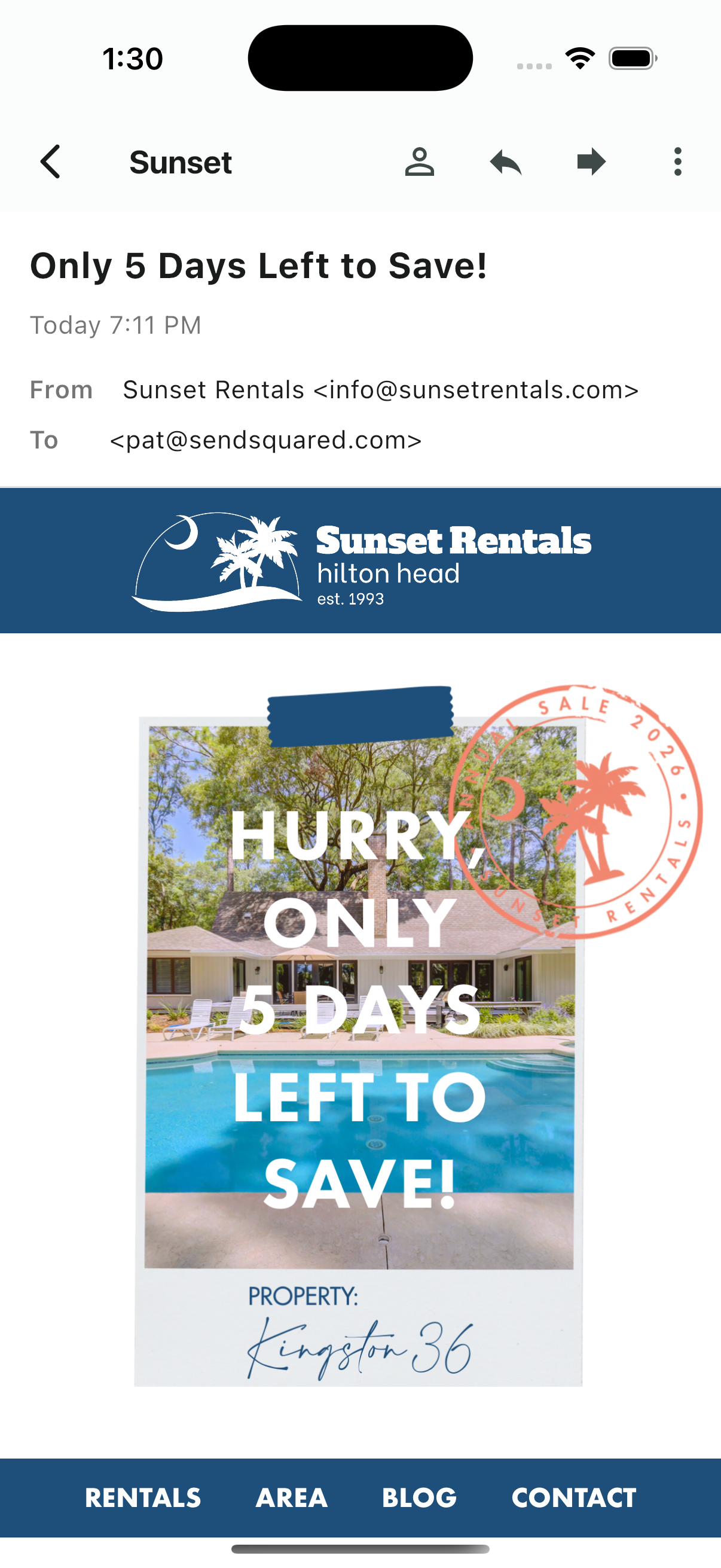
Tap any email in the list to open the full email reader. The reader displays:
| Element | Description |
|---|---|
| Subject | Full email subject line |
| Timestamp | Date and time the email was received |
| From | Sender name and email address |
| To | Recipient email address |
| Email body | Full HTML-rendered email content |
The email body renders the complete HTML email, including images, links, and styled layouts, exactly as it would appear in a standard email client.
Header Actions
The email reader header shows the sender name on the left and a row of action icons:
| Icon | Action |
|---|---|
| Contact (person icon) | Open the sender's contact profile |
| Reply (arrow left) | Reply to the email |
| Forward (arrow right) | Forward the email to another recipient |
| More (three dots) | Open the actions menu |
Actions Menu
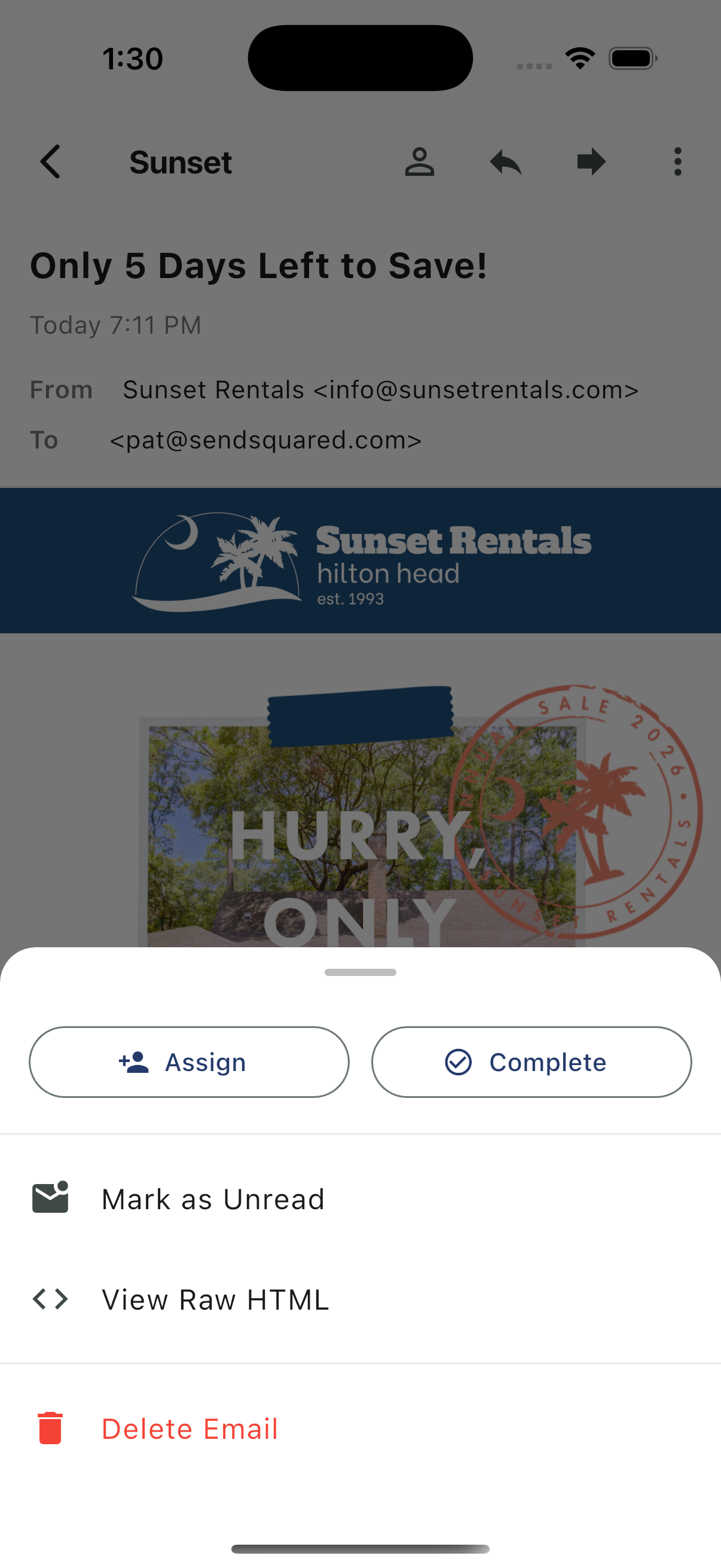
Tap the three-dot menu in the top-right corner of the email reader to open the actions sheet:
| Action | Description |
|---|---|
| Assign | Assign the email to a team member for follow-up |
| Complete | Mark the email as completed/resolved |
| Mark as Unread | Set the email back to unread status |
| View Raw HTML | View the raw HTML source of the email |
| Delete Email | Permanently delete the email |
Assigning Emails
Tap Assign to assign the email to yourself or another team member. Assigned emails help your team track ownership and ensure every email gets a response.
Completing Emails
Tap Complete to mark an email as resolved. Completed emails are moved out of the active list so you can focus on what still needs attention.
Viewing Raw HTML
Tap View Raw HTML to inspect the source code of the email. This is useful for debugging rendering issues or reviewing the underlying structure of a marketing email.
Related Resources
- Inbox Overview — SMS and messaging inbox
- Conversations — Unified multi-channel conversations
- Content Blocks — Quick reply templates