Conversations
The Conversations feature provides a unified view of all guest communications across multiple channels. View and respond to SMS, Email, WhatsApp, and Airbnb messages from a single interface.
Accessing Conversations
Tap Conversations in the navigation drawer to open the unified inbox.
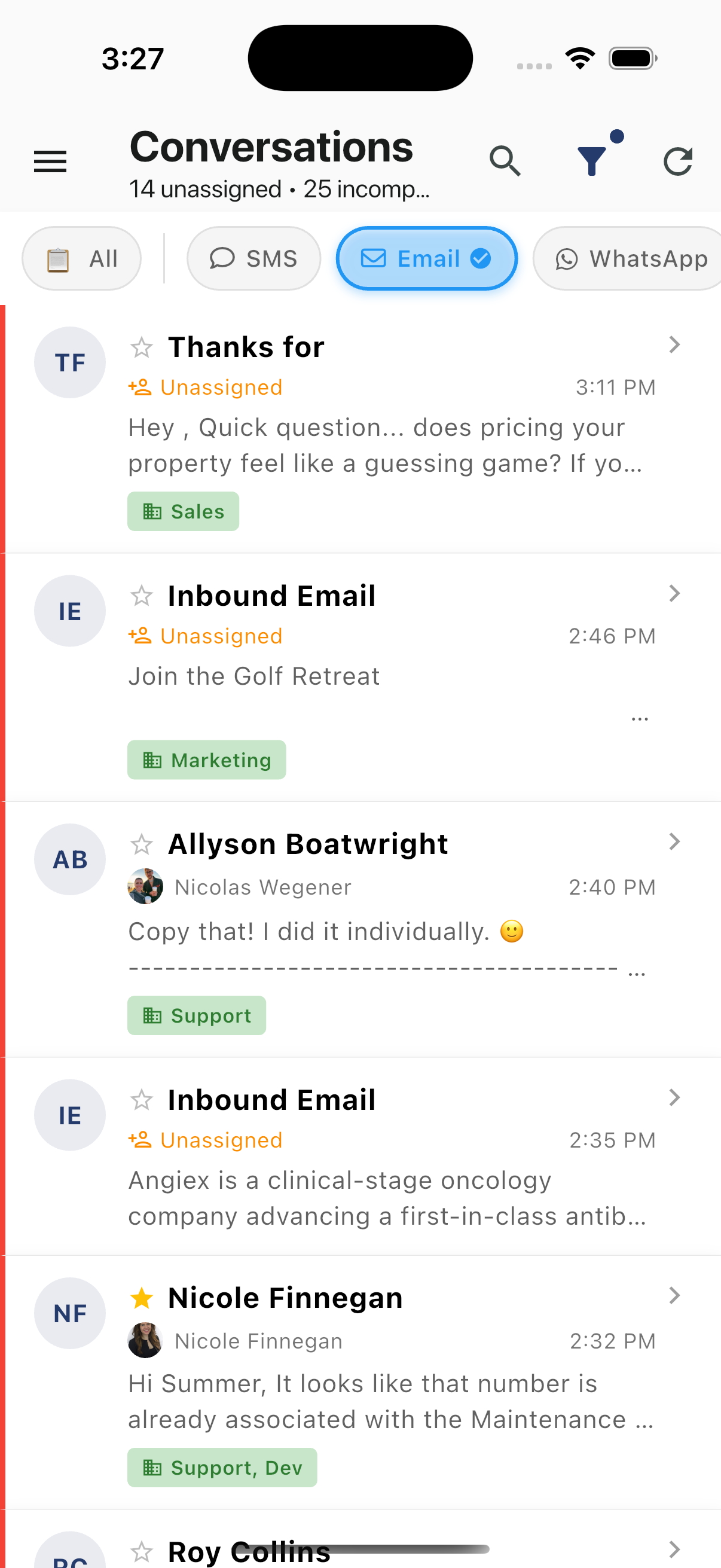
Conversation List
The conversation list shows all your conversations with:
- Contact initials/avatar - Visual identifier
- Contact name - Who the conversation is with
- Star indicator - Priority conversations
- Assignment status - Assigned agent or "Unassigned"
- Timestamp - When the last message was received
- Message preview - First line of the latest message
- Brand tags - Which brand(s) the conversation belongs to (Sales, Support, Marketing, etc.)
Status Color Bars
Each conversation displays a colored bar on the left edge indicating its status:
| Color | Meaning |
|---|---|
| Yellow/Gold | Priority - Starred or flagged as important |
| Red | Urgent - Needs immediate attention |
| Orange | Warning - Approaching SLA or requires follow-up |
| Green | Completed - Resolved conversation |
| No bar | Normal - Standard conversation |
Use these visual indicators to quickly identify which conversations need attention first.
Channel Filters
Filter conversations by channel using the tabs at the top:
- All - Show all conversations
- SMS - Text message conversations only
- Email - Email conversations only
- WhatsApp - WhatsApp messages only
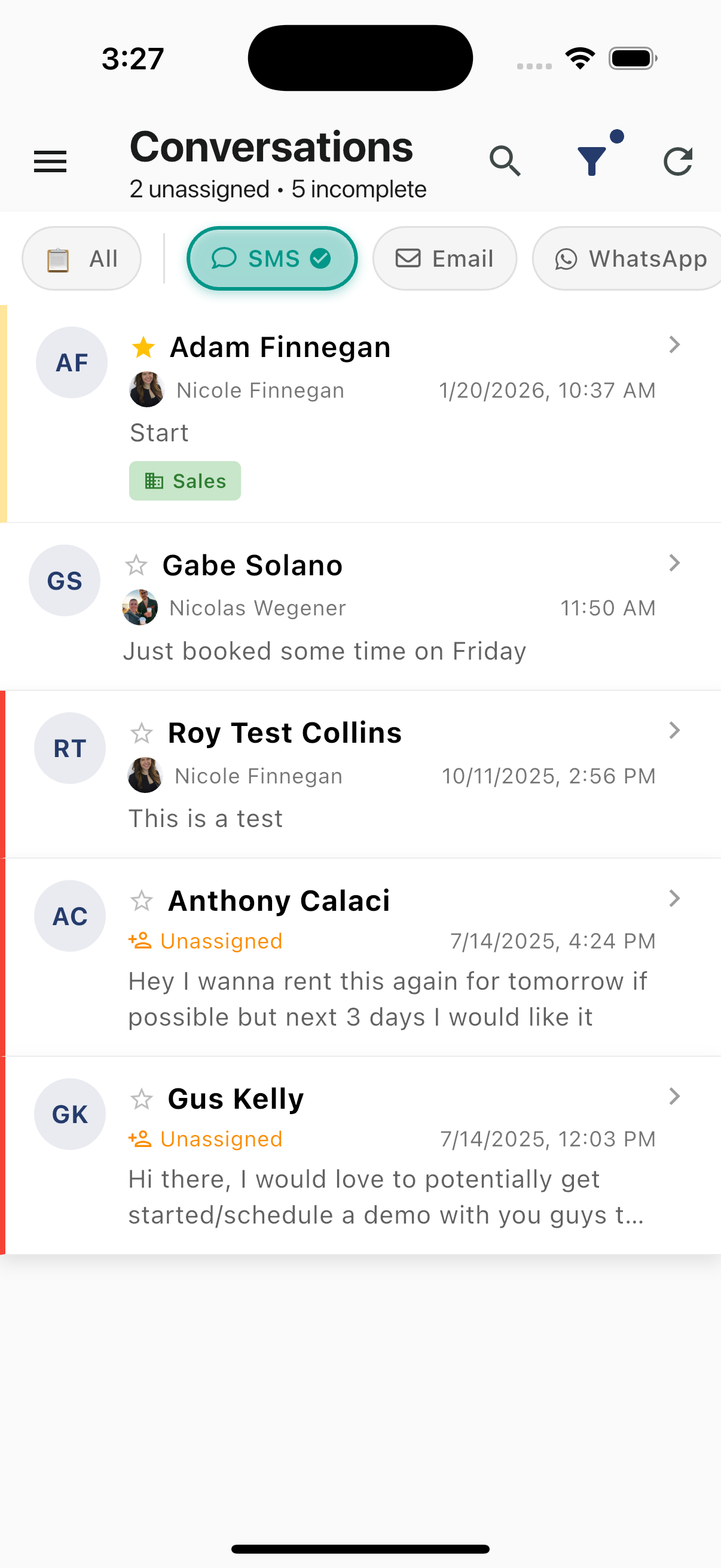
Header Information
The header displays:
- Unassigned count - Conversations without an owner
- Incomplete count - Conversations not yet resolved
- Search icon - Search conversations
- Filter icon - Open filters (with dot indicator when filters active)
- Refresh icon - Refresh the list
Swipe Actions
Use swipe gestures for quick actions on any conversation:
Swipe Right - Priority
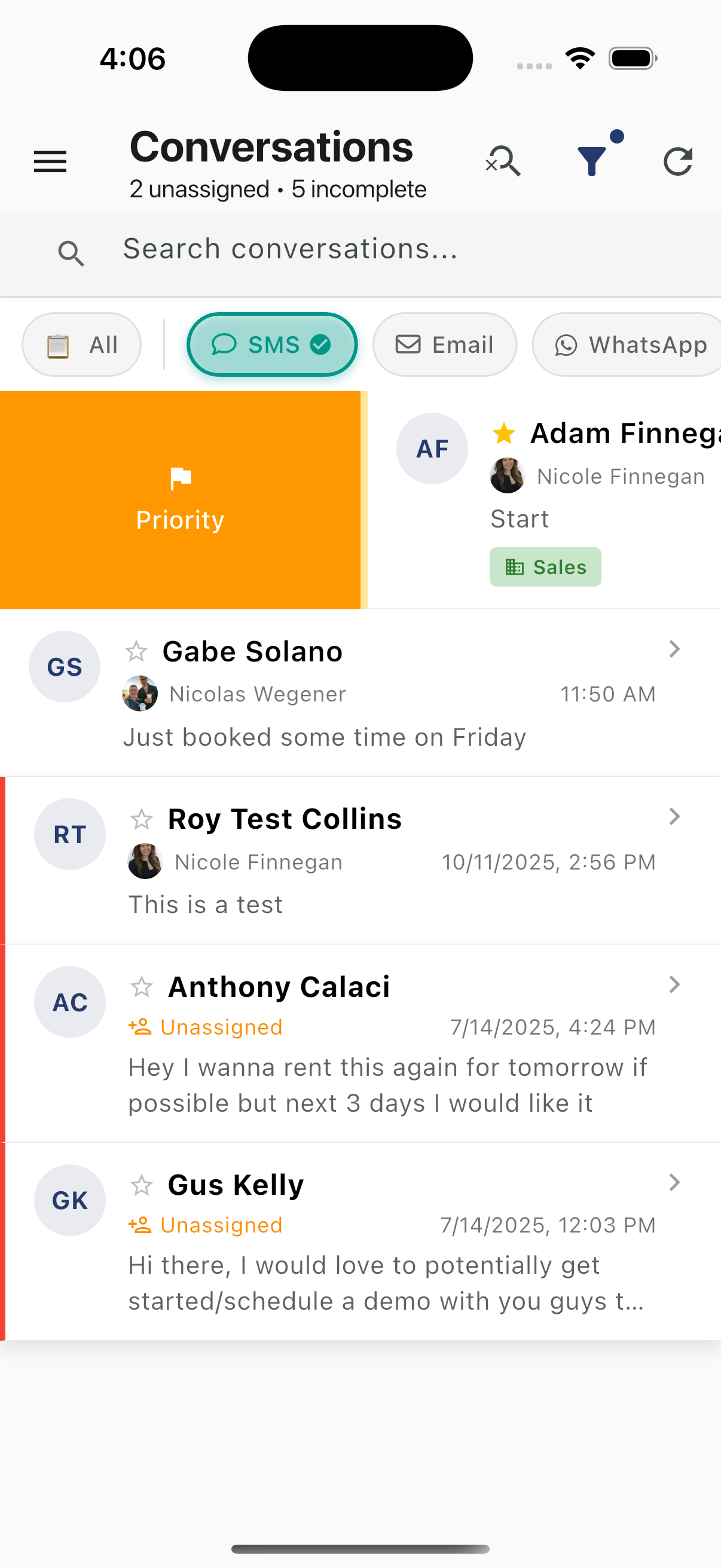
Swipe right to reveal the Priority button (orange). Tap to flag the conversation as high priority.
Swipe Left - Assign & Complete
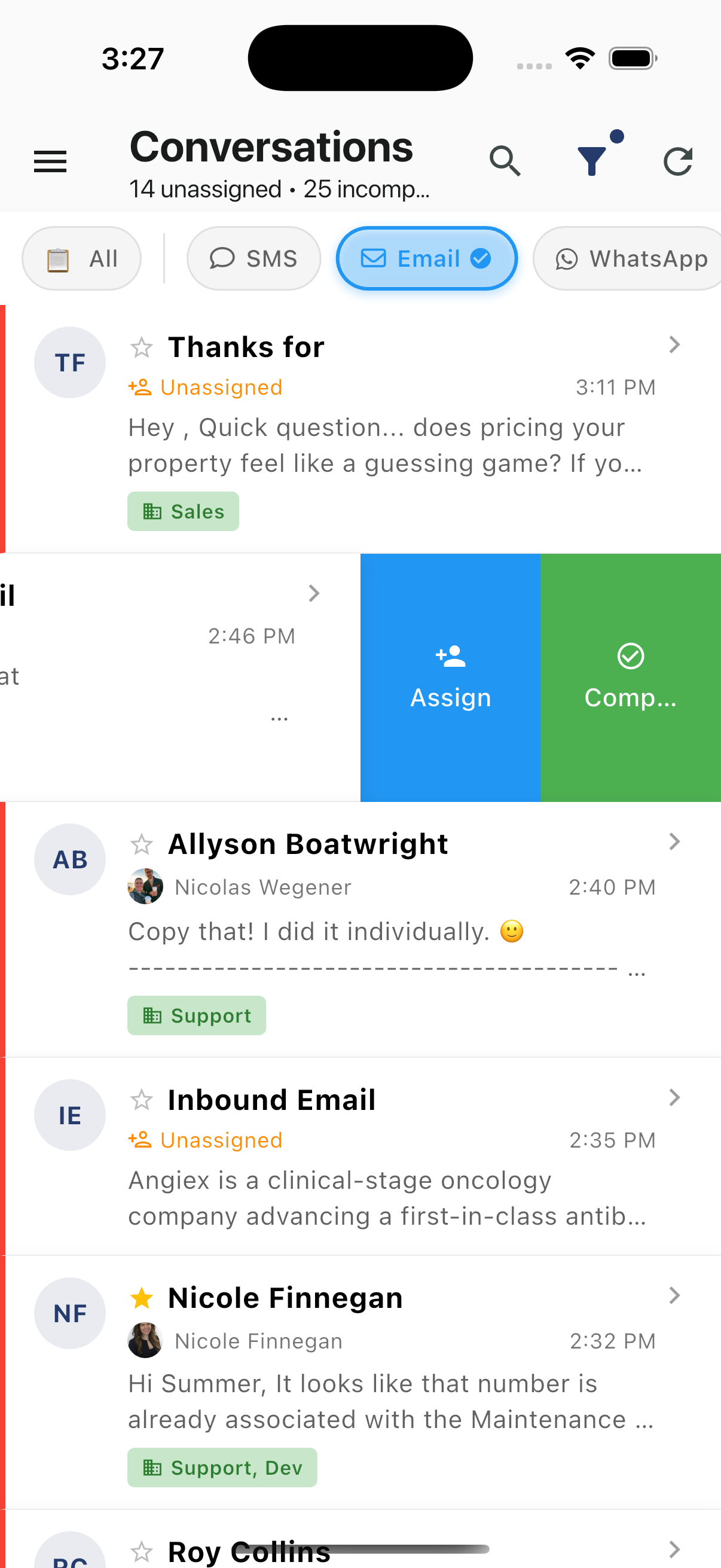
Swipe left to reveal:
- Assign (blue) - Assign the conversation to yourself or a team member
- Complete (green) - Mark the conversation as complete
| Swipe Direction | Action | Color |
|---|---|---|
| Right | Priority | Orange |
| Left | Assign | Blue |
| Left | Complete | Green |
Filters & Sort
Tap the filter icon to access advanced filtering options:
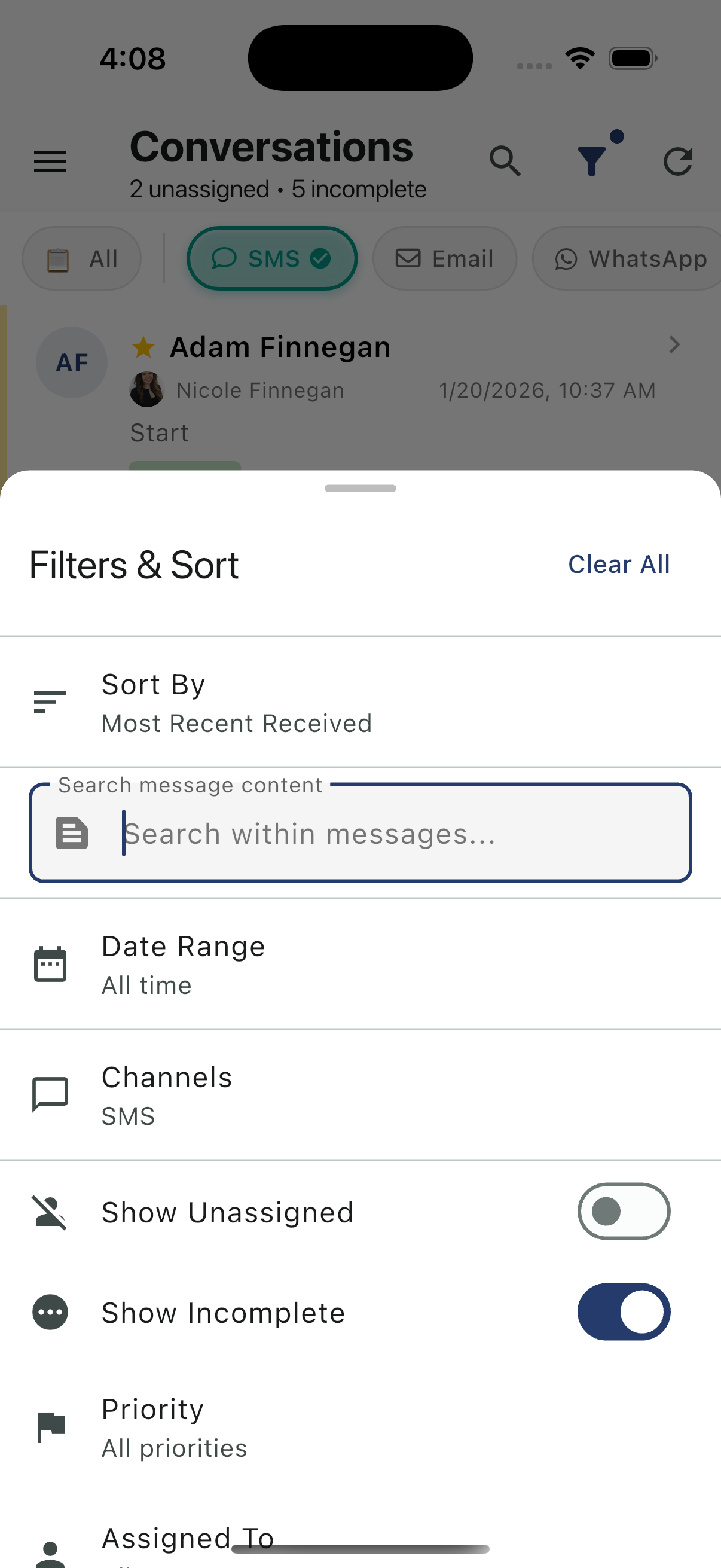
Available Filters
- Sort By - Most Recent Received, Oldest First, etc.
- Search message content - Search within message text (see below)
- Date Range - Filter by time period
- Channels - Filter by communication channel (SMS, Email, WhatsApp, etc.)
- Show Unassigned - Toggle to show only unassigned conversations
- Show Incomplete - Toggle to show only incomplete conversations
- Priority - Filter by priority level
- Assigned To - Filter by assigned team member
Tap Clear All to reset all filters.
Search Message Content
The Search message content field allows you to search within the actual text of messages, not just contact names:
- Tap the filter icon to open Filters & Sort
- Tap the Search within messages... field
- Enter your search term (e.g., "check-in", "refund", "wifi")
- Results will show conversations containing that text
This is useful for finding:
- Specific topics discussed with guests
- Conversations mentioning particular issues
- Messages containing confirmation numbers or details
Searching Conversations
Tap the search icon in the header to search conversations by:
- Contact name
- Message content
- Email subject
Best Practices
- Check unassigned conversations regularly
- Use filters to focus on your assigned work
- Swipe to quickly assign or complete conversations
- Star important conversations for easy access