Managing Conversations
Understanding how to manage conversation status is critical for efficient team workflows. This section covers the key concepts: completing vs closing conversations, assignment, and priority.
Complete vs Close: Understanding the Difference
The most important distinction in conversation management is knowing when to Mark Complete versus when to Close a conversation.
Mark Complete
Use Mark Complete when the immediate issue is resolved but the conversation may need follow-up:
- Guest inquiry answered
- Booking question resolved
- Support issue addressed
- Waiting for guest response
What happens when you mark complete:
- Conversation moves out of the "Incomplete" filter
- Conversation stays accessible in your list
- If the guest responds, it automatically reopens
- Activity is tracked in History for reporting
When to use:
- You've answered the guest's question
- You're waiting to hear back
- The current thread is resolved but may continue
Close Conversation
Use Close Conversation when the matter is fully resolved and no further communication is expected:
- Reservation completed and guest checked out
- Cancelled booking with no further action needed
- Spam or wrong number confirmed
- Duplicate conversation
What happens when you close:
- Conversation is archived
- More permanent than "Complete"
- Can still be found via search if needed
- Best for truly finished interactions
When to use:
- Guest has checked out and all matters resolved
- No possibility of further interaction
- Cleaning up spam or duplicates
Quick Reference
| Action | Use When | Reopens on Reply? | Visibility |
|---|---|---|---|
| Mark Complete | Issue resolved, may continue | Yes | Stays in list |
| Close | Fully finished, no follow-up | No | Archived |
Assignment
Assigning conversations ensures accountability and routes guests to the right team member.
Why Assignment Matters
- Accountability - Someone owns the conversation
- Expertise routing - Send to the right specialist
- Workload balance - Distribute conversations fairly
- Continuity - Guest works with same person
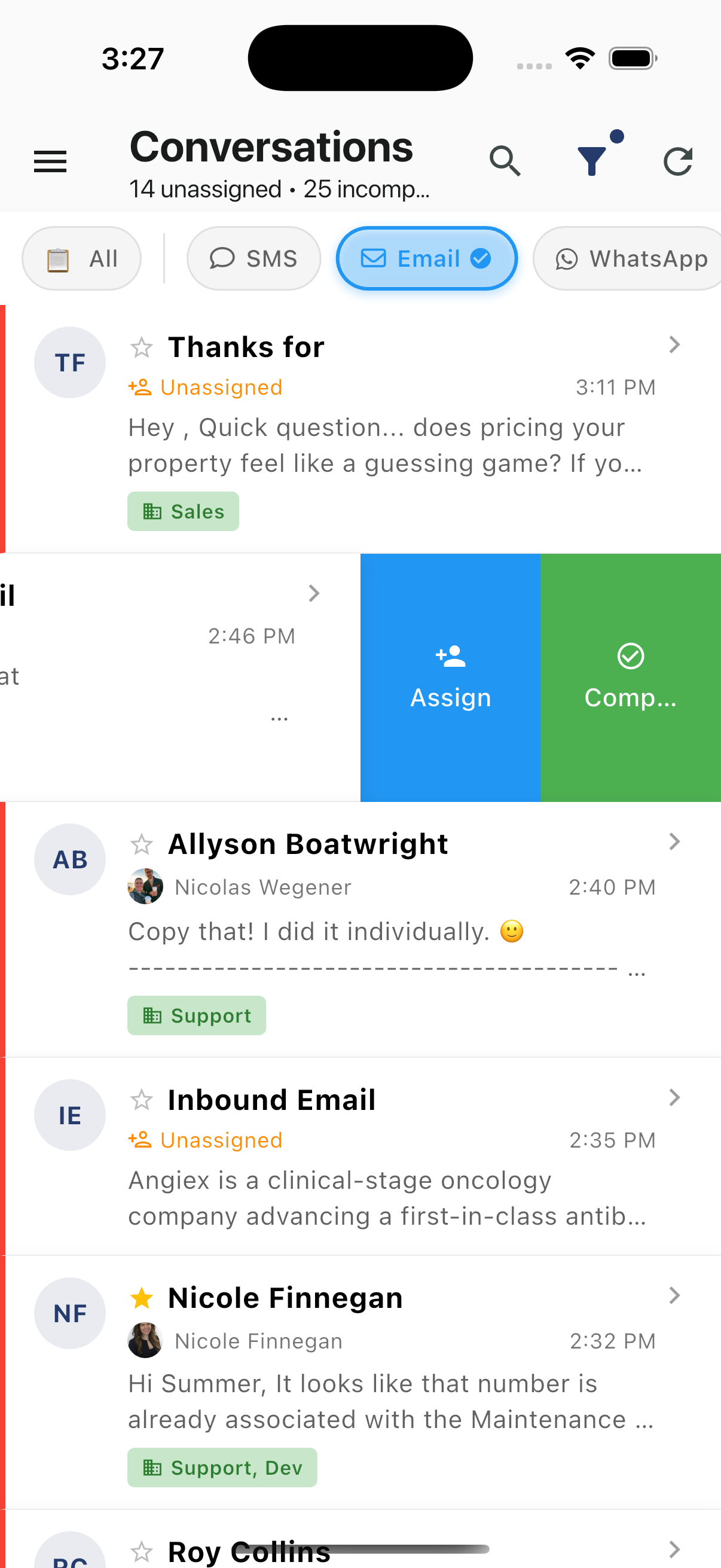
Assigning from the List
Swipe left on any conversation to reveal the Assign button:
Assigning from Conversation Detail
Tap the three-dot menu and select Assign:
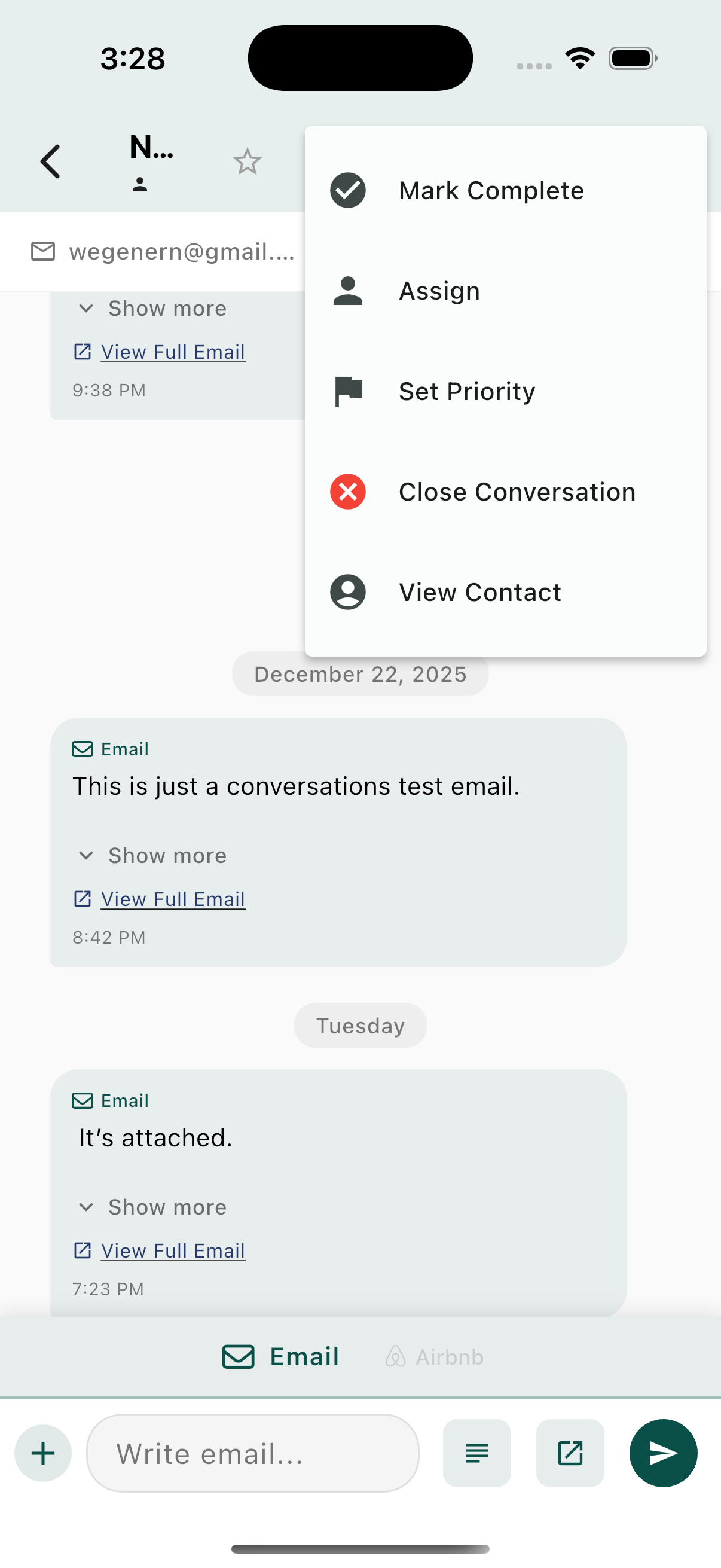
- Tap Assign
- Select a team member from the list
- The conversation moves to their queue
Self-Assignment
Tap Assign and select yourself to claim ownership of a conversation. This is recommended when:
- You're actively helping the guest
- You need to follow up later
- The guest knows you by name
Unassigned Conversations
Monitor the Unassigned count in the header to ensure no conversations fall through the cracks. Unassigned conversations are waiting for someone to take ownership.
Priority
Priority flags help identify urgent conversations that need immediate attention.
Setting Priority
Quick method: Swipe right on any conversation to reveal the Priority button:
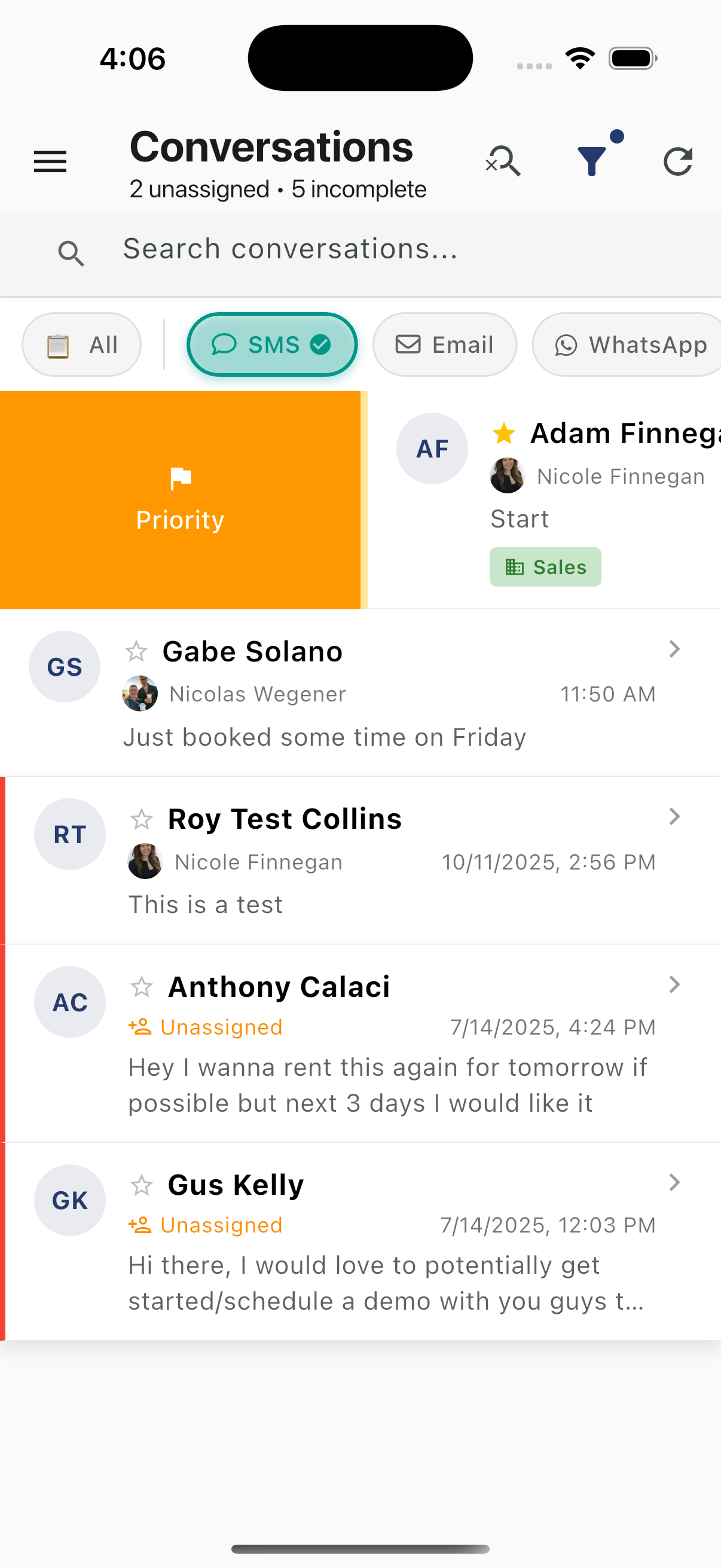
From conversation: Tap the three-dot menu and select Set Priority.
Priority levels:
- High Priority - Urgent matters, VIP guests, time-sensitive issues
- Normal - Standard conversations (default)
Priority Indicators
High-priority conversations display:
- Star icon next to the contact name
- Appear prominently when filtering by priority
When to Set High Priority
- VIP or repeat guests
- Time-sensitive booking issues
- Complaints requiring immediate resolution
- Check-in/check-out day communications
- Payment or security concerns
Quick Actions from the List
For fast workflow management, use swipe gestures on the conversation list:
| Swipe | Action | Color | Use For |
|---|---|---|---|
| Right | Priority | Orange | Flag as urgent |
| Left | Assign | Blue | Route to team member |
| Left | Complete | Green | Mark issue resolved |
Workflow Best Practices
- Claim conversations - Assign to yourself when you start helping
- Complete promptly - Mark complete when resolved, don't leave hanging
- Use priority sparingly - If everything is high priority, nothing is
- Close when done - Archive fully finished conversations
- Check unassigned regularly - Don't let guests wait without an owner