Tasks View
The Tasks view shows all tasks associated with a contact, helping you track follow-ups and action items.
Accessing Tasks
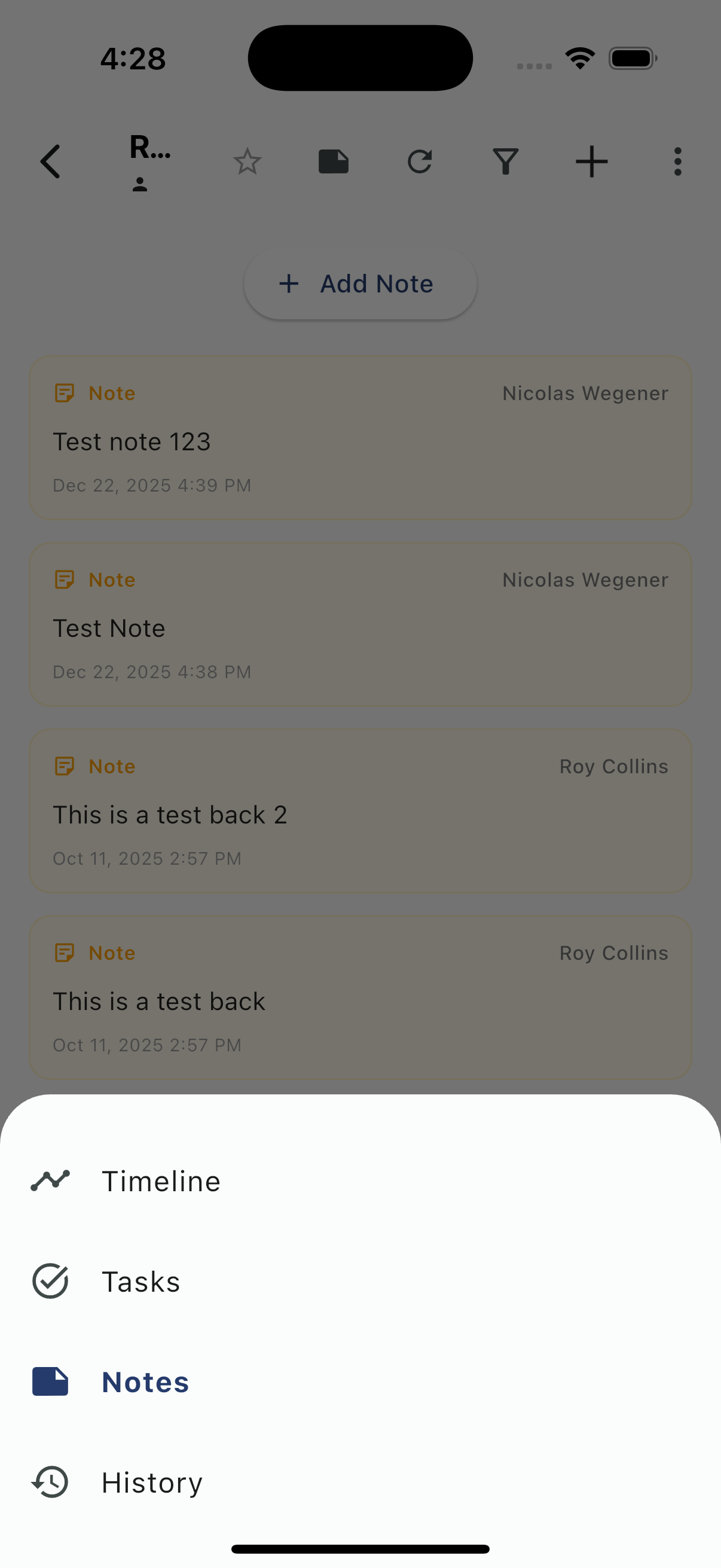
Tap the view selector icon in the toolbar and select Tasks:
Tasks Overview
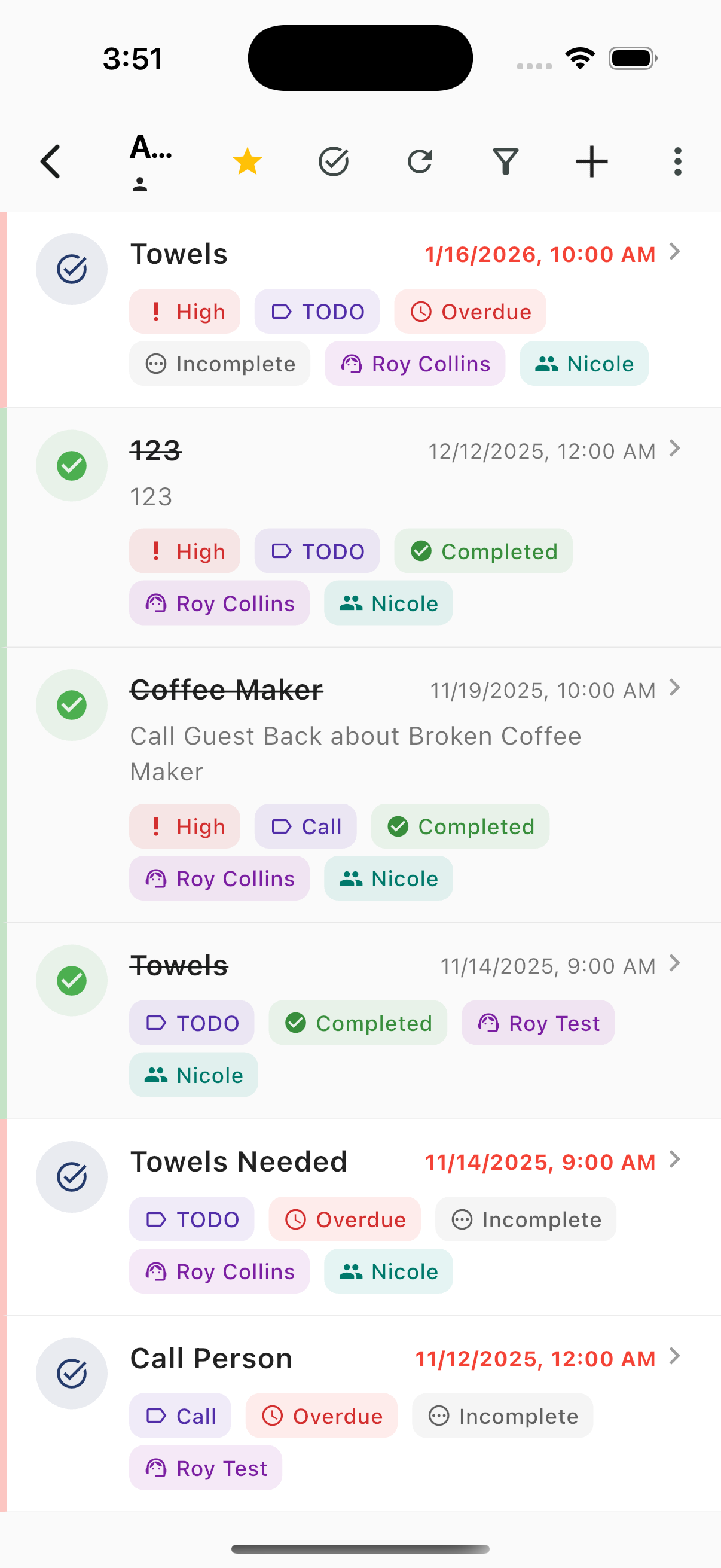
Task Cards
Each task displays:
- Checkbox - Completion status (green check = completed)
- Task title - Name of the task
- Description - Additional details (if any)
- Due date - When the task is due (red = overdue)
Task Tags
Tasks include color-coded tags for quick identification:
| Tag | Color | Description |
|---|---|---|
| High | Red | High priority task |
| TODO | Gray | Task type indicator |
| Call | Gray | Call-type task |
| Completed | Green | Task is done |
| Overdue | Orange | Past due date |
| Incomplete | Gray | Not yet finished |
| Assignee | Teal | Who the task is assigned to |
| Contact | Blue | Related contact |
Task Actions
- Tap a task - View full task details
- Tap the checkbox - Mark complete/incomplete
- + button - Create a new task for this contact
Task Detail Card
Tapping a task opens the full detail view showing status, due date, priority, assignment, and followers:
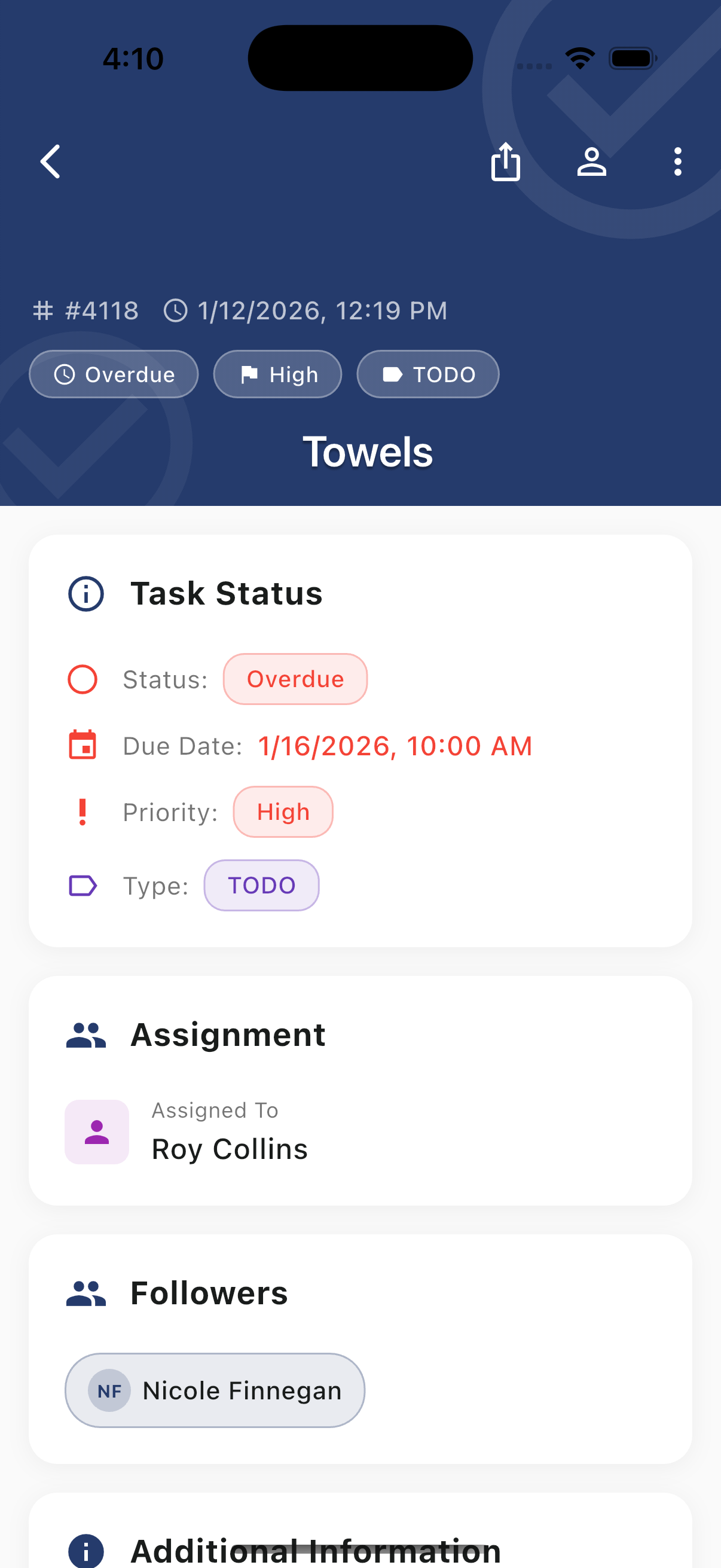
See Tasks Overview for full details on the task card.
Creating Tasks
Tap the + button to create a new task:
- Enter the task title
- Add description (optional)
- Set due date
- Assign to a team member
- Set priority level
- Save
Tasks created here are automatically linked to the contact.