Timeline View
The Timeline view shows a unified chronological view of all communications and notes for a contact.
Accessing Timeline
Tap the view selector icon in the toolbar to open the view sheet, then select Timeline:
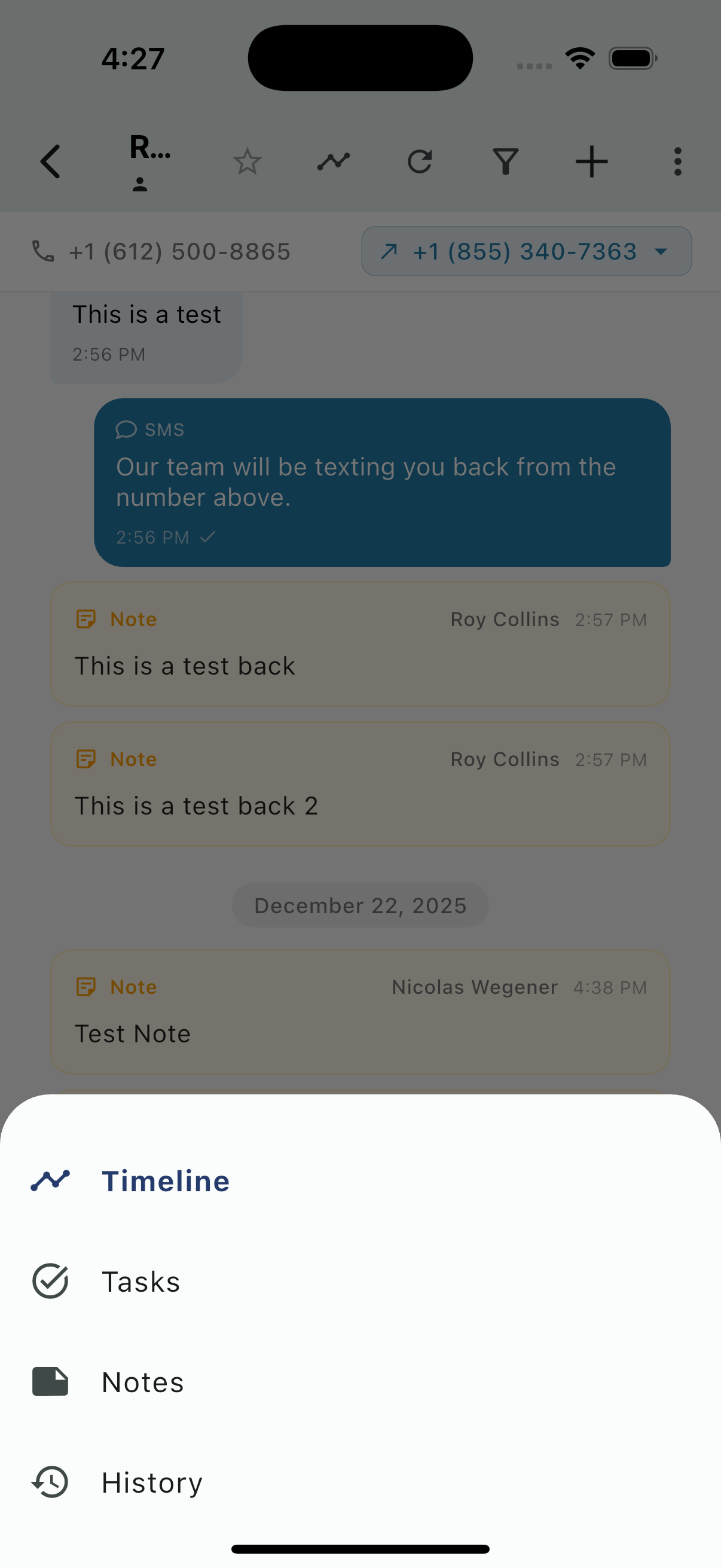
The view sheet also provides access to Tasks, Notes, and History.
Timeline Overview
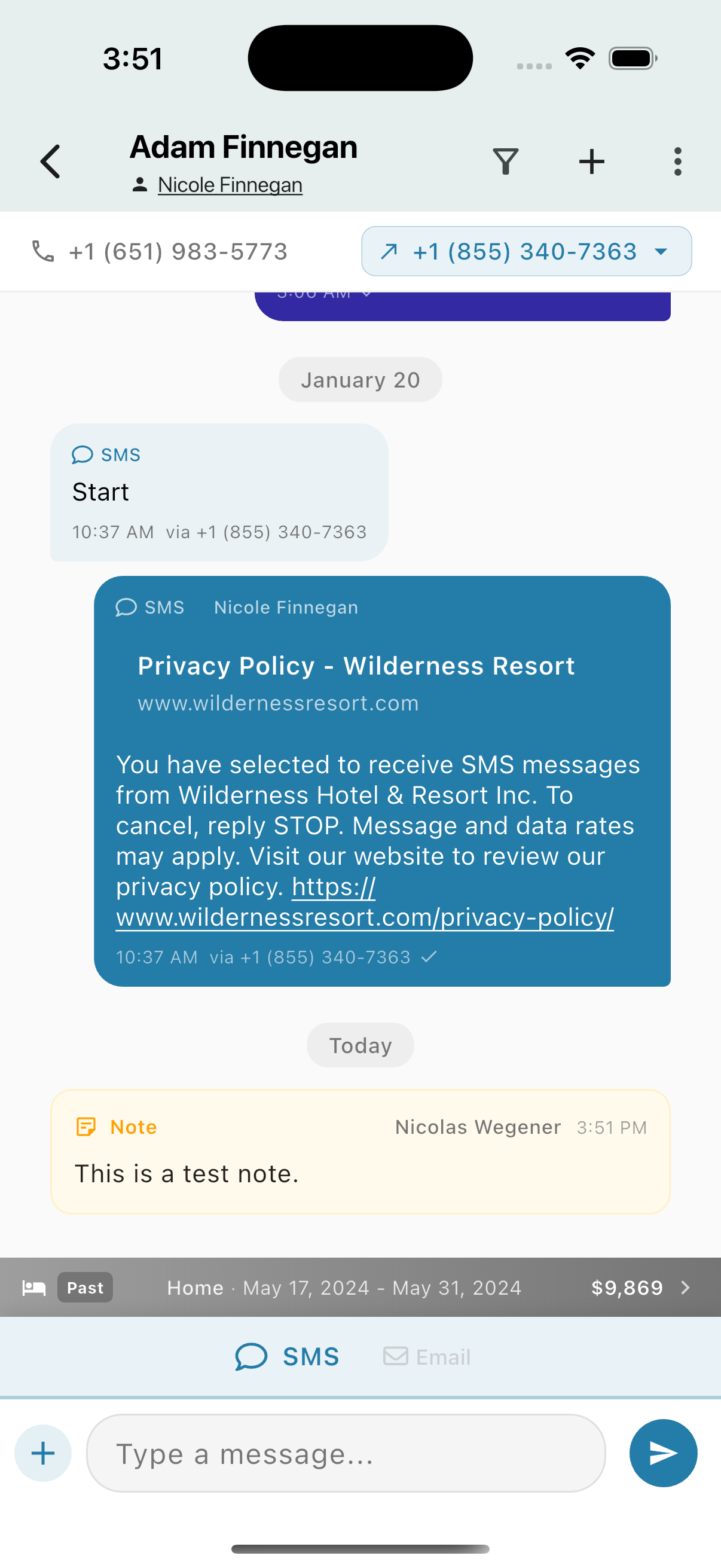
The Timeline displays:
- Messages - All SMS, Email, WhatsApp, and Airbnb messages
- Notes - Internal notes appear as yellow cards inline with messages
- Date separators - Messages grouped by date
- Reservation bar - Quick access to reservation details at the bottom
Notes in Timeline
Notes appear as distinct yellow cards showing:
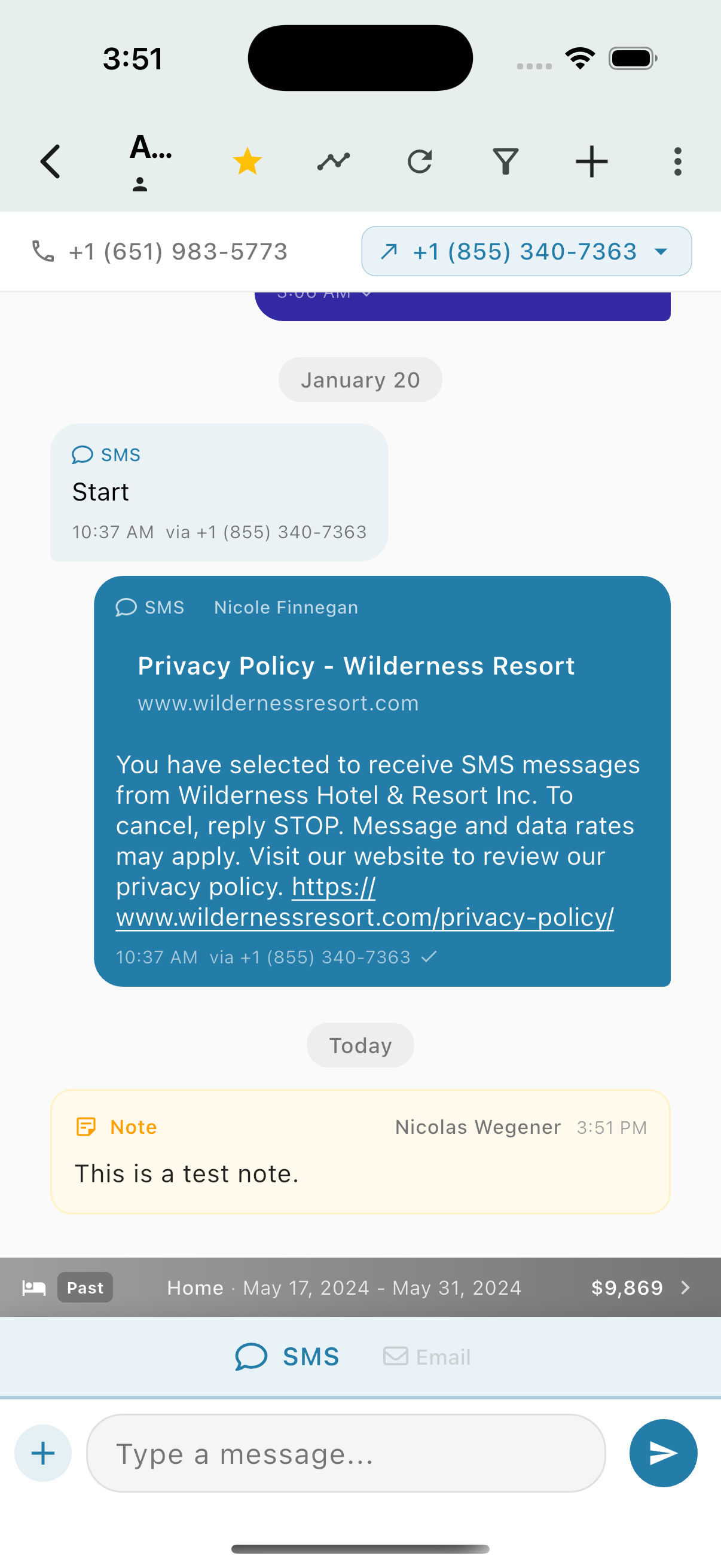
- Note label (pink) - Identifies it as a note
- Author name - Who created the note
- Timestamp - When the note was added
- Note content - The note text
Notes are visible to your team only and are never sent to the guest.
Timeline Toolbar
The expanded toolbar provides quick actions:
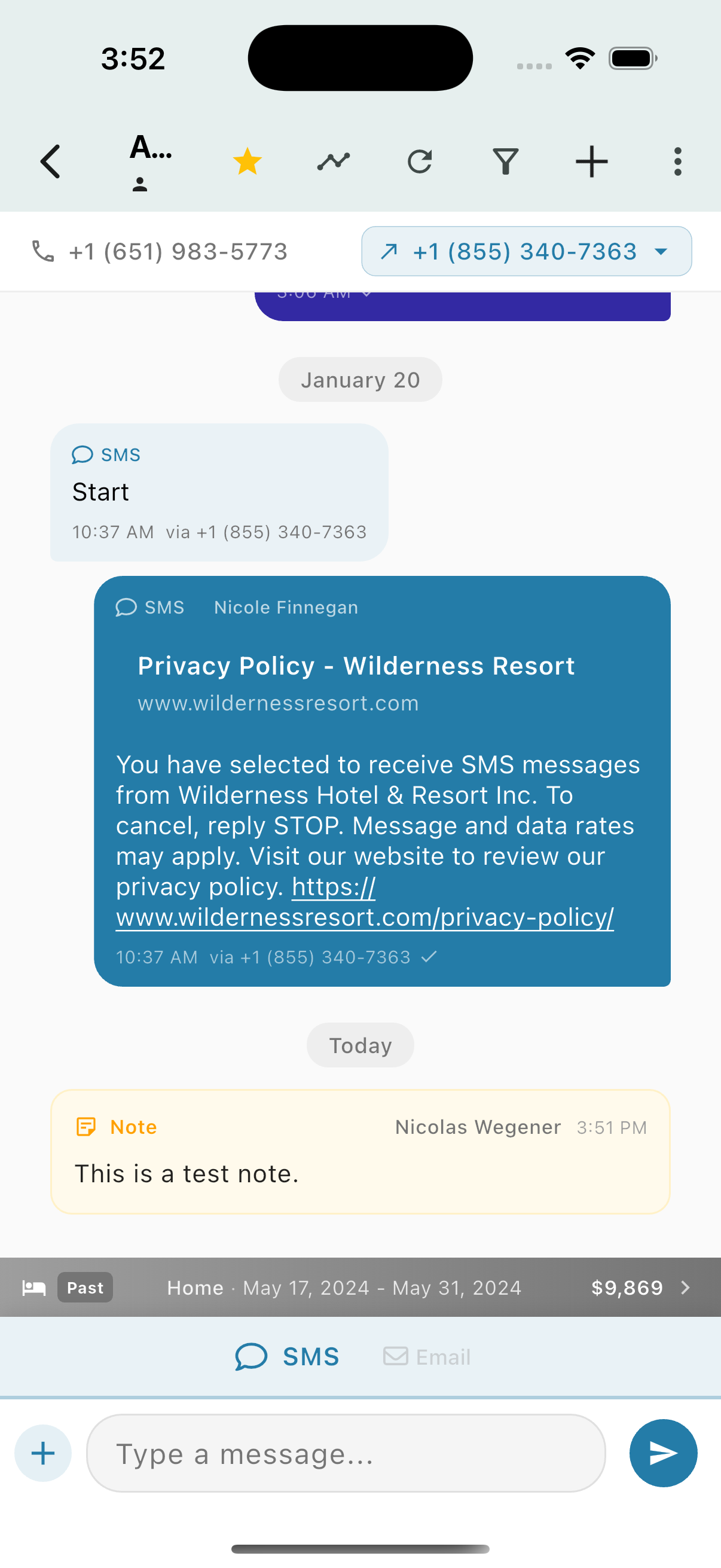
| Icon | Action |
|---|---|
| Star | Favorite/flag this contact |
| Chart | View analytics/insights |
| Refresh | Reload the conversation |
| Filter | Filter messages |
| Plus | Add new item (message, note, task) |
| Menu | More options |
Channel Selector
When composing a message, tap the + button to select which channel to use:
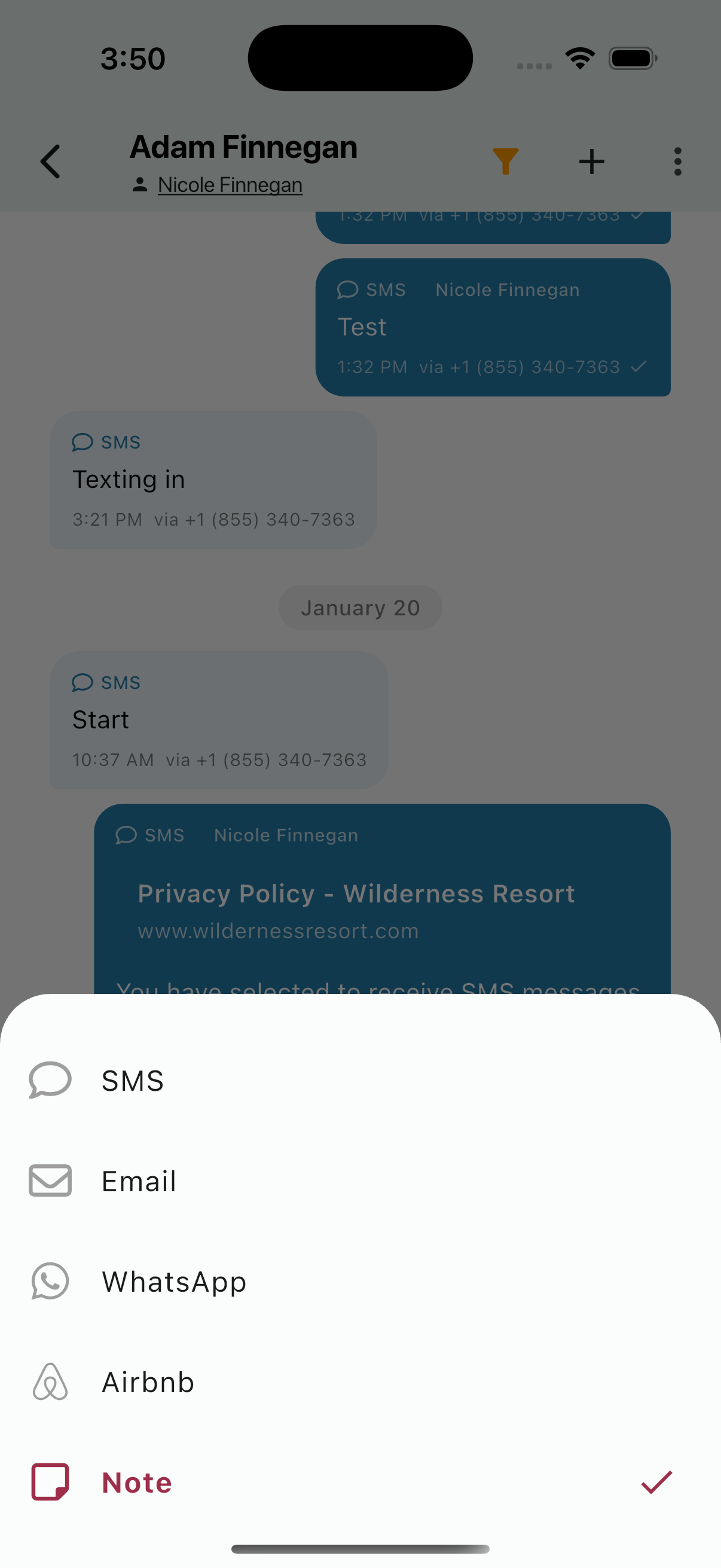
Available channels:
- SMS - Text message
- Email - Email message
- WhatsApp - WhatsApp message (if configured)
- Airbnb - Airbnb message (for Airbnb guests)
- Note - Internal note (not sent to contact)
The currently selected channel shows a checkmark.